# Give teammates access
> Add teammates to your Erlin account, choose whether each is a Viewer or an Editor, and remove them when they leave.
 The Team section lists everyone on your account and lets you add people as Viewers or Editors. Only the account owner sees it. Open **Settings > Team**.
Teammates work in your account, on your brands, with their own sign-in. Each has one role:
| Role | What they can do |
| --- | --- |
| **Viewer** | Sees every brand, report and lead. Cannot change anything. |
| **Editor** | Also changes prompts, content and settings, and can run checks and generate content. |
Neither role can manage the team, billing or the Danger zone: those stay with you as the owner. You always appear in the table as **Owner**, tagged **You**, and your role cannot be changed.
## Add a teammate
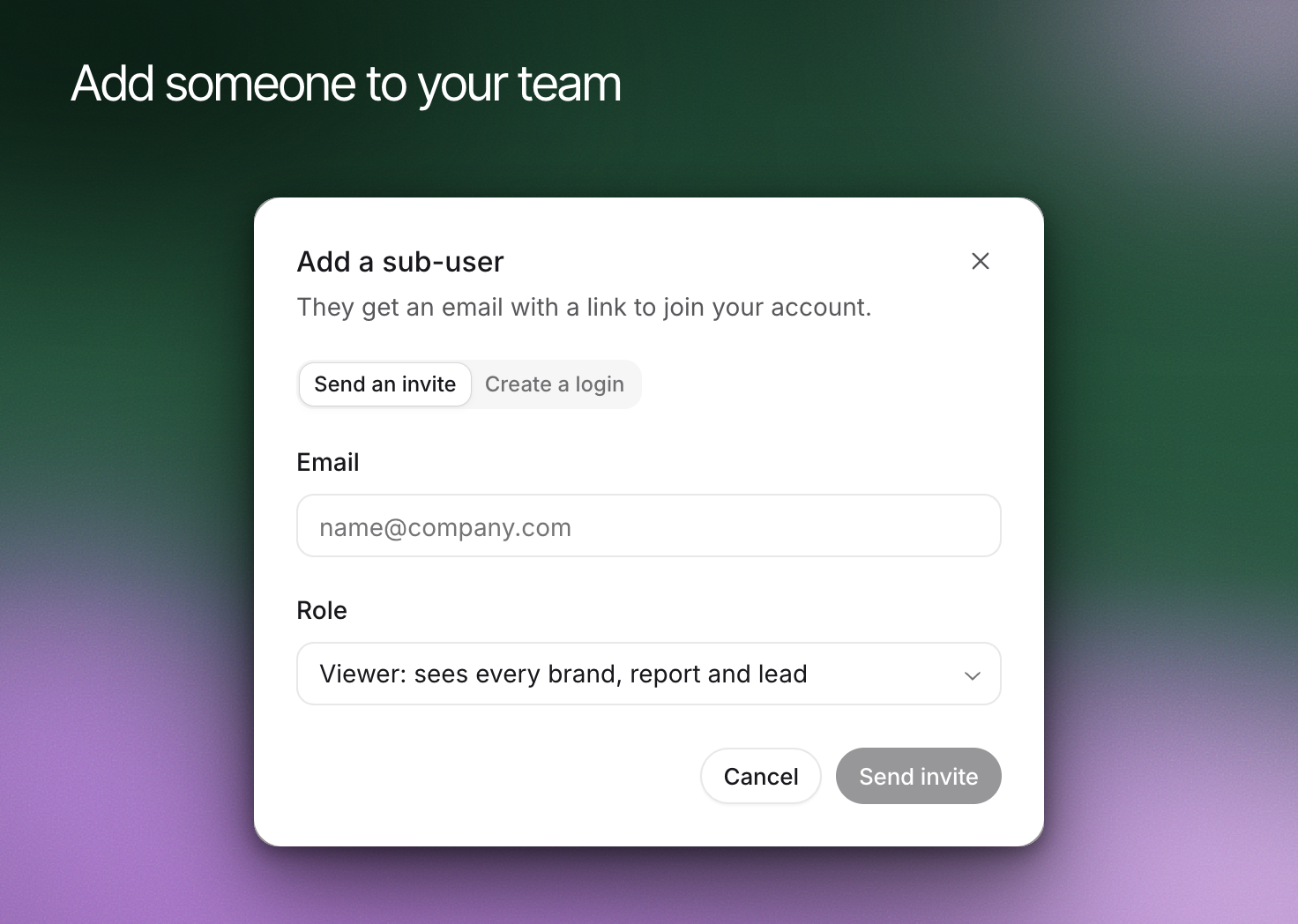
Click **Add sub-user** at the top right of the table. Under **How to add them**, pick **Send an invite** or **Create a login**:
- **Send an invite** emails them a link to join your account. They set up their own password.
- **Create a login** makes the account now. You set their email and a password, and no email is sent. Passwords need at least 8 characters, with a capital letter, a lowercase letter, a number and one of ! @ # $ % ^ & *.
Type their **Email**, choose **Viewer** or **Editor** under **Role**, then click **Send invite** or **Create login**. With **Create a login**, Erlin shows the email, password and sign-in link once: copy them and send them securely, because Erlin does not show the password again.
If the email already belongs to an Erlin account, Erlin adds that person to your team instead, and they sign in with their own password. For **Create a login** on an email that already has an account, Erlin asks you to send an invite instead.
## Review current access
The table shows each person's name, email, role and last activity. Pending invites are tagged **Invited**.
- **Change a role**: use the dropdown in the **Role** column. It takes effect immediately.
- **Resend invite** or **Revoke invite**: open the row menu on a pending invite.
- **Remove sub-user**: open the row menu on an active teammate. They lose access straight away.
Teammates see Settings without the Team and Danger zone sections, and their Billing section reads "Managed by your account owner". If a teammate needs a change, the account owner makes it.
## Check the result
Have the teammate sign in with their own account and confirm they see the brands and work they need. Do not share another person's password to work around an invitation problem: resend the invite instead.
The **Sub-users** meter shows how many seats you have used and how many are left. Free, Starter and Standard include 10 team members, Pro 50, and Enterprise is unlimited. When every seat is taken, **Add sub-user** is disabled until you remove someone or upgrade. See [Plans and billing](https://www.erlin.ai/docs/settings/plans-and-billing).
The Team section lists everyone on your account and lets you add people as Viewers or Editors. Only the account owner sees it. Open **Settings > Team**.
Teammates work in your account, on your brands, with their own sign-in. Each has one role:
| Role | What they can do |
| --- | --- |
| **Viewer** | Sees every brand, report and lead. Cannot change anything. |
| **Editor** | Also changes prompts, content and settings, and can run checks and generate content. |
Neither role can manage the team, billing or the Danger zone: those stay with you as the owner. You always appear in the table as **Owner**, tagged **You**, and your role cannot be changed.
## Add a teammate
Click **Add sub-user** at the top right of the table. Under **How to add them**, pick **Send an invite** or **Create a login**:
- **Send an invite** emails them a link to join your account. They set up their own password.
- **Create a login** makes the account now. You set their email and a password, and no email is sent. Passwords need at least 8 characters, with a capital letter, a lowercase letter, a number and one of ! @ # $ % ^ & *.
Type their **Email**, choose **Viewer** or **Editor** under **Role**, then click **Send invite** or **Create login**. With **Create a login**, Erlin shows the email, password and sign-in link once: copy them and send them securely, because Erlin does not show the password again.
If the email already belongs to an Erlin account, Erlin adds that person to your team instead, and they sign in with their own password. For **Create a login** on an email that already has an account, Erlin asks you to send an invite instead.
## Review current access
The table shows each person's name, email, role and last activity. Pending invites are tagged **Invited**.
- **Change a role**: use the dropdown in the **Role** column. It takes effect immediately.
- **Resend invite** or **Revoke invite**: open the row menu on a pending invite.
- **Remove sub-user**: open the row menu on an active teammate. They lose access straight away.
Teammates see Settings without the Team and Danger zone sections, and their Billing section reads "Managed by your account owner". If a teammate needs a change, the account owner makes it.
## Check the result
Have the teammate sign in with their own account and confirm they see the brands and work they need. Do not share another person's password to work around an invitation problem: resend the invite instead.
The **Sub-users** meter shows how many seats you have used and how many are left. Free, Starter and Standard include 10 team members, Pro 50, and Enterprise is unlimited. When every seat is taken, **Add sub-user** is disabled until you remove someone or upgrade. See [Plans and billing](https://www.erlin.ai/docs/settings/plans-and-billing).