# Review your plan and billing
> Erlin has five plans, Free, Starter, Standard, Pro and Enterprise, and the Billing section shows your plan, usage, invoices and credit history.
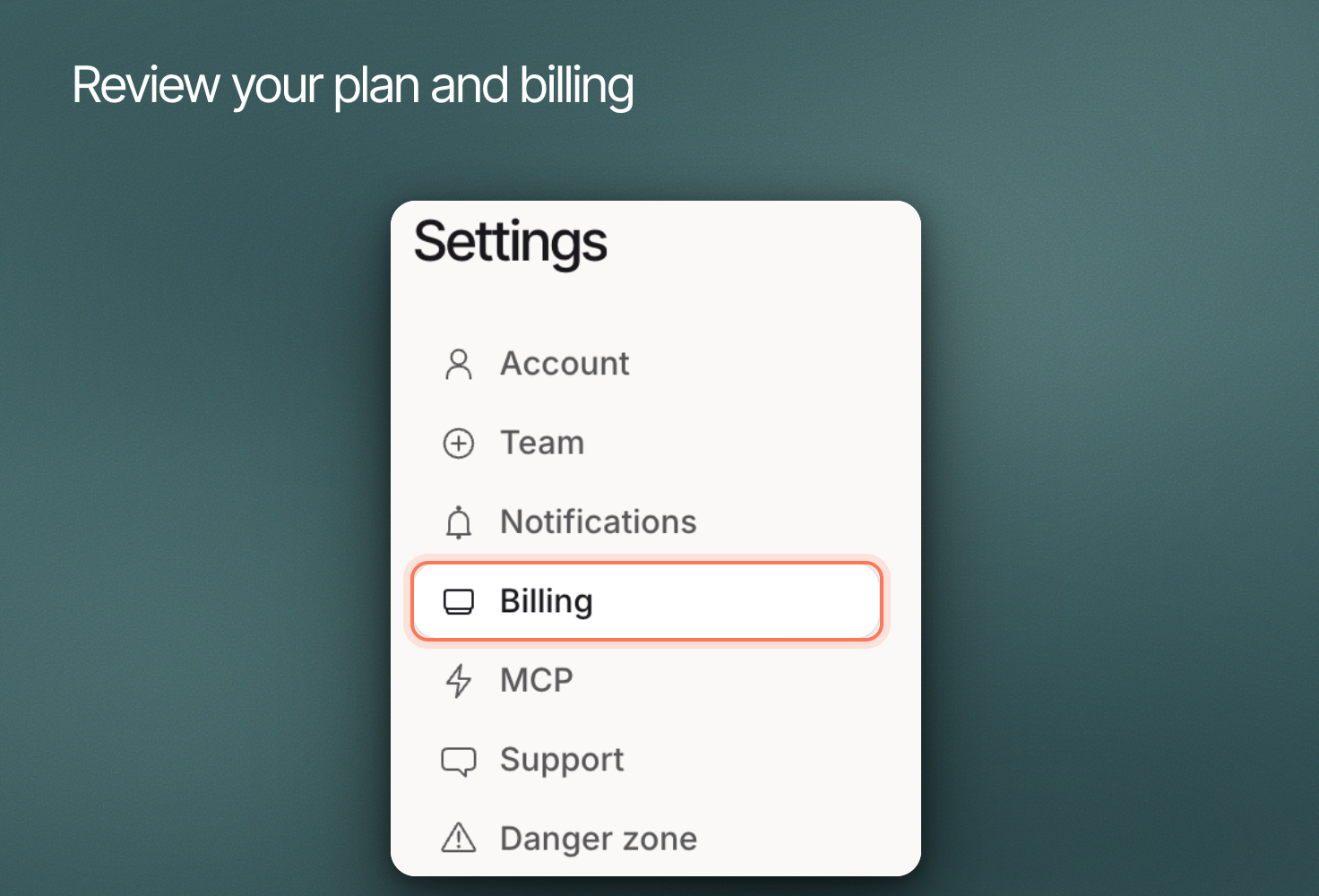 Erlin has five plans: Free, Starter, Standard, Pro and Enterprise. **Settings > Billing** shows which one you are on, how much of it you have used, your invoices and your credit history.
| | Free | Starter | Standard | Pro | Enterprise |
| --- | --- | --- | --- | --- | --- |
| AI platforms | ChatGPT, Gemini | ChatGPT, Perplexity | ChatGPT, Perplexity, Gemini | All six | All six |
| Credits a month | 20 | 2,350 | 9,850 | 17,350 | 50,000 |
| Websites (brands) | 1 | 1 | 3 | 5 | Unlimited |
| Team members | 10 | 10 | 10 | 50 | Unlimited |
| Keyword analysis | 50 | 500 | Not included | 2,500 | Unlimited |
| MCP access | No | No | Yes | Yes | Yes |
All six platforms are ChatGPT, Perplexity, Gemini, Claude, Google AI Overview and Google AI Mode. [Credits](https://www.erlin.ai/docs/settings/credits) explains what each action costs.
Starter, Standard and Pro offer a 7-day trial: click **Start 7-Day Trial** on a plan card on the pricing page, or **Buy Subscription** to start the plan straight away. Enterprise is set up by the Erlin team: click **Book a Call** on its pricing card, or email help@erlin.ai.
## Review the current plan
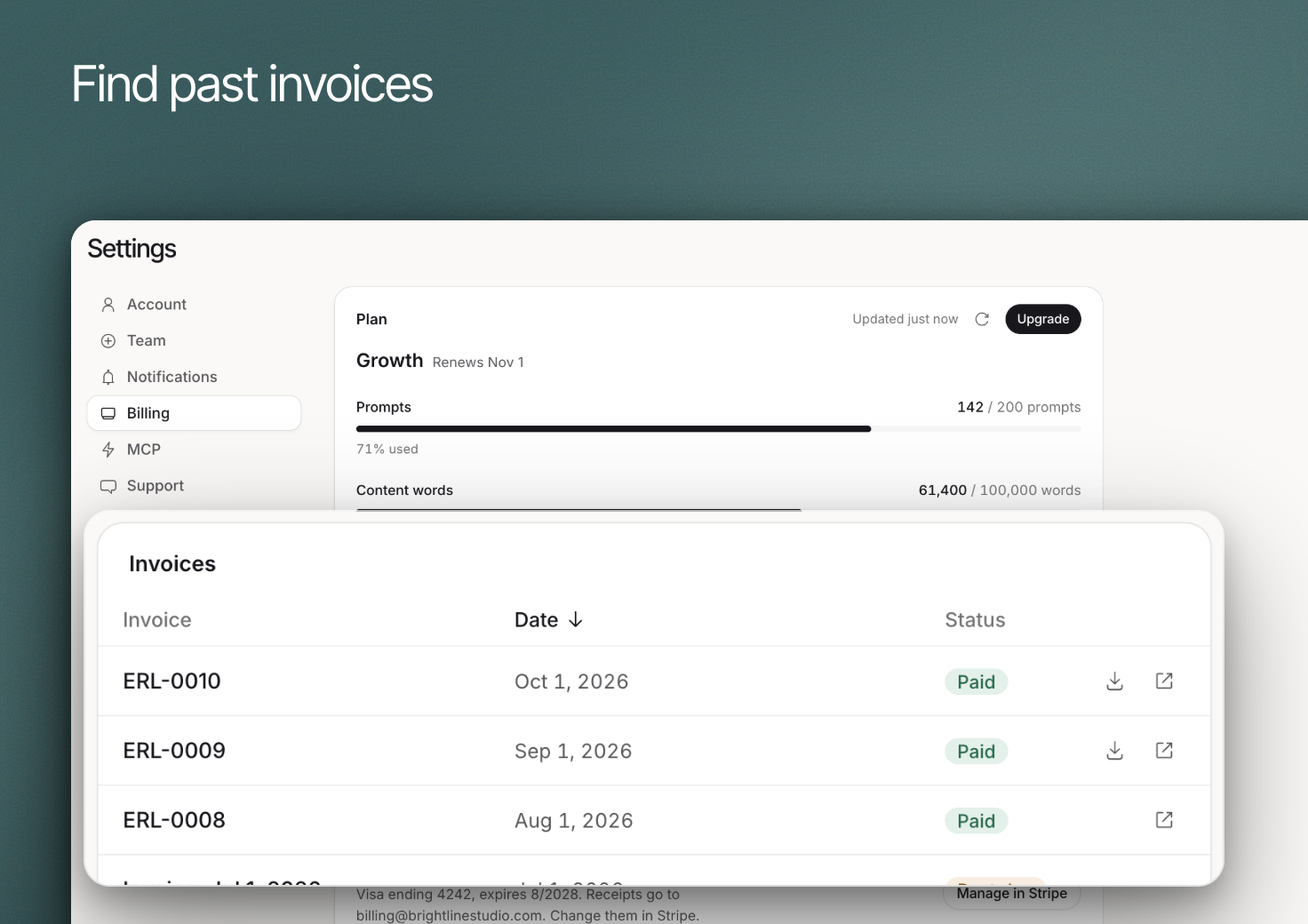
The plan card shows your plan name and one meter for each limit your plan sets, such as Websites and Keyword lookups. Limits your plan does not cap, such as Prompts and Content words, are listed underneath after "No limit on your plan". The **Credits** meter shows credits used against your allowance, with a caption such as "1,240 left".
Use the **Refresh plan and credits** button if you have just made a change and the card has not updated. If the plan fails to load, Erlin says so with a retry button: it never shows a failed load as an empty plan. Teammates see the plan card with "Managed by your account owner".
To change plans, click **Upgrade** on the plan card. Erlin opens the pricing page, where the **Plans** tab shows every plan with a Monthly or Yearly billing switch.
## Review payment details
Under **Payment**, **Payment method and plan** has a **Manage in Stripe** button. It opens the Stripe customer portal, where you change your card, plan or billing details, or cancel. When Stripe has a card on file, Erlin shows its brand, last four digits and expiry, and the email that receives receipts.
Enterprise accounts see "Your plan is billed by invoice" with a **Contact us** button. Accounts with no paid plan see **See plans**.
## Find invoices and usage
The **Invoices** table lists each payment with its invoice number, date, amount and status (Paid, or Due). Use the icons on a row to open the invoice or download its PDF. Before your first payment it reads "No invoices yet".
**Credit history** lists every change to your credit balance: date, what it was for, type (Used, Refund, Assigned, Granted or Bought), credits added or spent, and the balance after. **OpenRouter key usage** lists the calls paid through your own OpenRouter key, on plans that include bring your own key.
Erlin has five plans: Free, Starter, Standard, Pro and Enterprise. **Settings > Billing** shows which one you are on, how much of it you have used, your invoices and your credit history.
| | Free | Starter | Standard | Pro | Enterprise |
| --- | --- | --- | --- | --- | --- |
| AI platforms | ChatGPT, Gemini | ChatGPT, Perplexity | ChatGPT, Perplexity, Gemini | All six | All six |
| Credits a month | 20 | 2,350 | 9,850 | 17,350 | 50,000 |
| Websites (brands) | 1 | 1 | 3 | 5 | Unlimited |
| Team members | 10 | 10 | 10 | 50 | Unlimited |
| Keyword analysis | 50 | 500 | Not included | 2,500 | Unlimited |
| MCP access | No | No | Yes | Yes | Yes |
All six platforms are ChatGPT, Perplexity, Gemini, Claude, Google AI Overview and Google AI Mode. [Credits](https://www.erlin.ai/docs/settings/credits) explains what each action costs.
Starter, Standard and Pro offer a 7-day trial: click **Start 7-Day Trial** on a plan card on the pricing page, or **Buy Subscription** to start the plan straight away. Enterprise is set up by the Erlin team: click **Book a Call** on its pricing card, or email help@erlin.ai.
## Review the current plan
The plan card shows your plan name and one meter for each limit your plan sets, such as Websites and Keyword lookups. Limits your plan does not cap, such as Prompts and Content words, are listed underneath after "No limit on your plan". The **Credits** meter shows credits used against your allowance, with a caption such as "1,240 left".
Use the **Refresh plan and credits** button if you have just made a change and the card has not updated. If the plan fails to load, Erlin says so with a retry button: it never shows a failed load as an empty plan. Teammates see the plan card with "Managed by your account owner".
To change plans, click **Upgrade** on the plan card. Erlin opens the pricing page, where the **Plans** tab shows every plan with a Monthly or Yearly billing switch.
## Review payment details
Under **Payment**, **Payment method and plan** has a **Manage in Stripe** button. It opens the Stripe customer portal, where you change your card, plan or billing details, or cancel. When Stripe has a card on file, Erlin shows its brand, last four digits and expiry, and the email that receives receipts.
Enterprise accounts see "Your plan is billed by invoice" with a **Contact us** button. Accounts with no paid plan see **See plans**.
## Find invoices and usage
The **Invoices** table lists each payment with its invoice number, date, amount and status (Paid, or Due). Use the icons on a row to open the invoice or download its PDF. Before your first payment it reads "No invoices yet".
**Credit history** lists every change to your credit balance: date, what it was for, type (Used, Refund, Assigned, Granted or Bought), credits added or spent, and the balance after. **OpenRouter key usage** lists the calls paid through your own OpenRouter key, on plans that include bring your own key.
 ## Credit top-ups
Top-ups add credits on top of your plan, and they never expire. On the pricing page, open the **Add-ons** tab and click **Buy Credits** on a pack. The tab needs an active paid plan: without one you cannot open it. Erlin spends your plan credits first, then your top-up credits.
| Pack | Credits |
| --- | --- |
| Starter Top-Up | 500 |
| Growth Top-Up | 2,000 |
| Pro Top-Up | 5,000 |
| Agency Top-Up | 15,000 |
## Investigate a discrepancy
Note the action, time and billing record. Contact [Support](https://www.erlin.ai/docs/settings/support) if the account does not match a completed payment. Refresh the plan card before buying again: a page that has not refreshed is not a failed purchase.
## Credit top-ups
Top-ups add credits on top of your plan, and they never expire. On the pricing page, open the **Add-ons** tab and click **Buy Credits** on a pack. The tab needs an active paid plan: without one you cannot open it. Erlin spends your plan credits first, then your top-up credits.
| Pack | Credits |
| --- | --- |
| Starter Top-Up | 500 |
| Growth Top-Up | 2,000 |
| Pro Top-Up | 5,000 |
| Agency Top-Up | 15,000 |
## Investigate a discrepancy
Note the action, time and billing record. Contact [Support](https://www.erlin.ai/docs/settings/support) if the account does not match a completed payment. Refresh the plan card before buying again: a page that has not refreshed is not a failed purchase.