# Choose how Erlin notifies you
> Choose how Erlin reaches you by email, Slack and inside Erlin, and read every notification on the Notifications page.
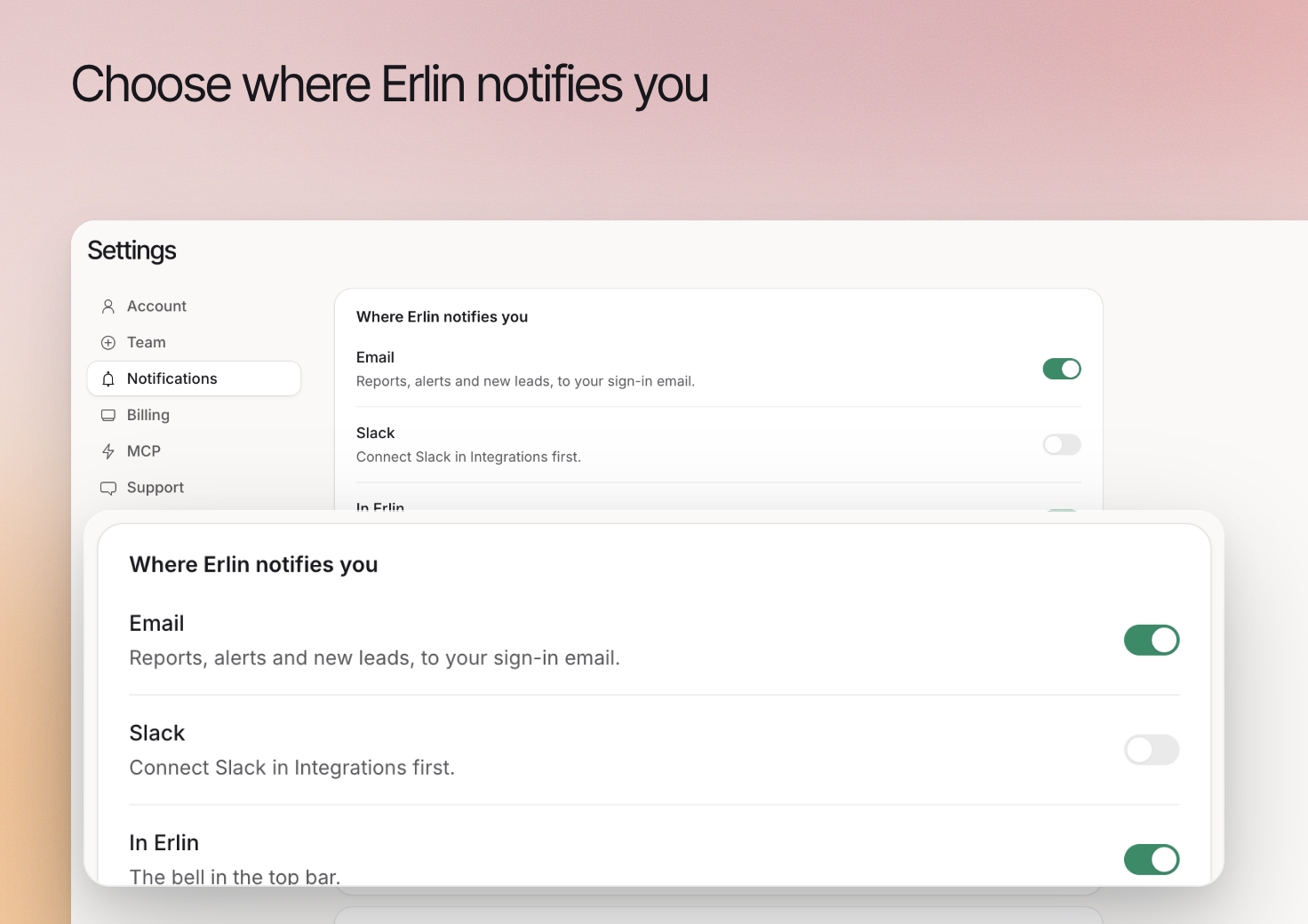 Erlin notifies you through three channels: Email, Slack and In Erlin. Turn each on or off in **Settings > Notifications**. With **In Erlin** on, each notification also lands in the feed at **Notifications**.
These settings cover messages to you and your team. They are separate from [email follow-up sent to leads](https://www.erlin.ai/docs/leads/email-follow-up).
## Review the channels
The **Where Erlin notifies you** card has one switch per channel. Each switch saves when you click it, and the channels work independently.
| Channel | What it sends |
| --- | --- |
| **Email** | Reports, alerts and new leads, to your sign-in email. |
| **Slack** | The same alerts, posted to your Slack workspace. |
| **In Erlin** | The bell in the top bar. |
A switch can be disabled for two reasons. The Slack switch reads "Connect Slack in Integrations first." until you connect the [Slack integration](https://www.erlin.ai/docs/integrations/slack). A channel that reads "Turned off by your admin." can only be turned back on by your admin.
## Choose the relevant email events
**What Erlin emails you about** has one switch for each kind of email:
- Site audit finished
- AI visibility report
- New opportunities
- Citation changes
- Competitor analysis finished
- Sitemap fetched
- Report ready
All are on by default. The **Email** channel switch overrides them: when it is off, these switches are disabled and read "Email is off above."
## Review Slack separately
The **Slack** card's **What posts to Slack** row links to the Slack integration, where you set what posts to Slack per event and which channel it goes to. Until Slack is connected, the row reads "Slack is not connected yet."
Erlin notifies you through three channels: Email, Slack and In Erlin. Turn each on or off in **Settings > Notifications**. With **In Erlin** on, each notification also lands in the feed at **Notifications**.
These settings cover messages to you and your team. They are separate from [email follow-up sent to leads](https://www.erlin.ai/docs/leads/email-follow-up).
## Review the channels
The **Where Erlin notifies you** card has one switch per channel. Each switch saves when you click it, and the channels work independently.
| Channel | What it sends |
| --- | --- |
| **Email** | Reports, alerts and new leads, to your sign-in email. |
| **Slack** | The same alerts, posted to your Slack workspace. |
| **In Erlin** | The bell in the top bar. |
A switch can be disabled for two reasons. The Slack switch reads "Connect Slack in Integrations first." until you connect the [Slack integration](https://www.erlin.ai/docs/integrations/slack). A channel that reads "Turned off by your admin." can only be turned back on by your admin.
## Choose the relevant email events
**What Erlin emails you about** has one switch for each kind of email:
- Site audit finished
- AI visibility report
- New opportunities
- Citation changes
- Competitor analysis finished
- Sitemap fetched
- Report ready
All are on by default. The **Email** channel switch overrides them: when it is off, these switches are disabled and read "Email is off above."
## Review Slack separately
The **Slack** card's **What posts to Slack** row links to the Slack integration, where you set what posts to Slack per event and which channel it goes to. Until Slack is connected, the row reads "Slack is not connected yet."
 ## Investigate an update that did not arrive
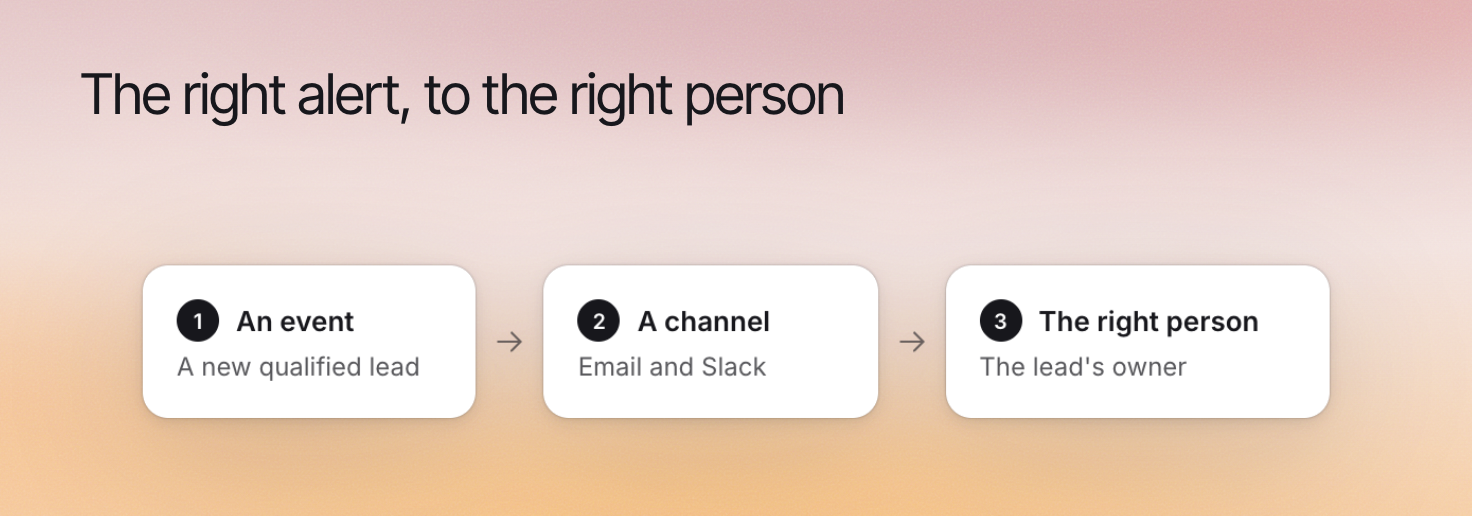
Check three things: that the event happened, that its switch and channel are on, and that the destination (your sign-in email or the Slack connection) is right. A channel turned off and an event turned off are different reasons for a missing notification.
Open **Notifications** to see everything Erlin sent, newest first, grouped as Today, Yesterday, This week and Earlier. Filter with **All**, **Visibility**, **Opportunities**, **Citations** and **Reports**, click a row to read it, and use **Mark all as read** or **Load more** as needed.
If the problem persists, tell [Support](https://www.erlin.ai/docs/settings/support) the event and approximate time. See [Account and workspace](https://www.erlin.ai/docs/settings/account-and-workspace) for your sign-in email.
## Investigate an update that did not arrive
Check three things: that the event happened, that its switch and channel are on, and that the destination (your sign-in email or the Slack connection) is right. A channel turned off and an event turned off are different reasons for a missing notification.
Open **Notifications** to see everything Erlin sent, newest first, grouped as Today, Yesterday, This week and Earlier. Filter with **All**, **Visibility**, **Opportunities**, **Citations** and **Reports**, click a row to read it, and use **Mark all as read** or **Load more** as needed.
If the problem persists, tell [Support](https://www.erlin.ai/docs/settings/support) the event and approximate time. See [Account and workspace](https://www.erlin.ai/docs/settings/account-and-workspace) for your sign-in email.