# Manage provider API keys
> On plans that include bring your own key, add your OpenRouter and search data keys so Erlin runs AI work on your accounts instead of spending credits.
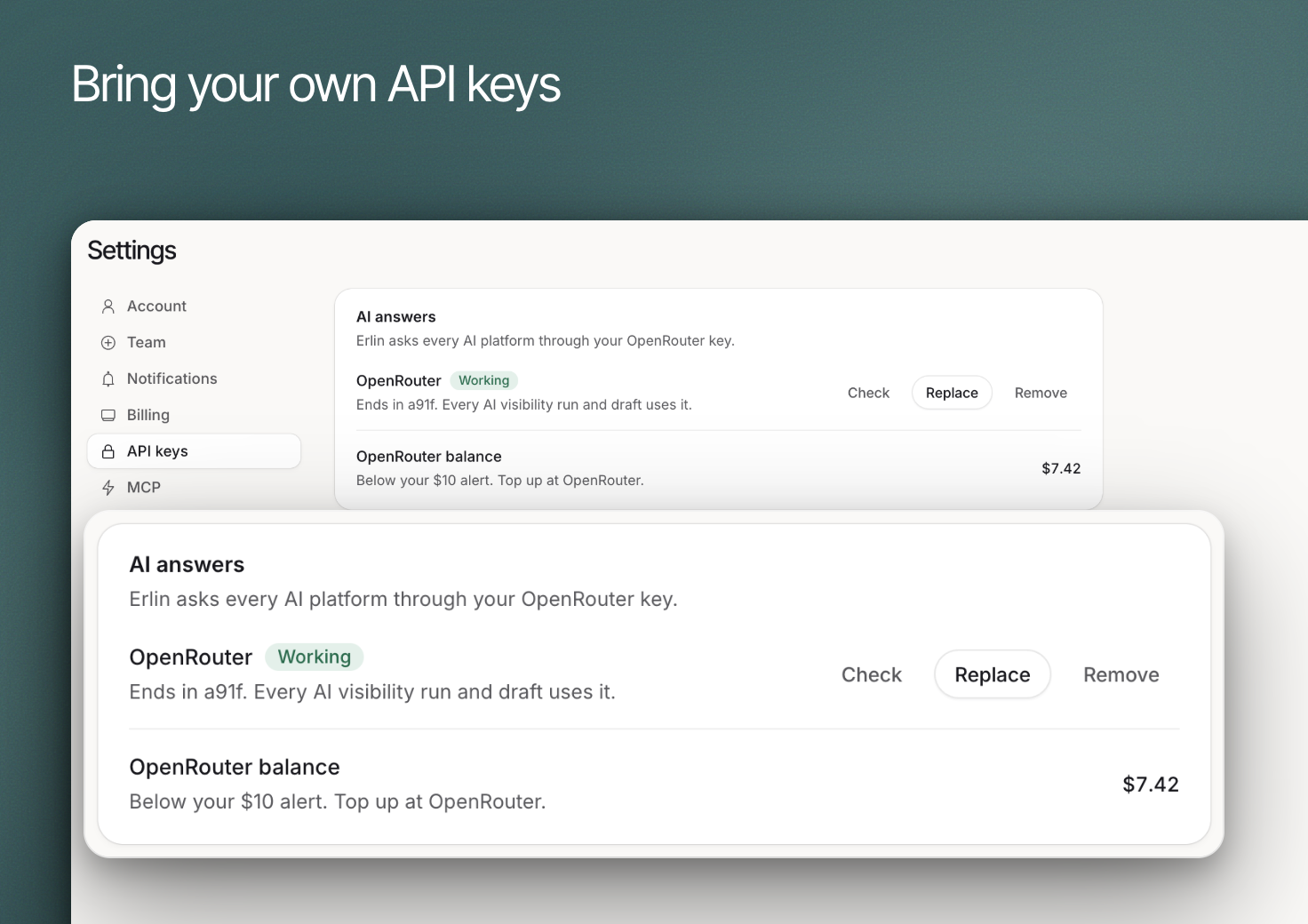 The **API keys** section lets you bring your own keys. Erlin then runs AI answers and search data through your accounts with OpenRouter, SerpApi or DataForSEO, and charges no credits for the work those keys cover.
The section appears in **Settings** only on plans that include bring your own key. Keys for [connecting Claude over MCP](https://www.erlin.ai/docs/mcp/connect) are separate and live in the **MCP** section. Teammates see the keys read-only: the account owner manages them.
## Choose the provider
| Section | Provider | What it powers |
| --- | --- | --- |
| **AI answers** | OpenRouter | Every AI visibility run and every content draft on ChatGPT, Perplexity, Gemini and Claude |
| **Search data** | SerpApi or DataForSEO | Search results for Google AI Overview and Google AI Mode, plus keyword data |
Use the **Provider** toggle in **Search data** to switch between **SerpApi** and **DataForSEO**. Erlin needs only one. Without a search data key, Google AI Overview and Google AI Mode still run, and they cost 2 credits per prompt. See [Credits](https://www.erlin.ai/docs/settings/credits).
## Add the credential
Click **Add key** on the provider's row. For OpenRouter and SerpApi, paste the **API key**. For DataForSEO, enter the **API login** and **API password** from the API access page of your DataForSEO dashboard: these are different from your DataForSEO sign-in. Then click **Save key**.
Erlin checks the key with the provider before saving it. It stores the key encrypted and afterwards shows only its last characters, as "Ends in ...".
## Maintain and replace a key
A tag next to the provider name shows how the key is doing.
| Status | Meaning |
| --- | --- |
| **Working** | The last check passed. |
| **Invalid** | The provider rejected the key. |
| **Needs attention** | The key did not work for another reason, such as the provider account needing payment. Check it at the provider. |
| **Not added** | You have not added a key for this provider. |
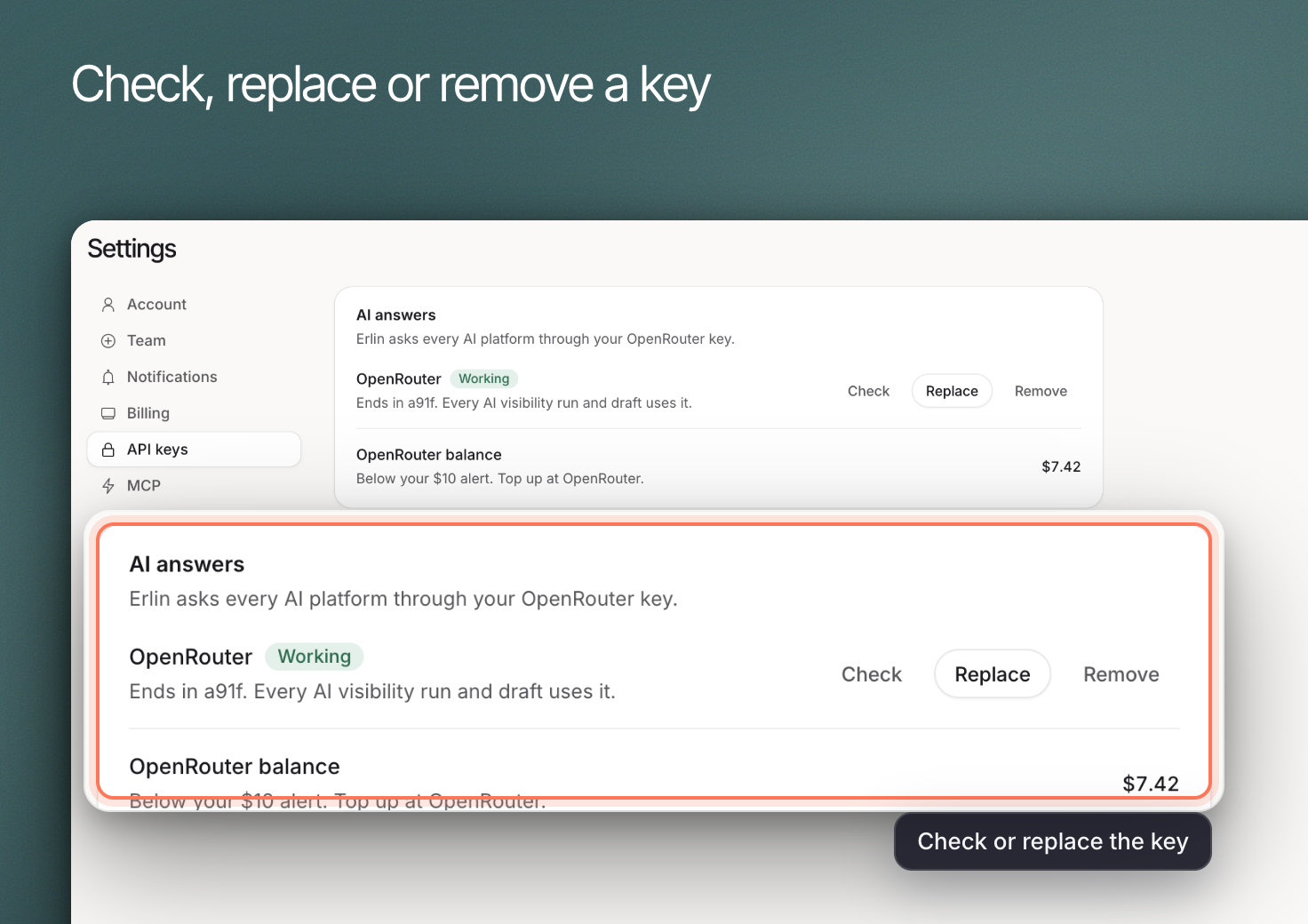
- **Check** re-tests the key with the provider. Use it after topping up or fixing a problem.
- **Replace** saves a new key over the old one.
- **Remove** asks you to confirm, then deletes the key. Erlin stops the runs that need that key until you add one again.
The **API keys** section lets you bring your own keys. Erlin then runs AI answers and search data through your accounts with OpenRouter, SerpApi or DataForSEO, and charges no credits for the work those keys cover.
The section appears in **Settings** only on plans that include bring your own key. Keys for [connecting Claude over MCP](https://www.erlin.ai/docs/mcp/connect) are separate and live in the **MCP** section. Teammates see the keys read-only: the account owner manages them.
## Choose the provider
| Section | Provider | What it powers |
| --- | --- | --- |
| **AI answers** | OpenRouter | Every AI visibility run and every content draft on ChatGPT, Perplexity, Gemini and Claude |
| **Search data** | SerpApi or DataForSEO | Search results for Google AI Overview and Google AI Mode, plus keyword data |
Use the **Provider** toggle in **Search data** to switch between **SerpApi** and **DataForSEO**. Erlin needs only one. Without a search data key, Google AI Overview and Google AI Mode still run, and they cost 2 credits per prompt. See [Credits](https://www.erlin.ai/docs/settings/credits).
## Add the credential
Click **Add key** on the provider's row. For OpenRouter and SerpApi, paste the **API key**. For DataForSEO, enter the **API login** and **API password** from the API access page of your DataForSEO dashboard: these are different from your DataForSEO sign-in. Then click **Save key**.
Erlin checks the key with the provider before saving it. It stores the key encrypted and afterwards shows only its last characters, as "Ends in ...".
## Maintain and replace a key
A tag next to the provider name shows how the key is doing.
| Status | Meaning |
| --- | --- |
| **Working** | The last check passed. |
| **Invalid** | The provider rejected the key. |
| **Needs attention** | The key did not work for another reason, such as the provider account needing payment. Check it at the provider. |
| **Not added** | You have not added a key for this provider. |
- **Check** re-tests the key with the provider. Use it after topping up or fixing a problem.
- **Replace** saves a new key over the old one.
- **Remove** asks you to confirm, then deletes the key. Erlin stops the runs that need that key until you add one again.
 ## Review usage separately
With an OpenRouter key saved, **OpenRouter balance** shows what is left in your OpenRouter account. When the balance drops below your alert level, it says the balance is below your alert and tells you to top up at OpenRouter. With SerpApi selected, **SerpApi searches left** shows the searches remaining and how many you used this month.
Every AI call paid through your OpenRouter key is listed in **Settings > Billing** under **OpenRouter key usage**, with its model, tokens and estimated cost. Those calls cost no credits, so they never appear in Credit history. See [Credits](https://www.erlin.ai/docs/settings/credits).
Keep keys out of support messages and shared documents.
## Review usage separately
With an OpenRouter key saved, **OpenRouter balance** shows what is left in your OpenRouter account. When the balance drops below your alert level, it says the balance is below your alert and tells you to top up at OpenRouter. With SerpApi selected, **SerpApi searches left** shows the searches remaining and how many you used this month.
Every AI call paid through your OpenRouter key is listed in **Settings > Billing** under **OpenRouter key usage**, with its model, tokens and estimated cost. Those calls cost no credits, so they never appear in Credit history. See [Credits](https://www.erlin.ai/docs/settings/credits).
Keep keys out of support messages and shared documents.