# Manage your account and workspace
> Settings is where you manage your profile, workspace name, time zone, logo, brands and the Danger zone.
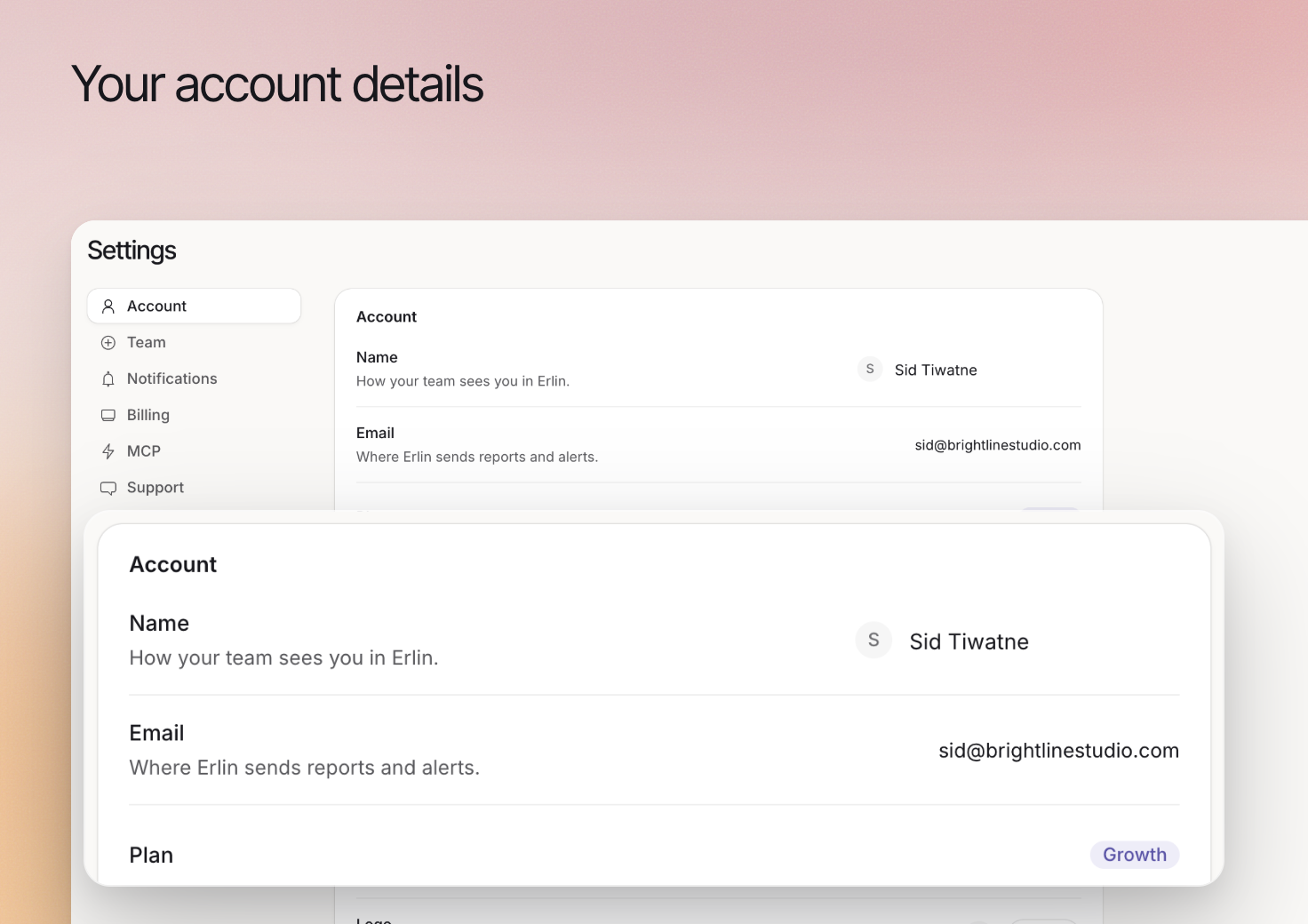 Settings holds everything about your account and workspace. Open **Settings** in the Workspace section of the sidebar. The sections run down the left: Account, Team, Notifications, Billing, API keys, MCP, Support and Danger zone. Which ones you see depends on your plan and role.
| Section | Who sees it |
| --- | --- |
| Account | Everyone |
| Team | The account owner only |
| Notifications | Everyone |
| Billing | Everyone. Teammates see it without the payment and invoice sections. |
| API keys | Plans that include bring your own key |
| MCP | The account owner. On a plan without MCP it shows locked, with **Upgrade**. |
| Support | Everyone |
| Danger zone | The account owner only |
Your account, workspace and brands serve different purposes. The account identifies you, the workspace holds your team's shared settings, and a brand is a website Erlin reads and tracks.
## Review your identity
The **Account** section is your profile. Click **Name** to edit it: this is how your team sees you in Erlin. **Email** is where Erlin sends reports and alerts, and it is read-only. The section also shows your **Plan**, **Member since** and **Last signed in**.
To change your password, use **Reset password** in the **Sign-in** card. Erlin sends a link to your email. Do not share sign-in details with teammates: add them in [Team](https://www.erlin.ai/docs/settings/team) so each person has their own sign-in.
## Review workspace details
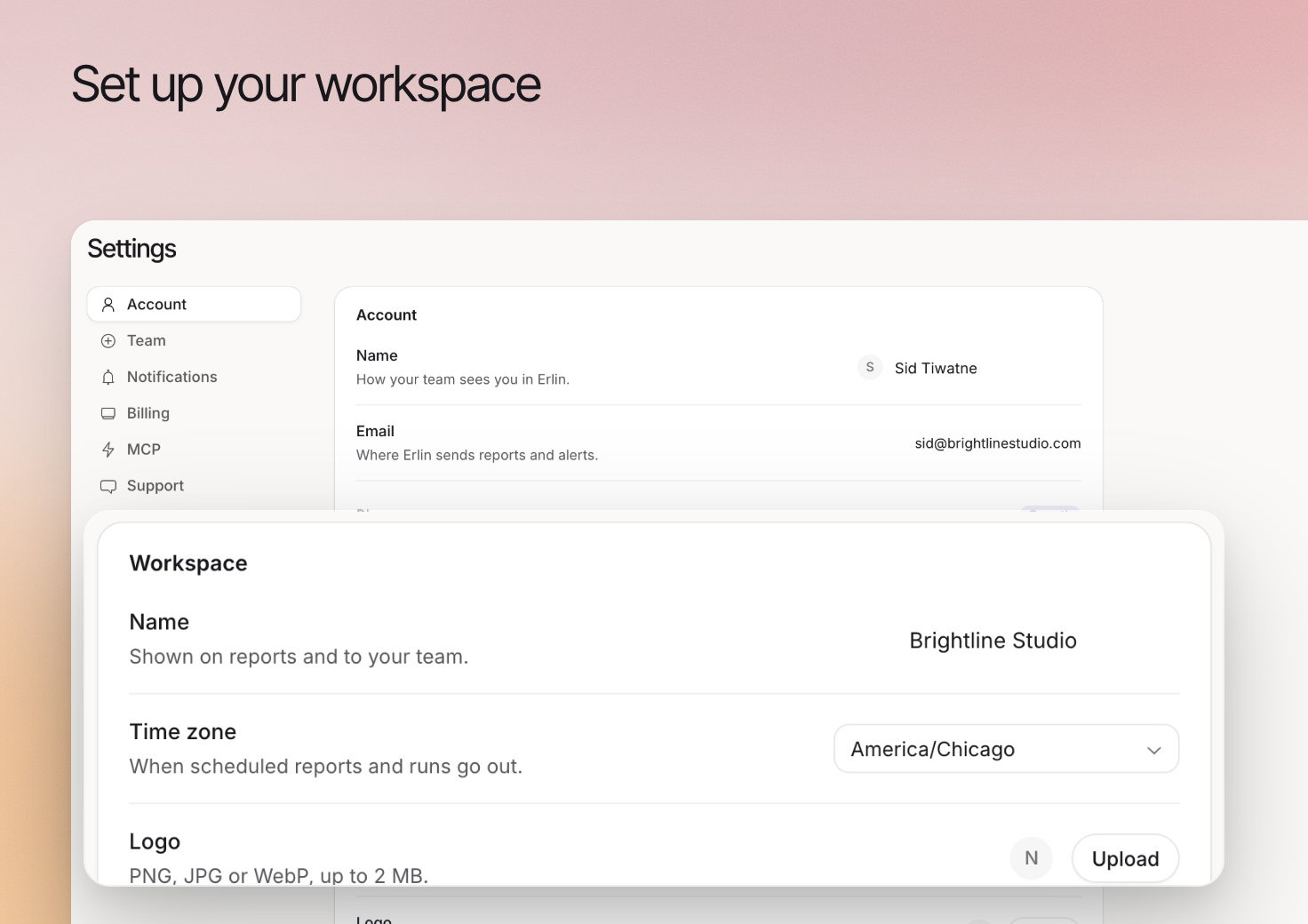
The **Workspace** card holds three settings the account owner controls:
- **Name**: shown on reports and to your team. Click it, type, and press Enter or click away to save.
- **Time zone**: when scheduled reports and runs go out. Pick any time zone from the list.
- **Logo**: PNG, JPG or WebP, up to 2 MB. Click **Upload**, or **Replace** if you already have one.
Each change saves as soon as you make it. Teammates (Viewers and Editors) see the workspace read-only.
Settings holds everything about your account and workspace. Open **Settings** in the Workspace section of the sidebar. The sections run down the left: Account, Team, Notifications, Billing, API keys, MCP, Support and Danger zone. Which ones you see depends on your plan and role.
| Section | Who sees it |
| --- | --- |
| Account | Everyone |
| Team | The account owner only |
| Notifications | Everyone |
| Billing | Everyone. Teammates see it without the payment and invoice sections. |
| API keys | Plans that include bring your own key |
| MCP | The account owner. On a plan without MCP it shows locked, with **Upgrade**. |
| Support | Everyone |
| Danger zone | The account owner only |
Your account, workspace and brands serve different purposes. The account identifies you, the workspace holds your team's shared settings, and a brand is a website Erlin reads and tracks.
## Review your identity
The **Account** section is your profile. Click **Name** to edit it: this is how your team sees you in Erlin. **Email** is where Erlin sends reports and alerts, and it is read-only. The section also shows your **Plan**, **Member since** and **Last signed in**.
To change your password, use **Reset password** in the **Sign-in** card. Erlin sends a link to your email. Do not share sign-in details with teammates: add them in [Team](https://www.erlin.ai/docs/settings/team) so each person has their own sign-in.
## Review workspace details
The **Workspace** card holds three settings the account owner controls:
- **Name**: shown on reports and to your team. Click it, type, and press Enter or click away to save.
- **Time zone**: when scheduled reports and runs go out. Pick any time zone from the list.
- **Logo**: PNG, JPG or WebP, up to 2 MB. Click **Upload**, or **Replace** if you already have one.
Each change saves as soon as you make it. Teammates (Viewers and Editors) see the workspace read-only.
 ## Manage brands separately
The **Brands** card shows how many brands your account has and links to **Manage brands**. There, click **Add brand** to enter a new website, or use the menu on a row to **Open brand** or **Remove** it. Edit what the business offers in [Brand Overview](https://www.erlin.ai/docs/brand/overview) and supporting facts in [Knowledge](https://www.erlin.ai/docs/brand/knowledge).
How many brands you can add depends on your plan: Free and Starter include 1, Standard 3, Pro 5, and Enterprise is unlimited. See [Plans and billing](https://www.erlin.ai/docs/settings/plans-and-billing).
The **Danger zone** is for the account owner and holds one action: **Remove brand**. It removes the brand you are currently on, with its prompts, visibility history, content, leads and reports, for everyone on your account. This cannot be undone. Switch to the brand first, click **Remove brand**, then type the brand's domain to confirm. Your account needs at least one brand, so **Remove brand** stays disabled on your only brand until you add another.
If your account information is wrong, contact [Support](https://www.erlin.ai/docs/settings/support).
## Manage brands separately
The **Brands** card shows how many brands your account has and links to **Manage brands**. There, click **Add brand** to enter a new website, or use the menu on a row to **Open brand** or **Remove** it. Edit what the business offers in [Brand Overview](https://www.erlin.ai/docs/brand/overview) and supporting facts in [Knowledge](https://www.erlin.ai/docs/brand/knowledge).
How many brands you can add depends on your plan: Free and Starter include 1, Standard 3, Pro 5, and Enterprise is unlimited. See [Plans and billing](https://www.erlin.ai/docs/settings/plans-and-billing).
The **Danger zone** is for the account owner and holds one action: **Remove brand**. It removes the brand you are currently on, with its prompts, visibility history, content, leads and reports, for everyone on your account. This cannot be undone. Switch to the brand first, click **Remove brand**, then type the brand's domain to confirm. Your account needs at least one brand, so **Remove brand** stays disabled on your only brand until you add another.
If your account information is wrong, contact [Support](https://www.erlin.ai/docs/settings/support).