# Connect Erlin to an MCP client
> Connect the Erlin MCP server to Claude with OAuth in about a minute, or with an Erlin API key in Claude Code or a config file.
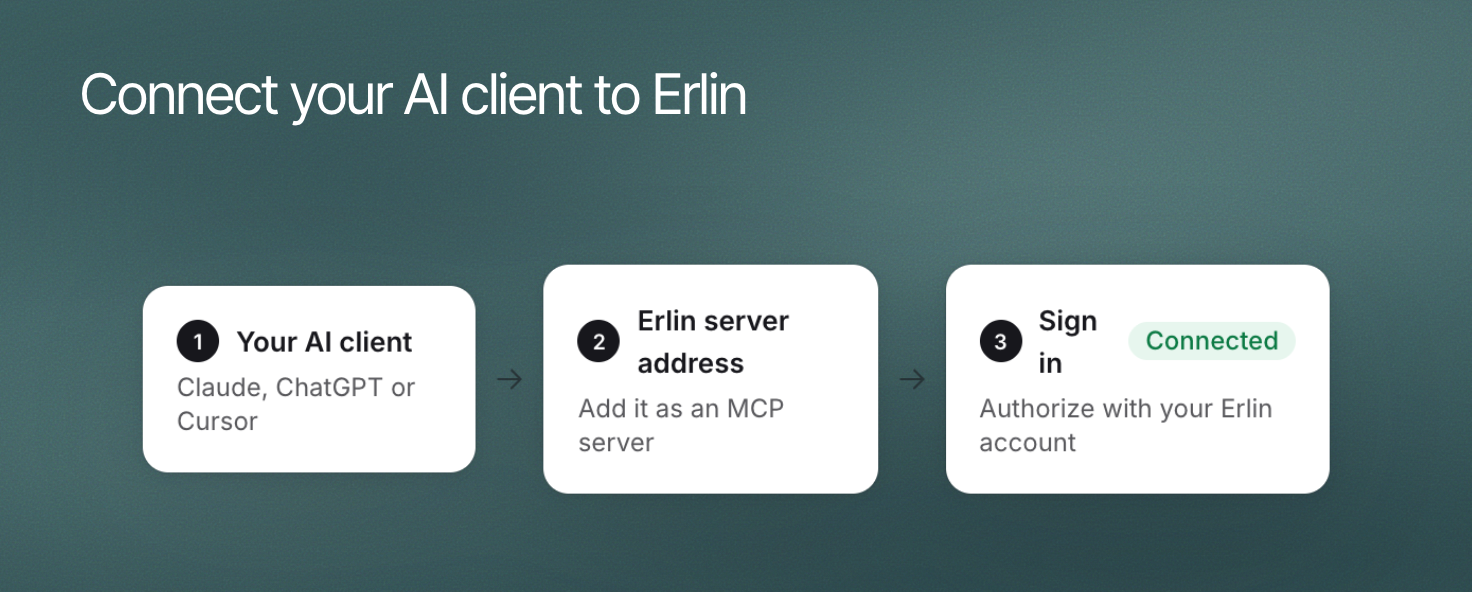 Connect Erlin to Claude by adding `https://mcp.erlin.ai/mcp` as a custom connector and signing in to Erlin. This OAuth method takes about a minute and needs no key, terminal or config file. Claude Code and config files connect with an Erlin API key instead.
MCP comes with the Standard, Pro and Enterprise plans. Free and Starter do not include it. See [Plans and billing](https://www.erlin.ai/docs/settings/plans-and-billing). The MCP key is separate from provider keys such as OpenRouter in [API keys](https://www.erlin.ai/docs/settings/api-keys).
## 1. Add the server
To connect with OAuth (recommended) in the [Claude Desktop app](https://claude.ai/download):
Click your profile icon in the bottom-left corner, then click **Settings**.
In Settings, click **Connectors**.
Click **Add custom connector** and paste this URL:
```
https://mcp.erlin.ai/mcp
```
Click **Connect**. Your browser opens Erlin. Sign in, review the request to access your Erlin account, and click **Approve**.
If your plan does not include MCP, the Erlin sign-in screen says "Your plan doesn't include MCP" and shows **Upgrade** and **Deny** instead of **Approve**.
## 2. Keep credentials separate from conversation text
Claude Code and the config-file method send an Erlin API key in the `X-API-Key` header. Your key lives in **Settings > MCP** in Erlin, which only the account owner sees. Erlin creates the key the first time you open the section and shows it in full once: copy it right away, because afterwards Erlin shows only its start. Erlin API keys start with `ek_live_`.
To replace a lost or exposed key, click **New key**, then **Make a new key**. The old key stops working straight away, so update every client that uses it. Never paste a key into a chat message or a support request.
**Claude Code.** Run this in your terminal, with your key in place of ``:
```bash
claude mcp add --transport http erlin-ai https://mcp.erlin.ai/mcp --header "X-API-Key: "
```
**Config file.** You can add Erlin to Claude Desktop by editing its config file. This method runs the `mcp-remote` bridge, so it needs [Node.js](https://nodejs.org) installed. Open the config file:
- **macOS**: `~/Library/Application Support/Claude/claude_desktop_config.json`
- **Windows**: `%APPDATA%\Claude\claude_desktop_config.json`
Add Erlin, with your key in place of ``, then save the file and restart Claude Desktop:
```json claude_desktop_config.json
{
"mcpServers": {
"erlin-ai": {
"command": "npx",
"args": ["mcp-remote", "https://mcp.erlin.ai/mcp", "--header", "X-API-Key:${ERLIN_API_KEY}"],
"env": { "ERLIN_API_KEY": "" }
}
}
}
```
## 3. Confirm the connection
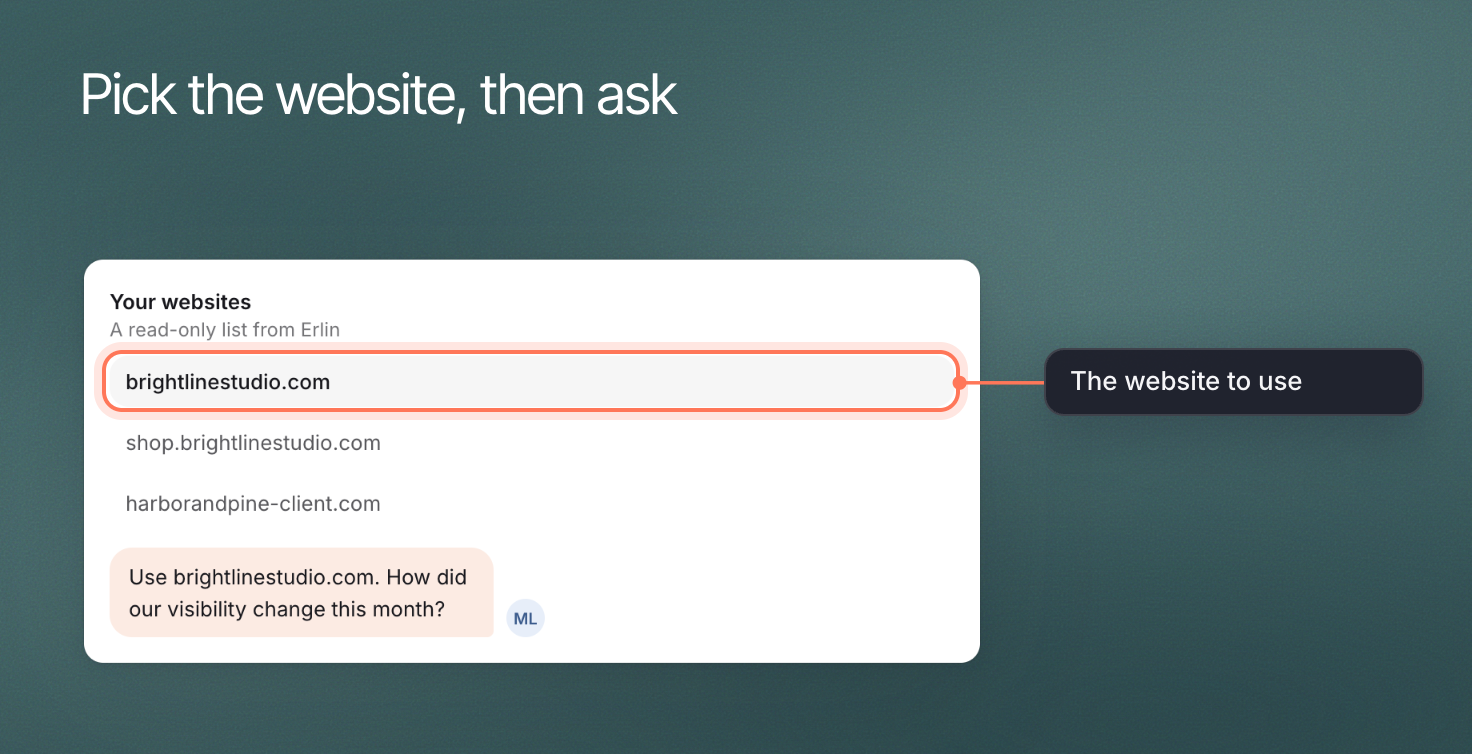
Erlin appears in your connectors list. Ask Claude "What websites do I have in Erlin?" Claude uses `erlin_list_websites` to list the websites in your account. If you track more than one, name the website you mean before asking about its results.
Connect Erlin to Claude by adding `https://mcp.erlin.ai/mcp` as a custom connector and signing in to Erlin. This OAuth method takes about a minute and needs no key, terminal or config file. Claude Code and config files connect with an Erlin API key instead.
MCP comes with the Standard, Pro and Enterprise plans. Free and Starter do not include it. See [Plans and billing](https://www.erlin.ai/docs/settings/plans-and-billing). The MCP key is separate from provider keys such as OpenRouter in [API keys](https://www.erlin.ai/docs/settings/api-keys).
## 1. Add the server
To connect with OAuth (recommended) in the [Claude Desktop app](https://claude.ai/download):
Click your profile icon in the bottom-left corner, then click **Settings**.
In Settings, click **Connectors**.
Click **Add custom connector** and paste this URL:
```
https://mcp.erlin.ai/mcp
```
Click **Connect**. Your browser opens Erlin. Sign in, review the request to access your Erlin account, and click **Approve**.
If your plan does not include MCP, the Erlin sign-in screen says "Your plan doesn't include MCP" and shows **Upgrade** and **Deny** instead of **Approve**.
## 2. Keep credentials separate from conversation text
Claude Code and the config-file method send an Erlin API key in the `X-API-Key` header. Your key lives in **Settings > MCP** in Erlin, which only the account owner sees. Erlin creates the key the first time you open the section and shows it in full once: copy it right away, because afterwards Erlin shows only its start. Erlin API keys start with `ek_live_`.
To replace a lost or exposed key, click **New key**, then **Make a new key**. The old key stops working straight away, so update every client that uses it. Never paste a key into a chat message or a support request.
**Claude Code.** Run this in your terminal, with your key in place of ``:
```bash
claude mcp add --transport http erlin-ai https://mcp.erlin.ai/mcp --header "X-API-Key: "
```
**Config file.** You can add Erlin to Claude Desktop by editing its config file. This method runs the `mcp-remote` bridge, so it needs [Node.js](https://nodejs.org) installed. Open the config file:
- **macOS**: `~/Library/Application Support/Claude/claude_desktop_config.json`
- **Windows**: `%APPDATA%\Claude\claude_desktop_config.json`
Add Erlin, with your key in place of ``, then save the file and restart Claude Desktop:
```json claude_desktop_config.json
{
"mcpServers": {
"erlin-ai": {
"command": "npx",
"args": ["mcp-remote", "https://mcp.erlin.ai/mcp", "--header", "X-API-Key:${ERLIN_API_KEY}"],
"env": { "ERLIN_API_KEY": "" }
}
}
}
```
## 3. Confirm the connection
Erlin appears in your connectors list. Ask Claude "What websites do I have in Erlin?" Claude uses `erlin_list_websites` to list the websites in your account. If you track more than one, name the website you mean before asking about its results.
 ## Troubleshoot the failed step
| Problem | Fix |
|---|---|
| "Server disconnected" | Quit Claude Desktop completely (Cmd+Q on Mac, Alt+F4 on Windows) and reopen it. |
| "Your Erlin session has expired" | In Claude Desktop, go to **Settings > Connectors**, find Erlin, and reconnect. Sign in again when the browser opens. |
| "Invalid or expired API key" | Copy your current key from **Settings > MCP** in Erlin, or click **New key** to make a new one, then update your command or config file. |
| "Your plan doesn't include MCP access" | MCP comes with Standard, Pro and Enterprise. See [Plans and billing](https://www.erlin.ai/docs/settings/plans-and-billing). |
| "Rate limit exceeded" | Wait the number of seconds Claude reports, then ask again. See [credits and limits](https://www.erlin.ai/docs/mcp/credits-and-limits). |
| Sign-in page does not load | Check that you can open app.erlin.ai in your browser, then reconnect. |
| Erlin tools do not appear in Claude | Check the connector URL is `https://mcp.erlin.ai/mcp`, then restart Claude Desktop. |
Still stuck? Contact [Support](https://www.erlin.ai/docs/settings/support) or email help@erlin.ai with the error and time, but never your key.
## Troubleshoot the failed step
| Problem | Fix |
|---|---|
| "Server disconnected" | Quit Claude Desktop completely (Cmd+Q on Mac, Alt+F4 on Windows) and reopen it. |
| "Your Erlin session has expired" | In Claude Desktop, go to **Settings > Connectors**, find Erlin, and reconnect. Sign in again when the browser opens. |
| "Invalid or expired API key" | Copy your current key from **Settings > MCP** in Erlin, or click **New key** to make a new one, then update your command or config file. |
| "Your plan doesn't include MCP access" | MCP comes with Standard, Pro and Enterprise. See [Plans and billing](https://www.erlin.ai/docs/settings/plans-and-billing). |
| "Rate limit exceeded" | Wait the number of seconds Claude reports, then ask again. See [credits and limits](https://www.erlin.ai/docs/mcp/credits-and-limits). |
| Sign-in page does not load | Check that you can open app.erlin.ai in your browser, then reconnect. |
| Erlin tools do not appear in Claude | Check the connector URL is `https://mcp.erlin.ai/mcp`, then restart Claude Desktop. |
Still stuck? Contact [Support](https://www.erlin.ai/docs/settings/support) or email help@erlin.ai with the error and time, but never your key.