# Set up qualification for your business
> Set the goal, rules, next step and follow-up for lead qualification, see how Erlin grades and scores each lead, and test the setup before visitors see it.
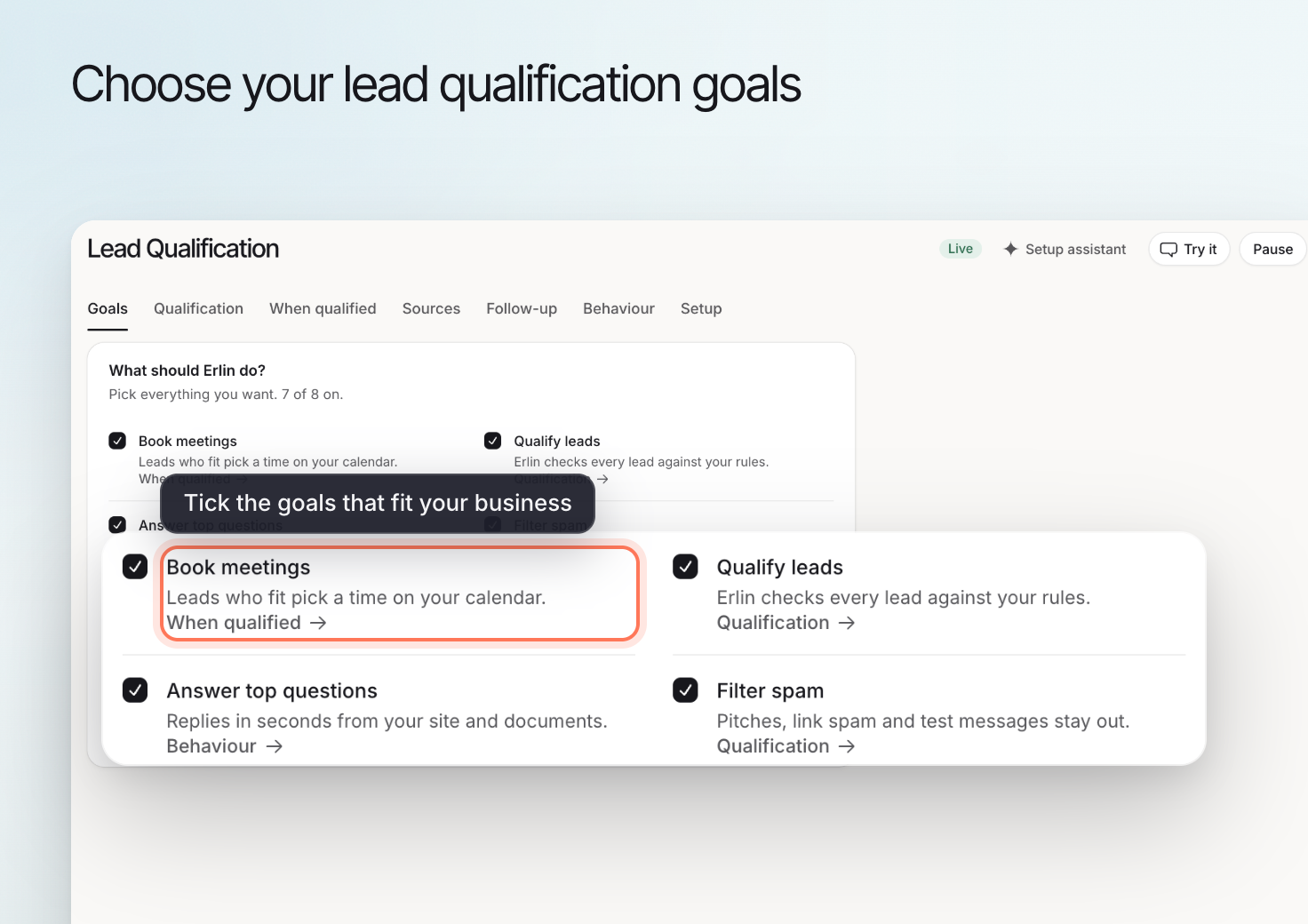 Erlin qualifies inquiries against the requirements you set for your business. It asks your questions, uses visitors' answers and documents to assess fit, and helps them take the next step. Open it from **Leads & Pipeline > Lead Qualification**.
Use this guide to choose your goal, define a good lead and test the setup before visitors use it.
## Before you start
Review your [business knowledge](https://www.erlin.ai/docs/brand/knowledge). Include your services or products, the customers you serve, where you operate and any requirements that affect whether you can help.
Decide the next step you want to offer. A consultation needs a booking link. A handoff needs a person ready to continue the conversation.
The first time you open Lead Qualification, click **Turn on** under **Turn on Erlin for your site**. Erlin creates your site's tag. Add it to your site from the **Install** tab. See [Forms and install](https://www.erlin.ai/docs/leads/forms-and-install).
The tabs are **Goal & rules**, **Questions**, **Website chat**, **Email follow-up**, **Forms**, **Guardrails**, **Team**, **Offers** and **Install**. Changes on most tabs wait for **Save changes** at the bottom. The Team, Offers, Forms and Install tabs, and the **How Erlin writes and sends** settings on Guardrails, save as you change them.
## 1. Choose your goal
Open the **Goal & rules** tab. **Goal** shows your goal's name with **Edit goal**, or **No goal yet** with **Set up a goal**. With no goal, Erlin answers questions in the chat but does not qualify leads. Only one goal runs at a time.
Keep the goal specific. "Book a consultation for a suitable project" gives you a clearer setup to test than "get more leads." See [Website chat](https://www.erlin.ai/docs/leads/chat-widget) for the steps to set up a goal.
## 2. Define a good lead
On the **Goal & rules** tab, **Qualification rules** lists your goal's rules in the order Erlin asks them. Every rule is **Mandatory**. Rename a rule, move it up or down, or remove it. With no rules, Erlin qualifies every lead that reaches the goal. Use the **Questions** tab to change the wording of the question Erlin asks for each rule.
**Spam** sets what Erlin files as spam. Turn on **Filter spam**, then choose what counts: **Link-only messages**, **Repeat submissions**, **Throwaway email addresses** and **Job applications**. Missing information is a reason to ask a question, not evidence that an inquiry is spam.
Separately, [Lead fit rules](https://www.erlin.ai/docs/leads/lead-fit-rules) say who is a good lead for your brand. Erlin checks each lead against them to grade it.
## 3. Choose what happens when someone qualifies
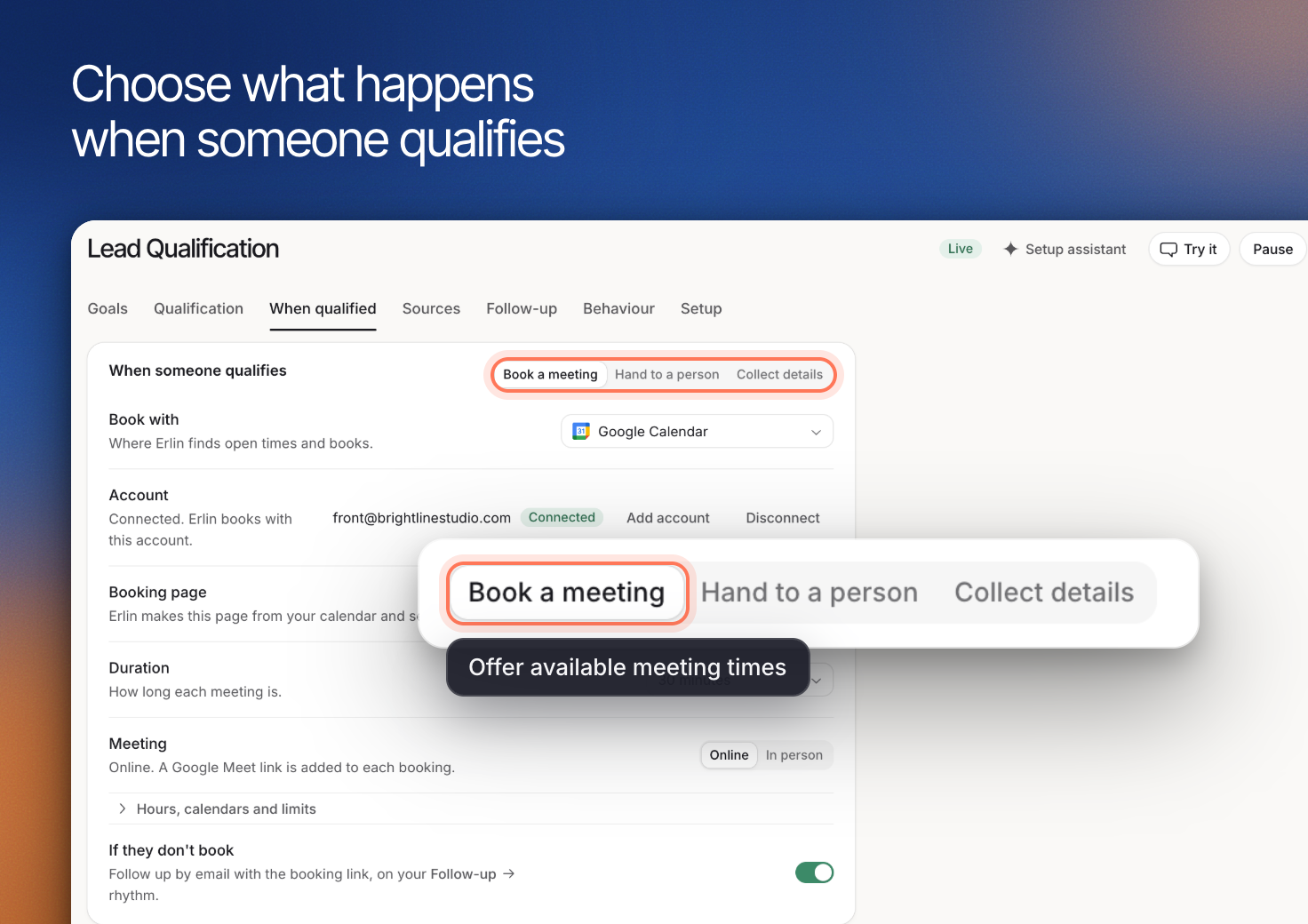
On the **Goal & rules** tab, **When a lead qualifies** shows what happens next: **Book a consultation**, **Collect contact details** or **Hand to the team**. Use a consultation for a suitable lead, details when your team needs information before deciding, and a handoff when a person should continue the conversation.
For a goal that books, **Booking link** shows the link Erlin offers once a lead qualifies. See [Booking](https://www.erlin.ai/docs/leads/booking).
Erlin qualifies inquiries against the requirements you set for your business. It asks your questions, uses visitors' answers and documents to assess fit, and helps them take the next step. Open it from **Leads & Pipeline > Lead Qualification**.
Use this guide to choose your goal, define a good lead and test the setup before visitors use it.
## Before you start
Review your [business knowledge](https://www.erlin.ai/docs/brand/knowledge). Include your services or products, the customers you serve, where you operate and any requirements that affect whether you can help.
Decide the next step you want to offer. A consultation needs a booking link. A handoff needs a person ready to continue the conversation.
The first time you open Lead Qualification, click **Turn on** under **Turn on Erlin for your site**. Erlin creates your site's tag. Add it to your site from the **Install** tab. See [Forms and install](https://www.erlin.ai/docs/leads/forms-and-install).
The tabs are **Goal & rules**, **Questions**, **Website chat**, **Email follow-up**, **Forms**, **Guardrails**, **Team**, **Offers** and **Install**. Changes on most tabs wait for **Save changes** at the bottom. The Team, Offers, Forms and Install tabs, and the **How Erlin writes and sends** settings on Guardrails, save as you change them.
## 1. Choose your goal
Open the **Goal & rules** tab. **Goal** shows your goal's name with **Edit goal**, or **No goal yet** with **Set up a goal**. With no goal, Erlin answers questions in the chat but does not qualify leads. Only one goal runs at a time.
Keep the goal specific. "Book a consultation for a suitable project" gives you a clearer setup to test than "get more leads." See [Website chat](https://www.erlin.ai/docs/leads/chat-widget) for the steps to set up a goal.
## 2. Define a good lead
On the **Goal & rules** tab, **Qualification rules** lists your goal's rules in the order Erlin asks them. Every rule is **Mandatory**. Rename a rule, move it up or down, or remove it. With no rules, Erlin qualifies every lead that reaches the goal. Use the **Questions** tab to change the wording of the question Erlin asks for each rule.
**Spam** sets what Erlin files as spam. Turn on **Filter spam**, then choose what counts: **Link-only messages**, **Repeat submissions**, **Throwaway email addresses** and **Job applications**. Missing information is a reason to ask a question, not evidence that an inquiry is spam.
Separately, [Lead fit rules](https://www.erlin.ai/docs/leads/lead-fit-rules) say who is a good lead for your brand. Erlin checks each lead against them to grade it.
## 3. Choose what happens when someone qualifies
On the **Goal & rules** tab, **When a lead qualifies** shows what happens next: **Book a consultation**, **Collect contact details** or **Hand to the team**. Use a consultation for a suitable lead, details when your team needs information before deciding, and a handoff when a person should continue the conversation.
For a goal that books, **Booking link** shows the link Erlin offers once a lead qualifies. See [Booking](https://www.erlin.ai/docs/leads/booking).
 ## 4. Install the tag and check your forms
Install the Erlin tag from the **Install** tab, so the chat runs and Erlin sees where each visitor came from. The **Forms** tab then lists the forms on your site that sent leads. See [Forms and install](https://www.erlin.ai/docs/leads/forms-and-install).
The source brings in the inquiry. Your goal and rules define what Erlin needs to understand.
## 5. Set follow-up and who gets each lead
Use the **Email follow-up** tab to follow up with leads who go quiet. Erlin stops as soon as the lead replies, books or unsubscribes. Use **Guardrails** to decide whether Erlin writes the follow-up and when it asks you first. See [Email follow-up](https://www.erlin.ai/docs/leads/email-follow-up).
Use the **Team** tab to choose who on your team gets new leads. Turn on **Hand leads out to the team** to give each new lead an owner. These settings save as you change them. Then set:
- **Hand a lead out**: **When Erlin qualifies the lead**, **When Erlin hands it to a person** or **At either one** (the default).
- **Time to answer**: 1 to 72 hours (4 by default). If the owner does not act in time, Erlin passes the lead to the next person.
- **Email the person**: emails the owner when they get a lead.
How Erlin picks the owner:
1. A lead from a contact your team has had before goes to the person who last had that contact, if they still get leads.
2. Otherwise, the teammate with the fewest open leads gets it.
3. On a tie, the teammate who got a lead least recently gets it. Someone who has never had a lead goes first.
4. If nobody can take it, the lead stays unassigned and Erlin emails the account owner.
The **Team** table lists each person, their **Open leads** and a **Gets leads** switch. Switch it off for someone who is away. Erlin hands out leads as part of writing the follow-up, so **Erlin writes the follow-up** must be on in **Guardrails**.
## How Erlin grades a lead
When **Erlin writes the follow-up** is on, Erlin grades each lead against your [lead fit rules](https://www.erlin.ai/docs/leads/lead-fit-rules). This grade is the lead's status in the CRM.
Erlin reads the conversation and marks each active rule as met, unmet or not known yet, with how confident it is. To mark a rule met or unmet, Erlin must quote the conversation word for word as evidence. Without a quote that matches, the rule counts as not known yet. Then it grades the lead, and the first match wins:
1. **Spam**: flagged as spam, and the lead has not replied like a real person. A flagged lead that does reply like a real person is graded on the rules below, and goes to **Needs review** where it would otherwise be Qualified.
2. **Not a fit**: a Must have rule checked from one answer is unmet, or a Must have rule Erlin judges from the conversation is unmet and Erlin is at least 75% confident.
3. **Needs review**: a Must have rule looks unmet, but Erlin is less than 75% confident.
4. **Qualifying**: Erlin is still waiting on at least one Must have item.
5. **Qualified**: every Must have rule is met.
Only Must have rules change the grade.
### The lead's score
Erlin also gives each graded lead a score from 0 to 100, from the same rule checks. Must have rules count twice as much as nice to have rules. A met rule counts in full, a rule not known yet counts half, and an unmet rule counts nothing.
Score = (sum of each rule's weight x its value) ÷ (sum of the weights) x 100, rounded to a whole number. Spam scores 0. A lead Erlin has not checked yet shows **Not scored**. The score never changes the grade.
Example: Acme has two Must have rules and one nice to have. "Based in the US" is met, "Budget over $5k" is not known yet, and "Wants to start this month" is met. Score = (2 x 1 + 2 x 0.5 + 1 x 1) ÷ 5 x 100 = 80. The grade is **Qualifying**, because a Must have rule is still unknown. If the lead's budget then turns out too low and Erlin is 80% sure, the score drops to 60 and the grade becomes **Not a fit**.
On a lead's page in the CRM, the score shows with a word: **High** from 70, **Medium** from 40 to 69 and **Low** below 40. See [CRM](https://www.erlin.ai/docs/leads/crm).
## 6. Test before you turn it on
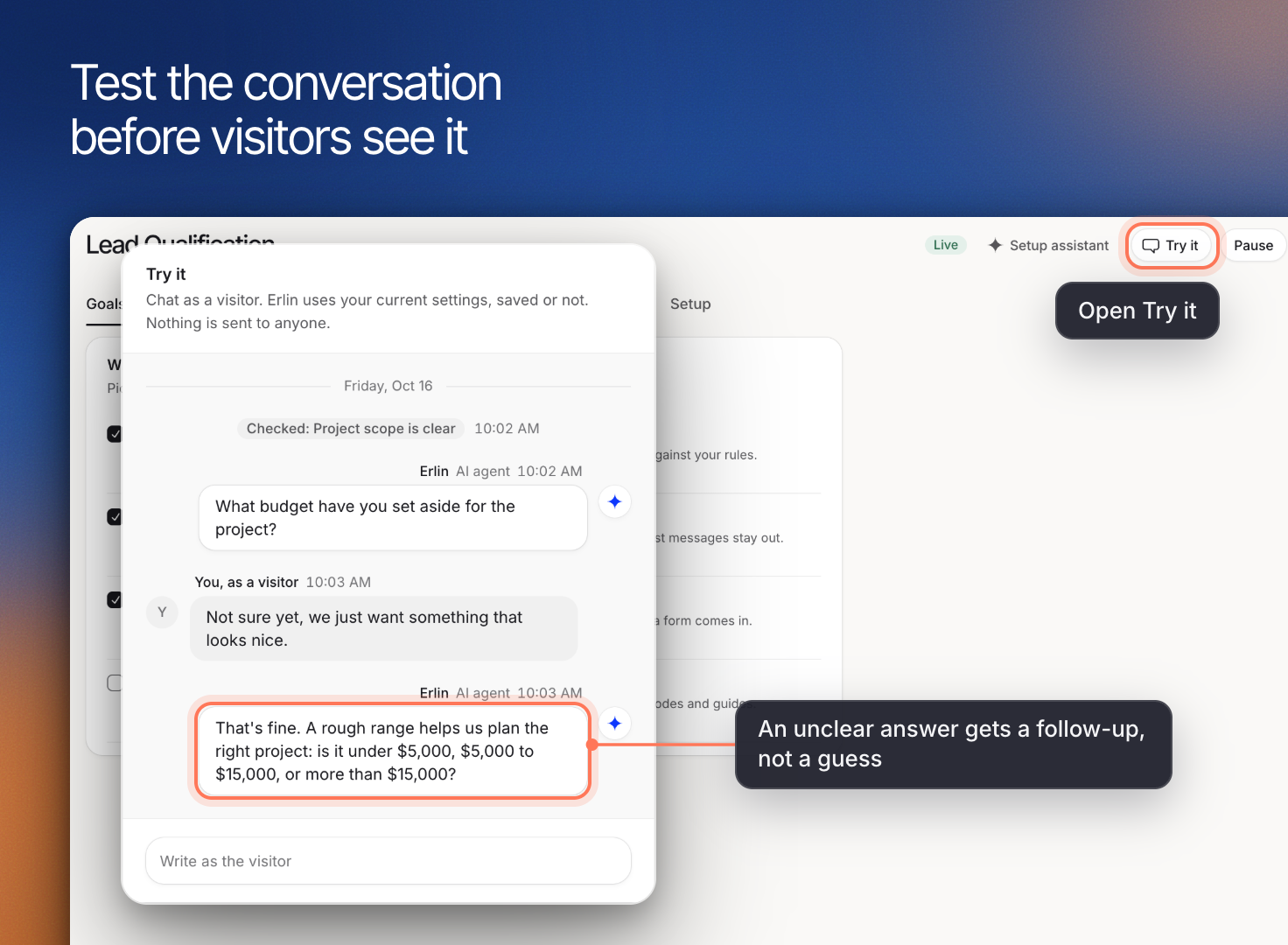
Save your changes, then click **Test the agent** at the top of Lead Qualification and chat as a visitor. Nothing is saved and no lead is created. The test uses your saved settings, so save first. Try a suitable inquiry, an incomplete inquiry and a request you cannot serve.
Check whether the questions reflect your business, whether Erlin uses information already supplied, and whether the proposed next step makes sense. Correct your knowledge or rules when the test exposes a gap.
## 4. Install the tag and check your forms
Install the Erlin tag from the **Install** tab, so the chat runs and Erlin sees where each visitor came from. The **Forms** tab then lists the forms on your site that sent leads. See [Forms and install](https://www.erlin.ai/docs/leads/forms-and-install).
The source brings in the inquiry. Your goal and rules define what Erlin needs to understand.
## 5. Set follow-up and who gets each lead
Use the **Email follow-up** tab to follow up with leads who go quiet. Erlin stops as soon as the lead replies, books or unsubscribes. Use **Guardrails** to decide whether Erlin writes the follow-up and when it asks you first. See [Email follow-up](https://www.erlin.ai/docs/leads/email-follow-up).
Use the **Team** tab to choose who on your team gets new leads. Turn on **Hand leads out to the team** to give each new lead an owner. These settings save as you change them. Then set:
- **Hand a lead out**: **When Erlin qualifies the lead**, **When Erlin hands it to a person** or **At either one** (the default).
- **Time to answer**: 1 to 72 hours (4 by default). If the owner does not act in time, Erlin passes the lead to the next person.
- **Email the person**: emails the owner when they get a lead.
How Erlin picks the owner:
1. A lead from a contact your team has had before goes to the person who last had that contact, if they still get leads.
2. Otherwise, the teammate with the fewest open leads gets it.
3. On a tie, the teammate who got a lead least recently gets it. Someone who has never had a lead goes first.
4. If nobody can take it, the lead stays unassigned and Erlin emails the account owner.
The **Team** table lists each person, their **Open leads** and a **Gets leads** switch. Switch it off for someone who is away. Erlin hands out leads as part of writing the follow-up, so **Erlin writes the follow-up** must be on in **Guardrails**.
## How Erlin grades a lead
When **Erlin writes the follow-up** is on, Erlin grades each lead against your [lead fit rules](https://www.erlin.ai/docs/leads/lead-fit-rules). This grade is the lead's status in the CRM.
Erlin reads the conversation and marks each active rule as met, unmet or not known yet, with how confident it is. To mark a rule met or unmet, Erlin must quote the conversation word for word as evidence. Without a quote that matches, the rule counts as not known yet. Then it grades the lead, and the first match wins:
1. **Spam**: flagged as spam, and the lead has not replied like a real person. A flagged lead that does reply like a real person is graded on the rules below, and goes to **Needs review** where it would otherwise be Qualified.
2. **Not a fit**: a Must have rule checked from one answer is unmet, or a Must have rule Erlin judges from the conversation is unmet and Erlin is at least 75% confident.
3. **Needs review**: a Must have rule looks unmet, but Erlin is less than 75% confident.
4. **Qualifying**: Erlin is still waiting on at least one Must have item.
5. **Qualified**: every Must have rule is met.
Only Must have rules change the grade.
### The lead's score
Erlin also gives each graded lead a score from 0 to 100, from the same rule checks. Must have rules count twice as much as nice to have rules. A met rule counts in full, a rule not known yet counts half, and an unmet rule counts nothing.
Score = (sum of each rule's weight x its value) ÷ (sum of the weights) x 100, rounded to a whole number. Spam scores 0. A lead Erlin has not checked yet shows **Not scored**. The score never changes the grade.
Example: Acme has two Must have rules and one nice to have. "Based in the US" is met, "Budget over $5k" is not known yet, and "Wants to start this month" is met. Score = (2 x 1 + 2 x 0.5 + 1 x 1) ÷ 5 x 100 = 80. The grade is **Qualifying**, because a Must have rule is still unknown. If the lead's budget then turns out too low and Erlin is 80% sure, the score drops to 60 and the grade becomes **Not a fit**.
On a lead's page in the CRM, the score shows with a word: **High** from 70, **Medium** from 40 to 69 and **Low** below 40. See [CRM](https://www.erlin.ai/docs/leads/crm).
## 6. Test before you turn it on
Save your changes, then click **Test the agent** at the top of Lead Qualification and chat as a visitor. Nothing is saved and no lead is created. The test uses your saved settings, so save first. Try a suitable inquiry, an incomplete inquiry and a request you cannot serve.
Check whether the questions reflect your business, whether Erlin uses information already supplied, and whether the proposed next step makes sense. Correct your knowledge or rules when the test exposes a gap.
 Once you have a goal, the switch at the top reads **Goal active** or **Goal paused**. Pause it and new leads wait in the CRM for your team. Turn it back on and Erlin qualifies leads again. Review early inquiries in the [CRM](https://www.erlin.ai/docs/leads/crm) and refine questions that are confusing or unnecessary.