# Define what makes a good lead
> Define the rules that make someone a good lead, separate Must have from nice to have, and see how Erlin grades each lead against them.
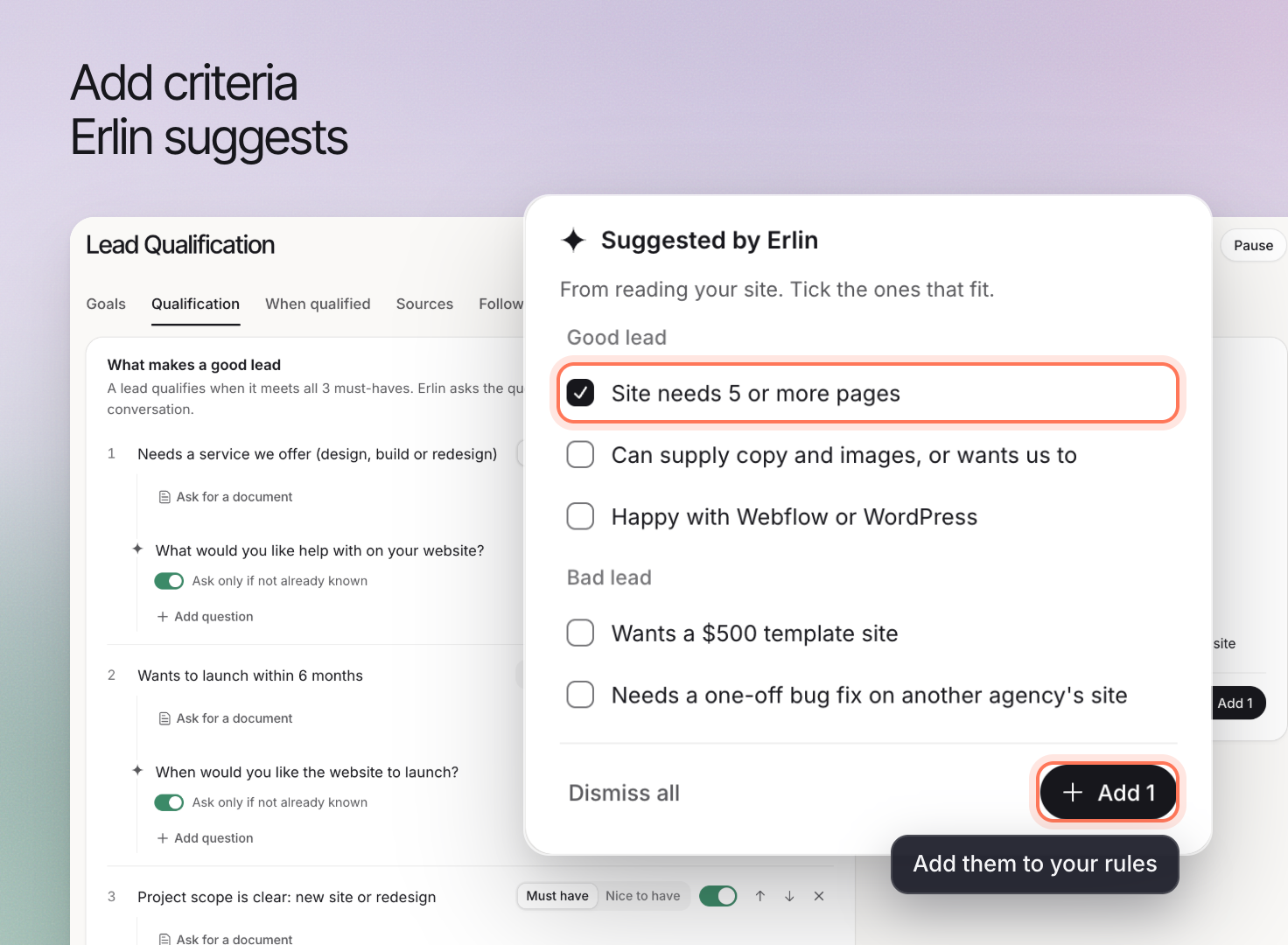 Lead fit rules say who is a good lead for your brand. Erlin checks every lead against your active rules and uses the result to grade the lead as Qualified, Qualifying, Needs review, Not a fit or Spam. Open them from **Leads & Pipeline > Lead fit rules**.
Lead fit rules sit under Leads & Pipeline, which shows for every brand that is not an online store. For a store, the sidebar shows Shopping instead.
## 1. Start with what your business can serve
Review your services, customer types and operating requirements in [business knowledge](https://www.erlin.ai/docs/brand/knowledge). Then write rules that reflect your actual requirements. A rule about company size is useful only when company size affects whether you can serve the lead.
These examples show how rules differ by business. They are illustrative.
| Business | Possible rule |
|---|---|
| Website design | The project needs a service you offer |
| SaaS | The required workflow fits the product |
| Wholesale | The order meets your minimum quantity |
| Local service | The job is in your service area |
## 2. Separate requirements from preferences
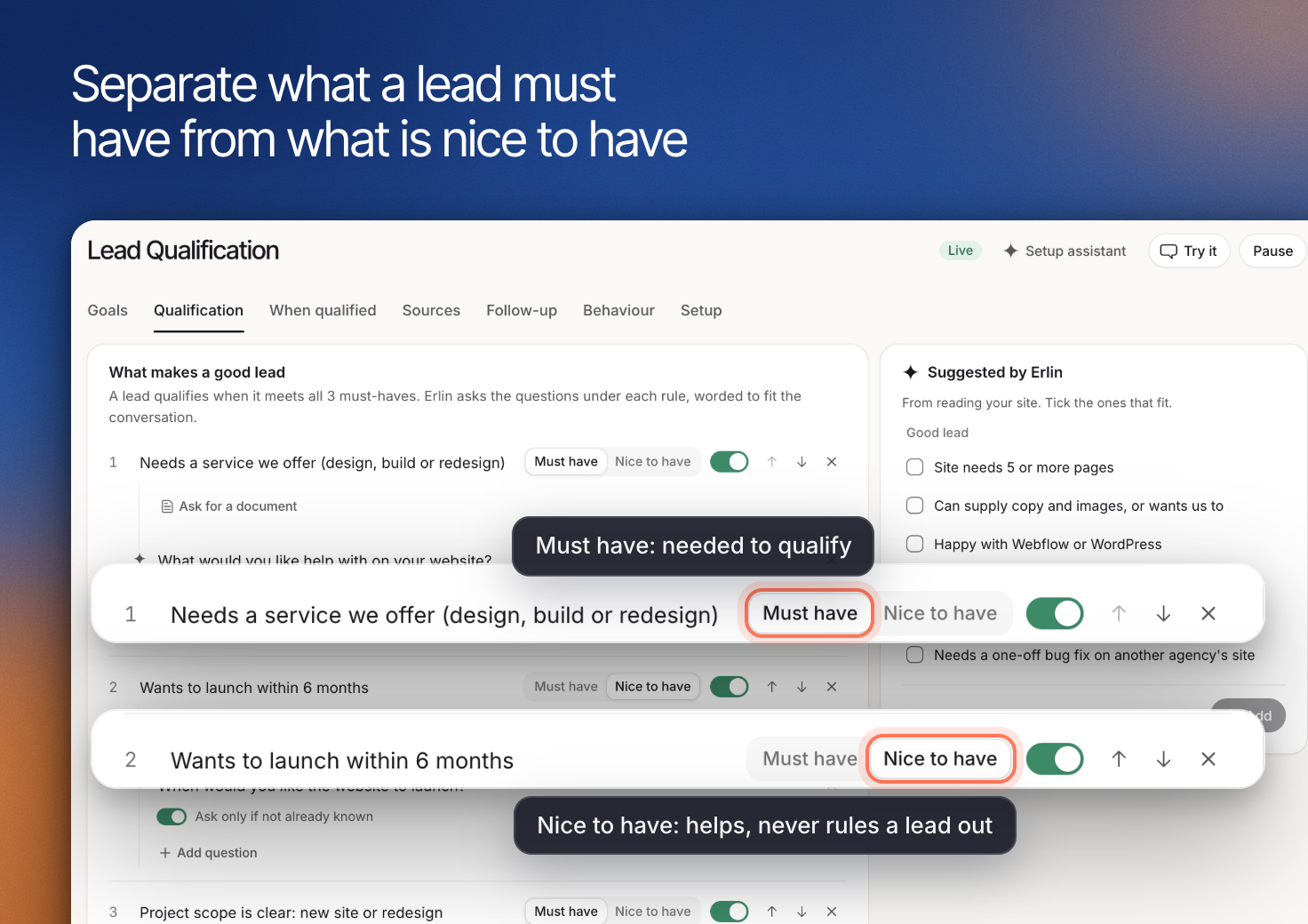
Each rule is either a **Must have** or a nice to have. Only Must have rules change a lead's grade. A nice to have rule never stops a lead from fitting.
Avoid making every preference a Must have. A lead who needs a later start date may still be suitable for your business.
Lead fit rules say who is a good lead for your brand. Erlin checks every lead against your active rules and uses the result to grade the lead as Qualified, Qualifying, Needs review, Not a fit or Spam. Open them from **Leads & Pipeline > Lead fit rules**.
Lead fit rules sit under Leads & Pipeline, which shows for every brand that is not an online store. For a store, the sidebar shows Shopping instead.
## 1. Start with what your business can serve
Review your services, customer types and operating requirements in [business knowledge](https://www.erlin.ai/docs/brand/knowledge). Then write rules that reflect your actual requirements. A rule about company size is useful only when company size affects whether you can serve the lead.
These examples show how rules differ by business. They are illustrative.
| Business | Possible rule |
|---|---|
| Website design | The project needs a service you offer |
| SaaS | The required workflow fits the product |
| Wholesale | The order meets your minimum quantity |
| Local service | The job is in your service area |
## 2. Separate requirements from preferences
Each rule is either a **Must have** or a nice to have. Only Must have rules change a lead's grade. A nice to have rule never stops a lead from fitting.
Avoid making every preference a Must have. A lead who needs a later start date may still be suitable for your business.
 ## 3. How rules decide a lead's grade
Erlin grades leads against these rules when **Erlin writes the follow-up** is on, in the **Guardrails** tab of Lead Qualification. See [Email follow-up](https://www.erlin.ai/docs/leads/email-follow-up).
For every lead, Erlin reads the conversation and the lead's form answers, and marks each active rule as met, unmet or not known yet, with how confident it is. Erlin must quote the conversation word for word as evidence, or the rule counts as not known yet. It then grades the lead in this order, and the first match wins:
1. **Spam**: the lead is flagged as spam and has not replied like a real person.
2. **Not a fit**: a Must have rule checked from one answer is unmet, whatever Erlin's confidence, or a Must have rule Erlin judges from the conversation is unmet and Erlin is at least 75% confident.
3. **Needs review**: a Must have rule Erlin judges from the conversation looks unmet, but Erlin is less than 75% confident. A person should look.
4. **Qualifying**: Erlin is still waiting on at least one Must have item from the lead. Erlin keeps the conversation going to find out.
5. **Needs review**: the lead was flagged as spam but replied like a real person, and every Must have rule is met.
6. **Qualified**: every Must have rule is met.
With no active Must have rules, every lead that is not spam grades Qualified.
**Worked example.** Acme has three Must have rules: team of 10 or more, timeline within three months, and not an agency pitching services. A lead says they have 40 people and want to start next month, but Erlin cannot tell if they are an agency (unmet, 60% confident). The lead goes to **Needs review**. If Erlin were 80% confident, the lead would be **Not a fit**. If the lead had not mentioned a timeline yet, and everything else was met, the lead would stay **Qualifying** until they answer.
Erlin also scores each lead from 0 to 100 from the same checks. See [Lead Qualification](https://www.erlin.ai/docs/leads/lead-qualification) for how the score is calculated.
The CRM shows each lead's grade as its status, the reason under **Why this status**, and how many Must have rules are met as "X of Y met". See [CRM](https://www.erlin.ai/docs/leads/crm).
## 4. Suggested rules and your own
When you first open Lead fit rules with no rules, Erlin suggests a starting set from your brand's business type. If the page is still empty, click **Suggest rules**. If Erlin cannot tell which kind of business you are, it suggests nothing, and you add your own rules.
Suggested rules wait in the **To review** tab. Nothing is checked against them until you approve them. Click **Approve** to make a rule active, or **Dismiss** to set it aside. Use **Edit rule** in a rule's menu to change its wording or make it nice to have first.
To add your own, click **Add rule**. Under **Rule**, describe who fits, in up to 500 characters. Under **How Erlin checks it**, pick **Erlin judges it from the conversation** (the default) or **From one answer the lead gives**. Turn **Must have** on if a lead must meet the rule to qualify. Off, it is nice to have. Each site can have up to 50 rules, counting suggested and dismissed ones.
## 5. Keep poor fit, missing information and spam apart
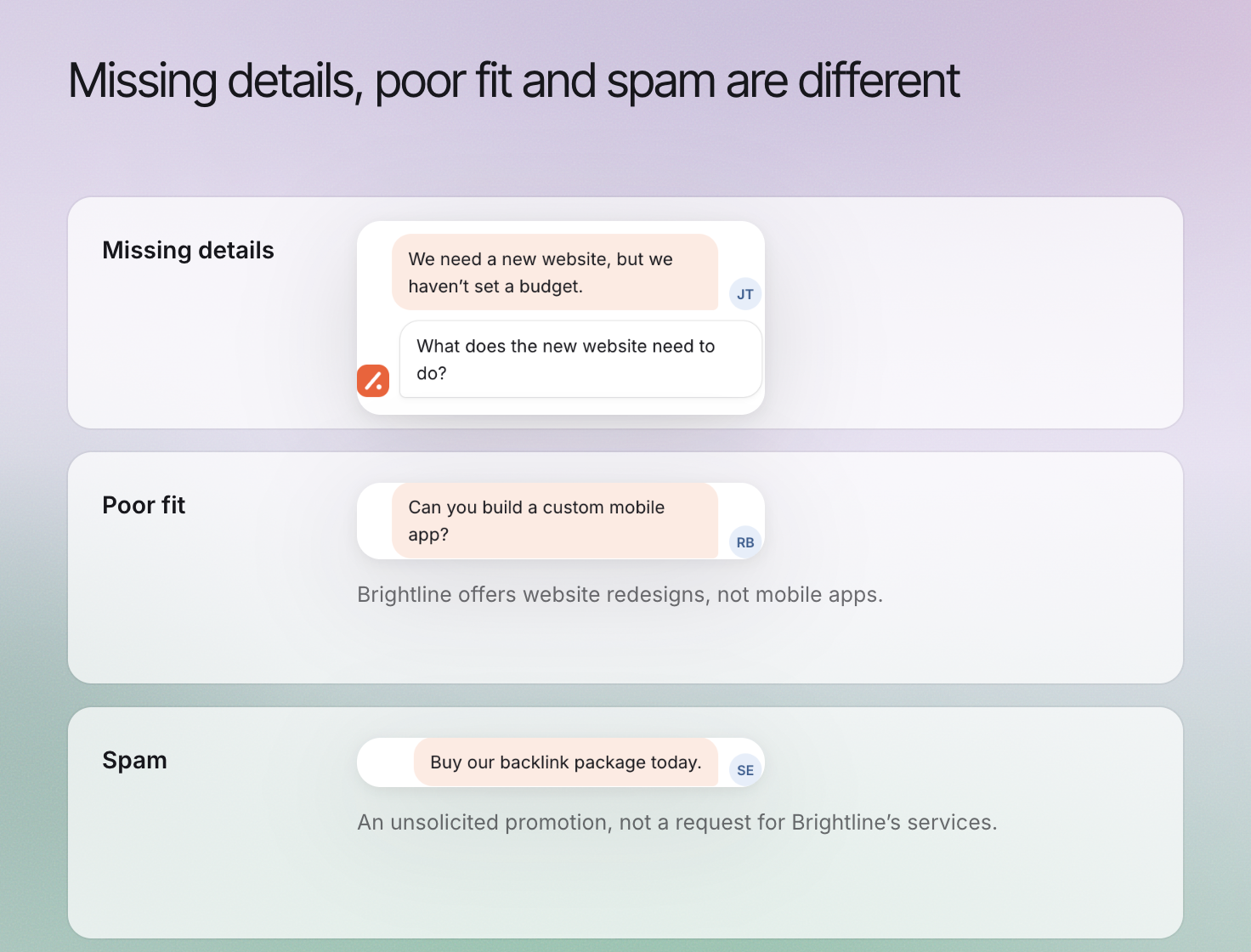
A lead who has not shared a budget has provided incomplete information, and Erlin keeps the conversation going. A genuine inquiry outside your service area is a poor fit. An unrelated automated submission is spam. Choose what counts as spam on the **Goal & rules** tab of Lead Qualification.
## 3. How rules decide a lead's grade
Erlin grades leads against these rules when **Erlin writes the follow-up** is on, in the **Guardrails** tab of Lead Qualification. See [Email follow-up](https://www.erlin.ai/docs/leads/email-follow-up).
For every lead, Erlin reads the conversation and the lead's form answers, and marks each active rule as met, unmet or not known yet, with how confident it is. Erlin must quote the conversation word for word as evidence, or the rule counts as not known yet. It then grades the lead in this order, and the first match wins:
1. **Spam**: the lead is flagged as spam and has not replied like a real person.
2. **Not a fit**: a Must have rule checked from one answer is unmet, whatever Erlin's confidence, or a Must have rule Erlin judges from the conversation is unmet and Erlin is at least 75% confident.
3. **Needs review**: a Must have rule Erlin judges from the conversation looks unmet, but Erlin is less than 75% confident. A person should look.
4. **Qualifying**: Erlin is still waiting on at least one Must have item from the lead. Erlin keeps the conversation going to find out.
5. **Needs review**: the lead was flagged as spam but replied like a real person, and every Must have rule is met.
6. **Qualified**: every Must have rule is met.
With no active Must have rules, every lead that is not spam grades Qualified.
**Worked example.** Acme has three Must have rules: team of 10 or more, timeline within three months, and not an agency pitching services. A lead says they have 40 people and want to start next month, but Erlin cannot tell if they are an agency (unmet, 60% confident). The lead goes to **Needs review**. If Erlin were 80% confident, the lead would be **Not a fit**. If the lead had not mentioned a timeline yet, and everything else was met, the lead would stay **Qualifying** until they answer.
Erlin also scores each lead from 0 to 100 from the same checks. See [Lead Qualification](https://www.erlin.ai/docs/leads/lead-qualification) for how the score is calculated.
The CRM shows each lead's grade as its status, the reason under **Why this status**, and how many Must have rules are met as "X of Y met". See [CRM](https://www.erlin.ai/docs/leads/crm).
## 4. Suggested rules and your own
When you first open Lead fit rules with no rules, Erlin suggests a starting set from your brand's business type. If the page is still empty, click **Suggest rules**. If Erlin cannot tell which kind of business you are, it suggests nothing, and you add your own rules.
Suggested rules wait in the **To review** tab. Nothing is checked against them until you approve them. Click **Approve** to make a rule active, or **Dismiss** to set it aside. Use **Edit rule** in a rule's menu to change its wording or make it nice to have first.
To add your own, click **Add rule**. Under **Rule**, describe who fits, in up to 500 characters. Under **How Erlin checks it**, pick **Erlin judges it from the conversation** (the default) or **From one answer the lead gives**. Turn **Must have** on if a lead must meet the rule to qualify. Off, it is nice to have. Each site can have up to 50 rules, counting suggested and dismissed ones.
## 5. Keep poor fit, missing information and spam apart
A lead who has not shared a budget has provided incomplete information, and Erlin keeps the conversation going. A genuine inquiry outside your service area is a poor fit. An unrelated automated submission is spam. Choose what counts as spam on the **Goal & rules** tab of Lead Qualification.
 ## 6. Manage and test your rules
The tabs are **Active**, **Dismissed**, **All** and **To review**. From a rule's menu you can **Edit rule**, **Dismiss** it (Erlin stops checking leads against it), **Use again** or **Delete rule**.
Click **Test the agent** at the top of Lead Qualification and try an inquiry with missing information, then review the first real leads in the [CRM](https://www.erlin.ai/docs/leads/crm). Do not treat a confident-sounding answer as proof that the underlying information is correct.
Continue with [booking](https://www.erlin.ai/docs/leads/booking) or return to the [qualification overview](https://www.erlin.ai/docs/leads/lead-qualification).
## 6. Manage and test your rules
The tabs are **Active**, **Dismissed**, **All** and **To review**. From a rule's menu you can **Edit rule**, **Dismiss** it (Erlin stops checking leads against it), **Use again** or **Delete rule**.
Click **Test the agent** at the top of Lead Qualification and try an inquiry with missing information, then review the first real leads in the [CRM](https://www.erlin.ai/docs/leads/crm). Do not treat a confident-sounding answer as proof that the underlying information is correct.
Continue with [booking](https://www.erlin.ai/docs/leads/booking) or return to the [qualification overview](https://www.erlin.ai/docs/leads/lead-qualification).