# Install tracking and see your website forms
> Install the Erlin tag, check that Erlin can see it, and see the forms on your site in the Forms tab.
The Erlin tag is one line of code that runs the website chat, reads the forms on your site, and records where each visitor and lead came from. Install it from the **Install** tab, then see the forms it captures in the **Forms** tab. Both are in **Leads & Pipeline > Lead Qualification**.
Until the tag is on your site, the CRM and Analytics have nothing to show.
 ## Before you start
- **Turn Erlin on for your site.** The first time you open Lead Qualification, click **Turn on**. Erlin creates your site's tag.
- **Have admin access to your site**, or someone who does. The install takes about five minutes.
## Install the Erlin tag
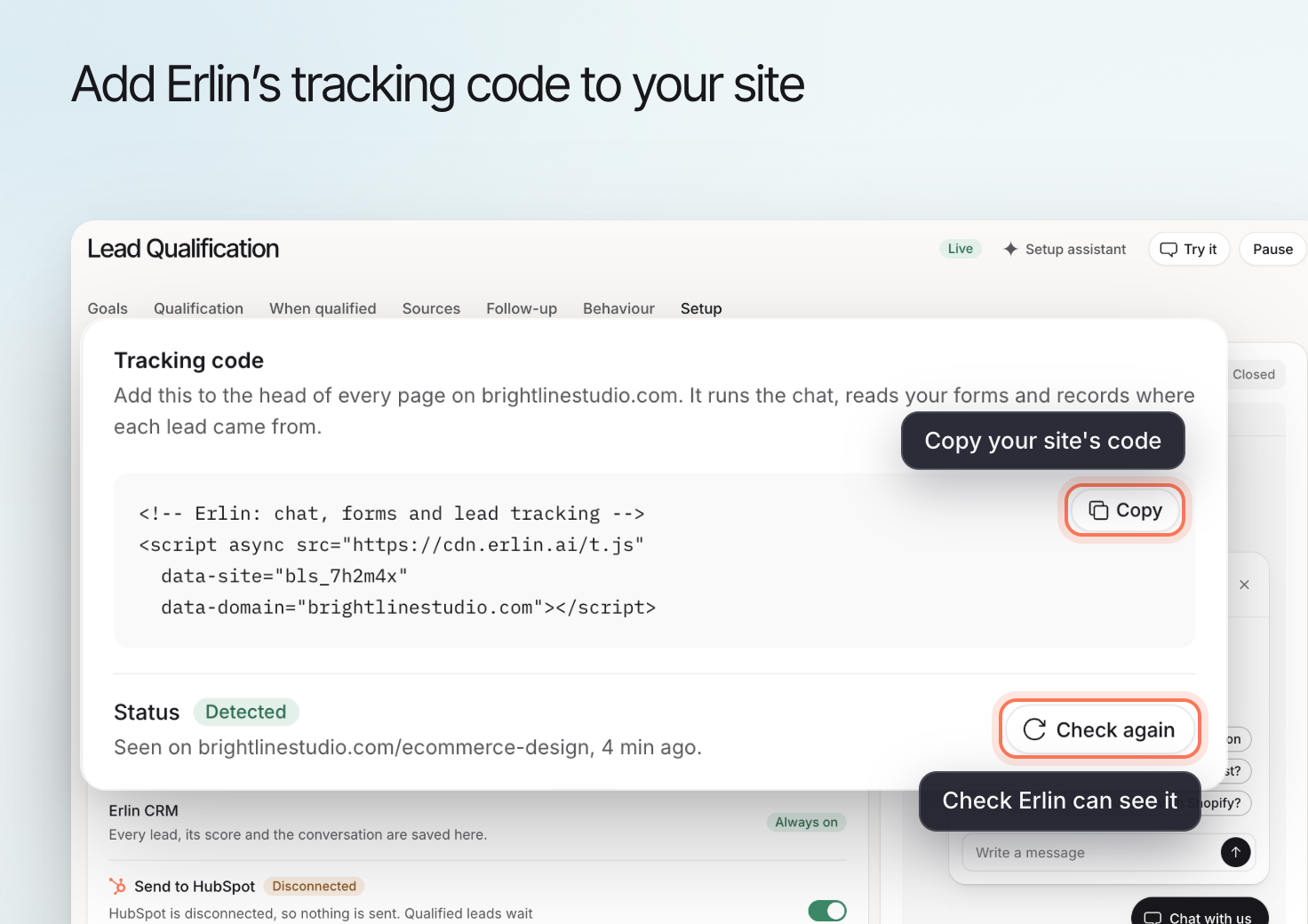
In Lead Qualification, open the **Install** tab and copy the code under **Tracking code**. It looks like this, with your own site ID:
```html
```
Always copy the code from the Install tab, so it carries your site ID.
Paste it in the `` of every page on your site. Under **Guides** on the Install tab, pick your platform for its steps.
The code only runs once your site is published.
Back on the Install tab, **Status** turns to **Detected** within a few minutes. Click **Check again** to check now.
## Where the code goes on your platform
Under **Guides** on the Install tab, pick your platform for these steps.
1. In WordPress, go to Appearance, then Theme File Editor, and open header.php. Or use a plugin like WPCode.
2. Paste the tracking code just before the closing `` tag.
3. Save, then open your site in a new tab.
1. Open Site settings, then Custom code.
2. Paste the tracking code into Head code.
3. Save and publish the site to every domain you use.
1. In Shopify admin, go to Online Store, then Themes, then Edit code.
2. Open theme.liquid and paste the tracking code before ``.
3. Save. The code runs on every page that uses the theme.
1. Open Site settings, then General, then Custom code.
2. Paste the tracking code into End of `` tag.
3. Publish the site.
1. Go to Settings, then Advanced, then Code injection.
2. Paste the tracking code into Header.
3. Save. Code injection needs a Squarespace Business plan or higher.
1. In your Wix dashboard, go to Settings, then Custom code.
2. Add custom code, paste the tracking code and choose All pages, loaded in Head.
3. Apply, then publish.
1. In your container, add a new tag of type Custom HTML.
2. Paste the tracking code and set the trigger to All pages.
3. Submit and publish the container version.
## Send the steps to your developer
If someone else runs your site, click **Email the steps** under **Someone else runs the site?** (**Send it to your developer**). Enter the **Developer's email** and click **Send steps**. They get an email from Erlin with the tracking code, the guide for their platform and a link to check it worked.
You can send the steps three times a day per site, and ten times a day across your account.
## How Erlin checks the tag is installed
**Status** shows **Detected** when the tag sent Erlin a visit in the last 24 hours, with the page and when. Otherwise it shows **Not detected yet**, and Erlin keeps checking every few minutes once the code is live.
**Check again** opens your site's home page and looks for your tag in it. If it says **Not detected yet**, publish your site, make sure the code is in the ``, then check again.
## Close goals on bookings and orders
**Signals that close a goal**, on the Install tab, tell Erlin when a lead booked or bought, so it can close the lead's goal by itself. A click on a booking link is not enough.
- **Booking confirmation emails**: Erlin reads booking confirmations that reach your connected mailbox, from Calendly, Cal.com, Acuity, SavvyCal, TidyCal, YouCanBookMe, Zcal or Google Calendar. The confirmation must name the lead's exact email address. Needs a connected mailbox: see [Email](https://www.erlin.ai/docs/integrations/email).
- **Cal.com**: click **Set up Cal.com**. In Cal.com, go to Settings, Developer, Webhooks, and add the address and secret Erlin shows, for Booking created.
- **Shopify**: click **Set up Shopify**. In Shopify, go to Settings, Notifications, Webhooks, and add the address Erlin shows for Order creation. Use the secret as the signing key.
Once Erlin hears from Cal.com or Shopify, the row shows **Last heard** and when. Before that it shows **Waiting for its first event**.
Click **New secret** to replace a secret. The old secret stops working at once, so Erlin receives no events until you paste the new one into Cal.com or Shopify.
## See your forms
The **Forms** tab lists the forms on your site that the Erlin tag has captured submissions from. Chats are not listed here.
| Column | What it shows |
| --- | --- |
| **Form** | The form and how many fields it has. |
| **Used on** | Up to three pages the form was sent from. |
| **This month** | Submissions this month. |
| **Status** | **Live**. A form is listed once it sends a lead. |
A form shows up once a lead sends it. There is nothing to connect: the tag finds forms by itself. To check one, submit a realistic inquiry from an email account you control, then review the lead in the [CRM](https://www.erlin.ai/docs/leads/crm).
Every submission becomes a lead in the [CRM](https://www.erlin.ai/docs/leads/crm). If the same form fires twice with identical fields within 10 minutes, Erlin keeps one lead. Erlin flags likely spam (for example the same email again within 30 days, test messages, links in the message, throwaway email addresses) and keeps flagged submissions so you can review them. Choose what counts as spam on the **Goal & rules** tab.
## Related
The chat the tag runs on your site.
Where every chat and form lead lands.
Visits and leads the tag records.
How Erlin qualifies the leads it captures.
## Before you start
- **Turn Erlin on for your site.** The first time you open Lead Qualification, click **Turn on**. Erlin creates your site's tag.
- **Have admin access to your site**, or someone who does. The install takes about five minutes.
## Install the Erlin tag
In Lead Qualification, open the **Install** tab and copy the code under **Tracking code**. It looks like this, with your own site ID:
```html
```
Always copy the code from the Install tab, so it carries your site ID.
Paste it in the `` of every page on your site. Under **Guides** on the Install tab, pick your platform for its steps.
The code only runs once your site is published.
Back on the Install tab, **Status** turns to **Detected** within a few minutes. Click **Check again** to check now.
## Where the code goes on your platform
Under **Guides** on the Install tab, pick your platform for these steps.
1. In WordPress, go to Appearance, then Theme File Editor, and open header.php. Or use a plugin like WPCode.
2. Paste the tracking code just before the closing `` tag.
3. Save, then open your site in a new tab.
1. Open Site settings, then Custom code.
2. Paste the tracking code into Head code.
3. Save and publish the site to every domain you use.
1. In Shopify admin, go to Online Store, then Themes, then Edit code.
2. Open theme.liquid and paste the tracking code before ``.
3. Save. The code runs on every page that uses the theme.
1. Open Site settings, then General, then Custom code.
2. Paste the tracking code into End of `` tag.
3. Publish the site.
1. Go to Settings, then Advanced, then Code injection.
2. Paste the tracking code into Header.
3. Save. Code injection needs a Squarespace Business plan or higher.
1. In your Wix dashboard, go to Settings, then Custom code.
2. Add custom code, paste the tracking code and choose All pages, loaded in Head.
3. Apply, then publish.
1. In your container, add a new tag of type Custom HTML.
2. Paste the tracking code and set the trigger to All pages.
3. Submit and publish the container version.
## Send the steps to your developer
If someone else runs your site, click **Email the steps** under **Someone else runs the site?** (**Send it to your developer**). Enter the **Developer's email** and click **Send steps**. They get an email from Erlin with the tracking code, the guide for their platform and a link to check it worked.
You can send the steps three times a day per site, and ten times a day across your account.
## How Erlin checks the tag is installed
**Status** shows **Detected** when the tag sent Erlin a visit in the last 24 hours, with the page and when. Otherwise it shows **Not detected yet**, and Erlin keeps checking every few minutes once the code is live.
**Check again** opens your site's home page and looks for your tag in it. If it says **Not detected yet**, publish your site, make sure the code is in the ``, then check again.
## Close goals on bookings and orders
**Signals that close a goal**, on the Install tab, tell Erlin when a lead booked or bought, so it can close the lead's goal by itself. A click on a booking link is not enough.
- **Booking confirmation emails**: Erlin reads booking confirmations that reach your connected mailbox, from Calendly, Cal.com, Acuity, SavvyCal, TidyCal, YouCanBookMe, Zcal or Google Calendar. The confirmation must name the lead's exact email address. Needs a connected mailbox: see [Email](https://www.erlin.ai/docs/integrations/email).
- **Cal.com**: click **Set up Cal.com**. In Cal.com, go to Settings, Developer, Webhooks, and add the address and secret Erlin shows, for Booking created.
- **Shopify**: click **Set up Shopify**. In Shopify, go to Settings, Notifications, Webhooks, and add the address Erlin shows for Order creation. Use the secret as the signing key.
Once Erlin hears from Cal.com or Shopify, the row shows **Last heard** and when. Before that it shows **Waiting for its first event**.
Click **New secret** to replace a secret. The old secret stops working at once, so Erlin receives no events until you paste the new one into Cal.com or Shopify.
## See your forms
The **Forms** tab lists the forms on your site that the Erlin tag has captured submissions from. Chats are not listed here.
| Column | What it shows |
| --- | --- |
| **Form** | The form and how many fields it has. |
| **Used on** | Up to three pages the form was sent from. |
| **This month** | Submissions this month. |
| **Status** | **Live**. A form is listed once it sends a lead. |
A form shows up once a lead sends it. There is nothing to connect: the tag finds forms by itself. To check one, submit a realistic inquiry from an email account you control, then review the lead in the [CRM](https://www.erlin.ai/docs/leads/crm).
Every submission becomes a lead in the [CRM](https://www.erlin.ai/docs/leads/crm). If the same form fires twice with identical fields within 10 minutes, Erlin keeps one lead. Erlin flags likely spam (for example the same email again within 30 days, test messages, links in the message, throwaway email addresses) and keeps flagged submissions so you can review them. Choose what counts as spam on the **Goal & rules** tab.
## Related
The chat the tag runs on your site.
Where every chat and form lead lands.
Visits and leads the tag records.
How Erlin qualifies the leads it captures.