# Follow up with leads by email
> Choose the sending mailbox, set the schedule, review each email before it goes out and know when Erlin stops following up.
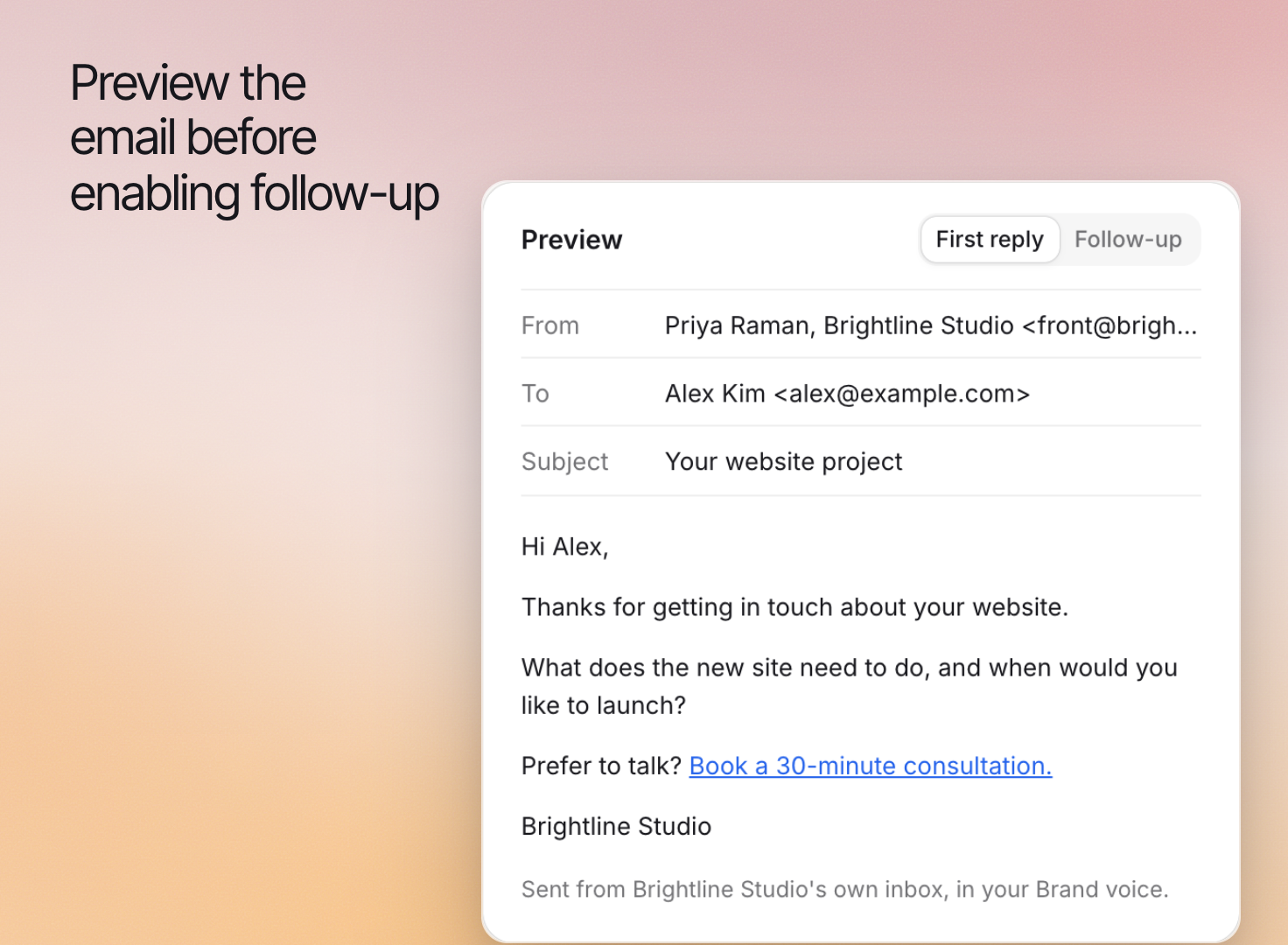 Email follow-up has Erlin email leads who go quiet, from your own connected mailbox, on a schedule you set. Erlin stops as soon as the lead replies, books or unsubscribes. You decide whether Erlin writes each email and whether it asks you before sending.
Set it up in **Leads & Pipeline > Lead Qualification**, on the **Email follow-up**, **Guardrails** and **Offers** tabs.
## Before you start
Connect a mailbox. Erlin sends from your Gmail or Outlook mailbox, connected in **Integrations**. Until then, no follow-up is sent. See [Connect Gmail or Outlook for email](https://www.erlin.ai/docs/integrations/email).
Decide what the lead needs next. A useful follow-up answers an open question, asks for missing project information or shares the booking link they were already considering.
## 1. Turn on follow-up and choose the sending mailbox
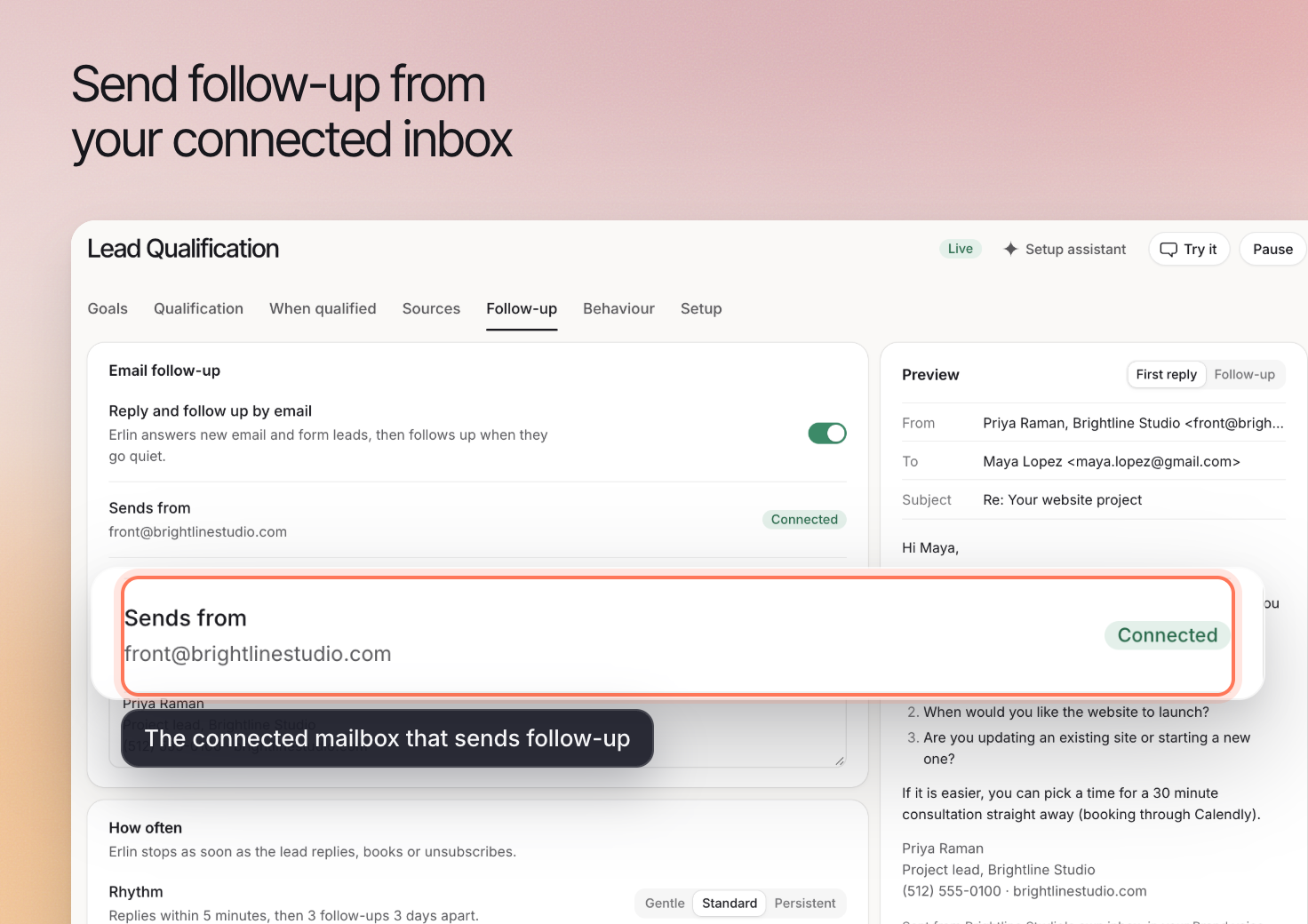
On the **Email follow-up** tab, turn on **Follow up by email**. If your site has more than one mailbox, pick the **Sending mailbox**. Its status should read **Connected**. Any other status, such as **Needs reconnecting** or **Not connected**, means sends are on hold: fix it in Integrations.
**Send as** is the name leads see in their inbox (up to 80 characters; leave it empty to use the mailbox's own name). **Signature** is added to every email as it is sent, so a change applies to emails already waiting. Click **Save changes**.
Email follow-up has Erlin email leads who go quiet, from your own connected mailbox, on a schedule you set. Erlin stops as soon as the lead replies, books or unsubscribes. You decide whether Erlin writes each email and whether it asks you before sending.
Set it up in **Leads & Pipeline > Lead Qualification**, on the **Email follow-up**, **Guardrails** and **Offers** tabs.
## Before you start
Connect a mailbox. Erlin sends from your Gmail or Outlook mailbox, connected in **Integrations**. Until then, no follow-up is sent. See [Connect Gmail or Outlook for email](https://www.erlin.ai/docs/integrations/email).
Decide what the lead needs next. A useful follow-up answers an open question, asks for missing project information or shares the booking link they were already considering.
## 1. Turn on follow-up and choose the sending mailbox
On the **Email follow-up** tab, turn on **Follow up by email**. If your site has more than one mailbox, pick the **Sending mailbox**. Its status should read **Connected**. Any other status, such as **Needs reconnecting** or **Not connected**, means sends are on hold: fix it in Integrations.
**Send as** is the name leads see in their inbox (up to 80 characters; leave it empty to use the mailbox's own name). **Signature** is added to every email as it is sent, so a change applies to emails already waiting. Click **Save changes**.
 ## 2. Set the cadence and sending hours
Under **Cadence**:
- **Reply to form leads at once** sends a first reply to a new form submission, before any follow-up. Chat leads never get it.
- **First follow-up** goes after 1 or 2 days with no reply.
- **Next follow-ups** go every 3 days, every 5 days or every week.
- **Stop after** is 1 to 5 follow-ups. Then Erlin sends nothing more to that lead.
Erlin leaves at least 24 hours between emails to the same lead. Under **Sending hours**, **Hold emails overnight** sets quiet hours in your site's time zone, **No email at weekends** moves Saturday and Sunday emails to Monday, and **No email on Sundays** moves Sunday emails to Monday.
Give each message a purpose. Repeating "just checking in" adds another email without helping the lead decide.
## 3. Write and review the emails
Under **The emails**, each follow-up (**Email 1**, **Email 2** and so on) has a subject (up to 200 characters) and a body (up to 5,000 characters). Erlin always adds the unsubscribe footer below the body. Placeholders you can use are `{{first_name}}`, `{{brand_name}}`, `{{booking_link}}`, `{{next_step}}` and `{{sender_name}}`. Erlin leaves out any placeholder it does not know, and the editor warns you.
To see an email as a lead gets it, save first, then click **Preview** next to it.
## 4. Choose when Erlin asks you first
By default, follow-up emails go out as you wrote them. Turn on **Erlin writes the follow-up** in the **Guardrails** tab and Erlin grades each lead against your [lead fit rules](https://www.erlin.ai/docs/leads/lead-fit-rules) and writes each reply for it. Handing new leads to your team, set on the **Team** tab, also works only while this is on.
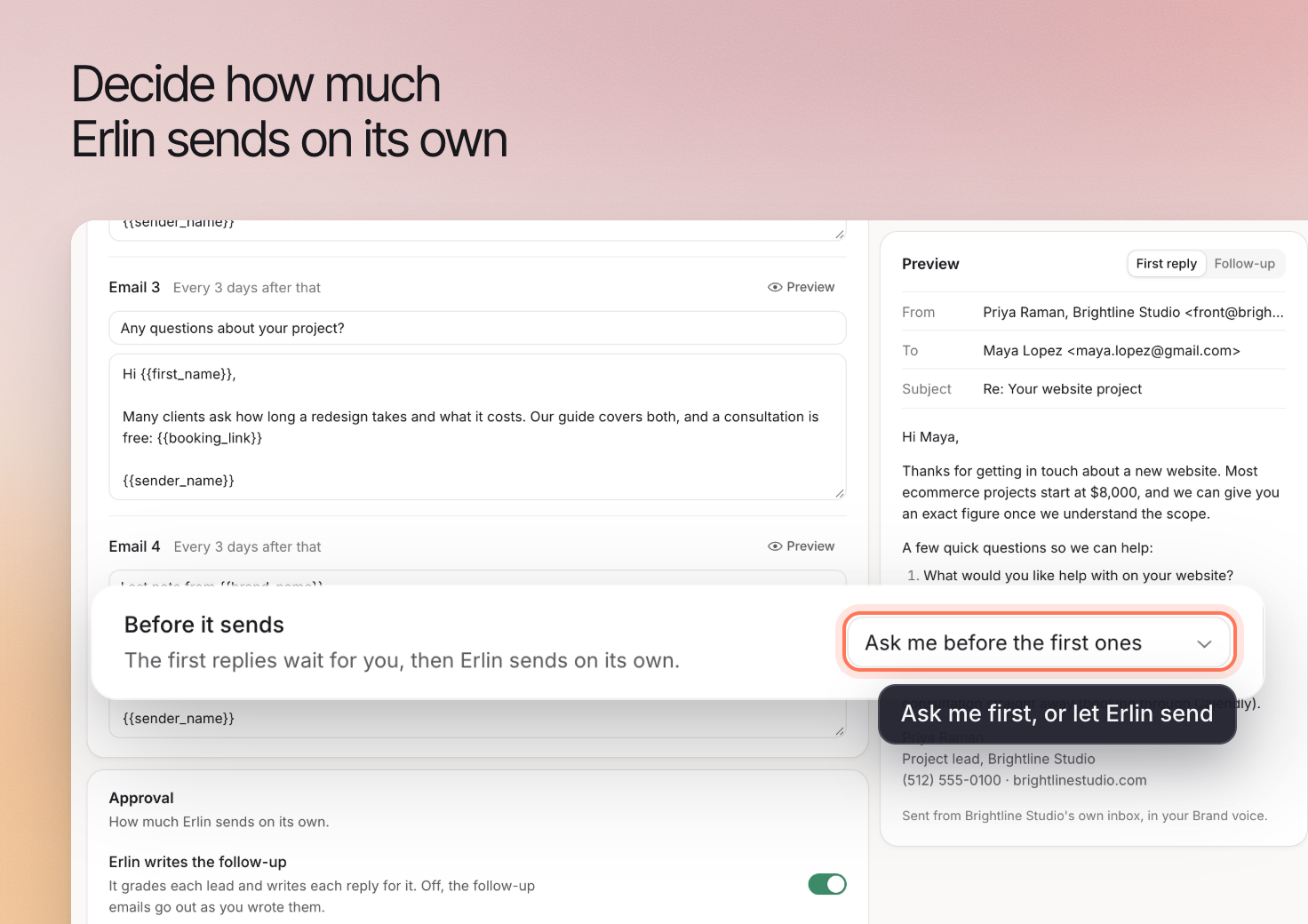
**Before it sends** sets how much Erlin does on its own. It works only while **Erlin writes the follow-up** is on.
| Option | What happens |
| --- | --- |
| **Ask me before every email** | Every reply waits for your approval in the CRM, under **Waiting for you**. |
| **Ask me before the first ones** | The first emails wait for you, then Erlin sends on its own. Set how many with **Ask me before the first emails** (0 to 50, 5 by default). |
| **Send on its own** | Erlin sends when it is confident, inside your sending limits. |
Even when Erlin may send on its own, it asks you first when it is less than 60% confident in the lead's grade, it is the first email after a lead was handed to a person, it is the first time it takes that kind of action, the lead has an owner on your team, or you have not added a postal address.
Under **Sending limits**, **Emails per day** is 1 to 200 (50 by default), and **Postal address** is shown in the footer of every email. Until you add one, every email waits for your approval. **A draft waits for you** sets how long a draft can wait, 1 to 168 hours (12 by default).
## 2. Set the cadence and sending hours
Under **Cadence**:
- **Reply to form leads at once** sends a first reply to a new form submission, before any follow-up. Chat leads never get it.
- **First follow-up** goes after 1 or 2 days with no reply.
- **Next follow-ups** go every 3 days, every 5 days or every week.
- **Stop after** is 1 to 5 follow-ups. Then Erlin sends nothing more to that lead.
Erlin leaves at least 24 hours between emails to the same lead. Under **Sending hours**, **Hold emails overnight** sets quiet hours in your site's time zone, **No email at weekends** moves Saturday and Sunday emails to Monday, and **No email on Sundays** moves Sunday emails to Monday.
Give each message a purpose. Repeating "just checking in" adds another email without helping the lead decide.
## 3. Write and review the emails
Under **The emails**, each follow-up (**Email 1**, **Email 2** and so on) has a subject (up to 200 characters) and a body (up to 5,000 characters). Erlin always adds the unsubscribe footer below the body. Placeholders you can use are `{{first_name}}`, `{{brand_name}}`, `{{booking_link}}`, `{{next_step}}` and `{{sender_name}}`. Erlin leaves out any placeholder it does not know, and the editor warns you.
To see an email as a lead gets it, save first, then click **Preview** next to it.
## 4. Choose when Erlin asks you first
By default, follow-up emails go out as you wrote them. Turn on **Erlin writes the follow-up** in the **Guardrails** tab and Erlin grades each lead against your [lead fit rules](https://www.erlin.ai/docs/leads/lead-fit-rules) and writes each reply for it. Handing new leads to your team, set on the **Team** tab, also works only while this is on.
**Before it sends** sets how much Erlin does on its own. It works only while **Erlin writes the follow-up** is on.
| Option | What happens |
| --- | --- |
| **Ask me before every email** | Every reply waits for your approval in the CRM, under **Waiting for you**. |
| **Ask me before the first ones** | The first emails wait for you, then Erlin sends on its own. Set how many with **Ask me before the first emails** (0 to 50, 5 by default). |
| **Send on its own** | Erlin sends when it is confident, inside your sending limits. |
Even when Erlin may send on its own, it asks you first when it is less than 60% confident in the lead's grade, it is the first email after a lead was handed to a person, it is the first time it takes that kind of action, the lead has an owner on your team, or you have not added a postal address.
Under **Sending limits**, **Emails per day** is 1 to 200 (50 by default), and **Postal address** is shown in the footer of every email. Until you add one, every email waits for your approval. **A draft waits for you** sets how long a draft can wait, 1 to 168 hours (12 by default).
 Drafts waiting for you appear in the CRM under **Waiting for you**. Edit a draft, ask Erlin to redraft it, approve it or cancel it. See [CRM](https://www.erlin.ai/docs/leads/crm).
## 5. Add offers Erlin may use
The **Offers** tab lists what Erlin may put in a follow-up: **Booking link**, **Discount code**, **Trial link**, **Guide or resource**, or **Something Erlin may say**. Click **Add offer** and set a name, the link or code (links must start with `https://`) and **When to use it**. Turn **In use** off to pause an offer.
When Erlin writes the follow-up, its guard checks every email before it goes out. It stops an email that links somewhere, or gives a price or percentage, that is not in your offers, your brand details or emails already sent to the lead. It also stops one that makes a claim you marked as never to say or that breaks your [Compliance](https://www.erlin.ai/docs/brand/compliance) rules.
## 6. Understand when follow-up stops
Erlin stops following up a lead when:
- **The lead replies.** A reply that unsubscribes opts the lead out. A reply saying they are not interested, chose someone else, or that the timing or price is wrong ends the goal as declined. Any other reply pauses follow-up so you can review it. An automatic out-of-office reply does not stop it.
- **The lead books or orders.** See [Lead Qualification](https://www.erlin.ai/docs/leads/lead-qualification) and [Forms and install](https://www.erlin.ai/docs/leads/forms-and-install) for the signals that close a goal.
- **The lead unsubscribes** or **the email bounces.**
- **The sequence ends.** After the last email, if the lead does not reply within the last gap (at least 72 hours), the goal ends as expired.
- **You step in.** Replying to the lead yourself pauses follow-up. **Hand off to me** stops it.
On a lead's page in the CRM, the **Email follow-up** card shows the state, with **Pause**, **Resume** or **Stop** when they apply. If an email did not go out as expected, check the mailbox connection, the sending hours, the approval state and whether the lead already replied or booked. Continue with [managing leads](https://www.erlin.ai/docs/leads/crm).
Drafts waiting for you appear in the CRM under **Waiting for you**. Edit a draft, ask Erlin to redraft it, approve it or cancel it. See [CRM](https://www.erlin.ai/docs/leads/crm).
## 5. Add offers Erlin may use
The **Offers** tab lists what Erlin may put in a follow-up: **Booking link**, **Discount code**, **Trial link**, **Guide or resource**, or **Something Erlin may say**. Click **Add offer** and set a name, the link or code (links must start with `https://`) and **When to use it**. Turn **In use** off to pause an offer.
When Erlin writes the follow-up, its guard checks every email before it goes out. It stops an email that links somewhere, or gives a price or percentage, that is not in your offers, your brand details or emails already sent to the lead. It also stops one that makes a claim you marked as never to say or that breaks your [Compliance](https://www.erlin.ai/docs/brand/compliance) rules.
## 6. Understand when follow-up stops
Erlin stops following up a lead when:
- **The lead replies.** A reply that unsubscribes opts the lead out. A reply saying they are not interested, chose someone else, or that the timing or price is wrong ends the goal as declined. Any other reply pauses follow-up so you can review it. An automatic out-of-office reply does not stop it.
- **The lead books or orders.** See [Lead Qualification](https://www.erlin.ai/docs/leads/lead-qualification) and [Forms and install](https://www.erlin.ai/docs/leads/forms-and-install) for the signals that close a goal.
- **The lead unsubscribes** or **the email bounces.**
- **The sequence ends.** After the last email, if the lead does not reply within the last gap (at least 72 hours), the goal ends as expired.
- **You step in.** Replying to the lead yourself pauses follow-up. **Hand off to me** stops it.
On a lead's page in the CRM, the **Email follow-up** card shows the state, with **Pause**, **Resume** or **Stop** when they apply. If an email did not go out as expected, check the mailbox connection, the sending hours, the approval state and whether the lead already replied or booked. Continue with [managing leads](https://www.erlin.ai/docs/leads/crm).