# Turn on the chat on a site with the Erlin tag
> Already have the Erlin tag on your site? The chat is built in. Turn it on in Lead Qualification and go live, with no code change and no second snippet.
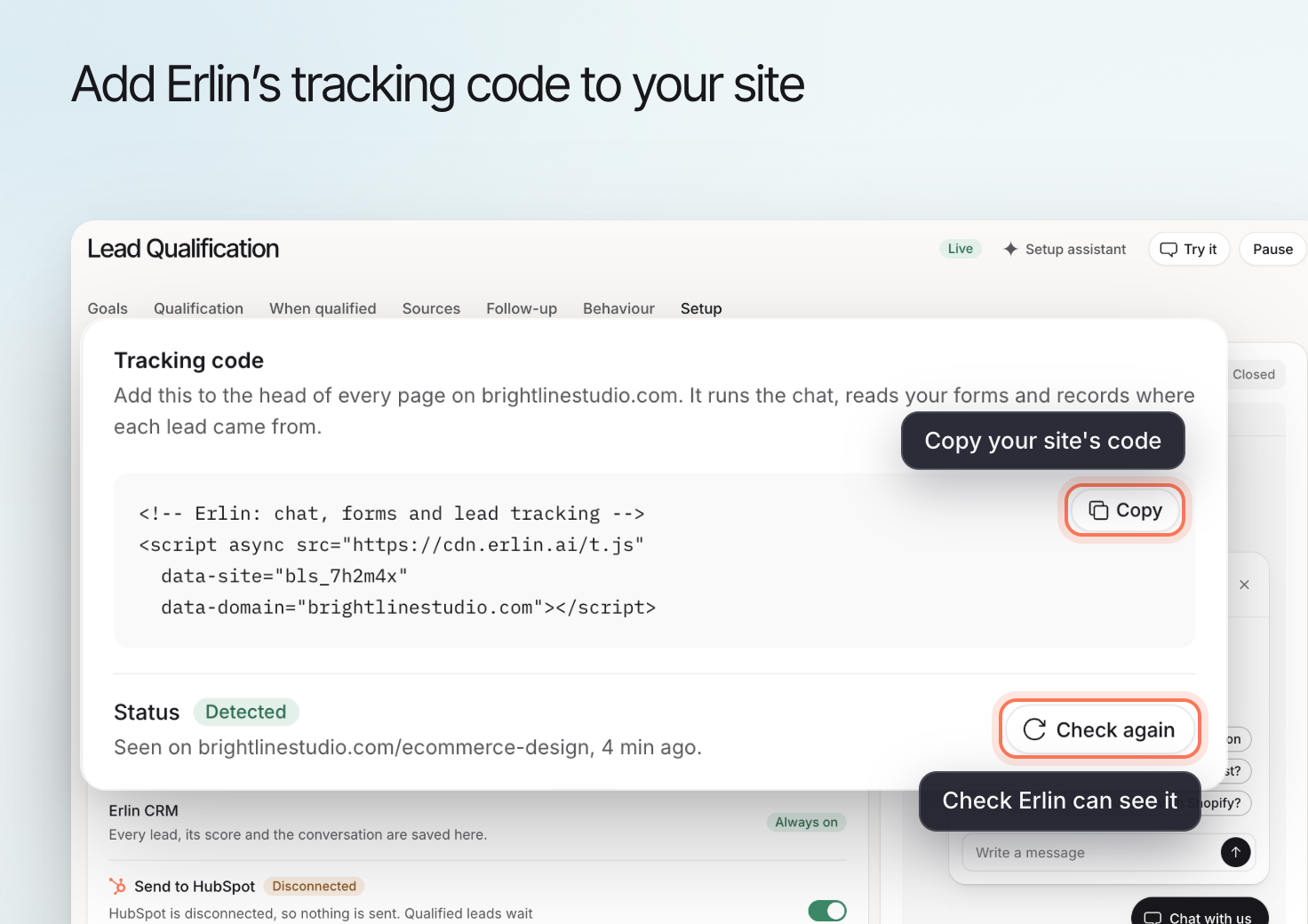
If your site already has the Erlin tag, you don't need to install anything else to add the chat. The tag loads the chat for you. It stays hidden until you turn it on and Lead Qualification is live, so a site that uses the tag only for analytics never shows a chat.
```html
```
If this line is on your site, you have the Erlin tag. If not, install it first: see [Forms and install](https://www.erlin.ai/docs/leads/forms-and-install).
## When the chat shows
The chat shows on your site only when both of these are true:
1. **Show the chat** is on, in **Lead Qualification > Sources > Website chat**.
2. Lead Qualification is **Live**. The status next to the page title reads **Draft**, **Live** or **Paused**.
If either one is off, visitors see nothing, and your analytics keep working as before.
## Turn on the chat
Open **Leads & Pipeline > Lead Qualification** with your brand selected.
Go to **Sources > Website chat** and turn on **Show the chat**. Under **Where it shows**, pick **All pages** or **Selected pages**. For selected pages, add each path, such as `/pricing`, up to 20 pages. Click **Save changes**.
On **Goals**, choose what Erlin should do on your site, such as **Qualify leads**, **Book meetings** or **Answer top questions**.
On **Qualification**, under **What makes a good lead**, click **Add rule** and add at least one rule. Erlin can suggest rules from reading your site. A goal with its own rules counts too.
On **When qualified**, set the **Main step**: **Book a meeting**, **Collect details** or **Hand to a person**, then click **Save changes**. To book, connect a calendar under **Book with**: Google Calendar or Outlook, or use Calendly or Cal.com. See [Booking](https://www.erlin.ai/docs/leads/booking).
On **Behaviour**, set **What Erlin can say**, what it should **Never say**, when to **Hand to a person**, and any **Offers**. The greeting and quick replies are on **Sources > Website chat**. The chat's color and position are on **Setup**, under **Appearance**.
Click **Go live** at the top of the page and confirm. Save any open changes first. If the button is disabled, hover over it to see what is missing.
Go live needs three things: at least one rule, at least one source turned on (here, the website chat), and a main step for when someone qualifies.
## Check the chat on your site
On **Setup**, the **Chat on your site** row tells you what your site shows:
 | Status | Meaning |
| --- | --- |
| **Showing** | Visitors see the chat on your site. |
| **Ready** | The chat is on and live, and it shows once Erlin detects the tag on your site. |
| **Hidden** | The row says why: **Show the chat** is off, or Lead Qualification is not live yet. |
Then open your site in a private window. The chat launcher appears within about 90 seconds of going live, because the chat's settings are cached for up to 30 seconds on Erlin's side and 60 seconds in the visitor's browser. Changes you make later reach the site in the same time.
This request returns the same answer your site gets:
```bash
curl "https://api.erlin.ai/c/config?site=et_...&via=tag"
```
Replace `et_...` with your tag's `data-site-id`. The response has `"show": true` when the chat is on and Lead Qualification is live, and `"show": false` otherwise.
## Pause and resume
**Pause**, at the top of Lead Qualification, hides the chat everywhere without touching your site. **Resume** shows it again. Turning off **Show the chat** hides it too.
## Don't add a second chat snippet
When the Erlin tag is on the page, don't add a separate chat snippet (a script ending in `/c/w.js`). The tag already loads the chat. If both are on a page, Erlin draws only one chat, but the extra snippet isn't needed. Use the standalone chat snippet only on a site without the tag.
## Related
Write the greeting, match your brand and test a conversation.
Install the Erlin tag and check that Erlin can see it.
| Status | Meaning |
| --- | --- |
| **Showing** | Visitors see the chat on your site. |
| **Ready** | The chat is on and live, and it shows once Erlin detects the tag on your site. |
| **Hidden** | The row says why: **Show the chat** is off, or Lead Qualification is not live yet. |
Then open your site in a private window. The chat launcher appears within about 90 seconds of going live, because the chat's settings are cached for up to 30 seconds on Erlin's side and 60 seconds in the visitor's browser. Changes you make later reach the site in the same time.
This request returns the same answer your site gets:
```bash
curl "https://api.erlin.ai/c/config?site=et_...&via=tag"
```
Replace `et_...` with your tag's `data-site-id`. The response has `"show": true` when the chat is on and Lead Qualification is live, and `"show": false` otherwise.
## Pause and resume
**Pause**, at the top of Lead Qualification, hides the chat everywhere without touching your site. **Resume** shows it again. Turning off **Show the chat** hides it too.
## Don't add a second chat snippet
When the Erlin tag is on the page, don't add a separate chat snippet (a script ending in `/c/w.js`). The tag already loads the chat. If both are on a page, Erlin draws only one chat, but the extra snippet isn't needed. Use the standalone chat snippet only on a site without the tag.
## Related
Write the greeting, match your brand and test a conversation.
Install the Erlin tag and check that Erlin can see it.