# Qualify inquiries before booking a meeting
> Choose Book a consultation as what happens when a lead qualifies, see the booking link Erlin offers, and know how a booking closes the goal.
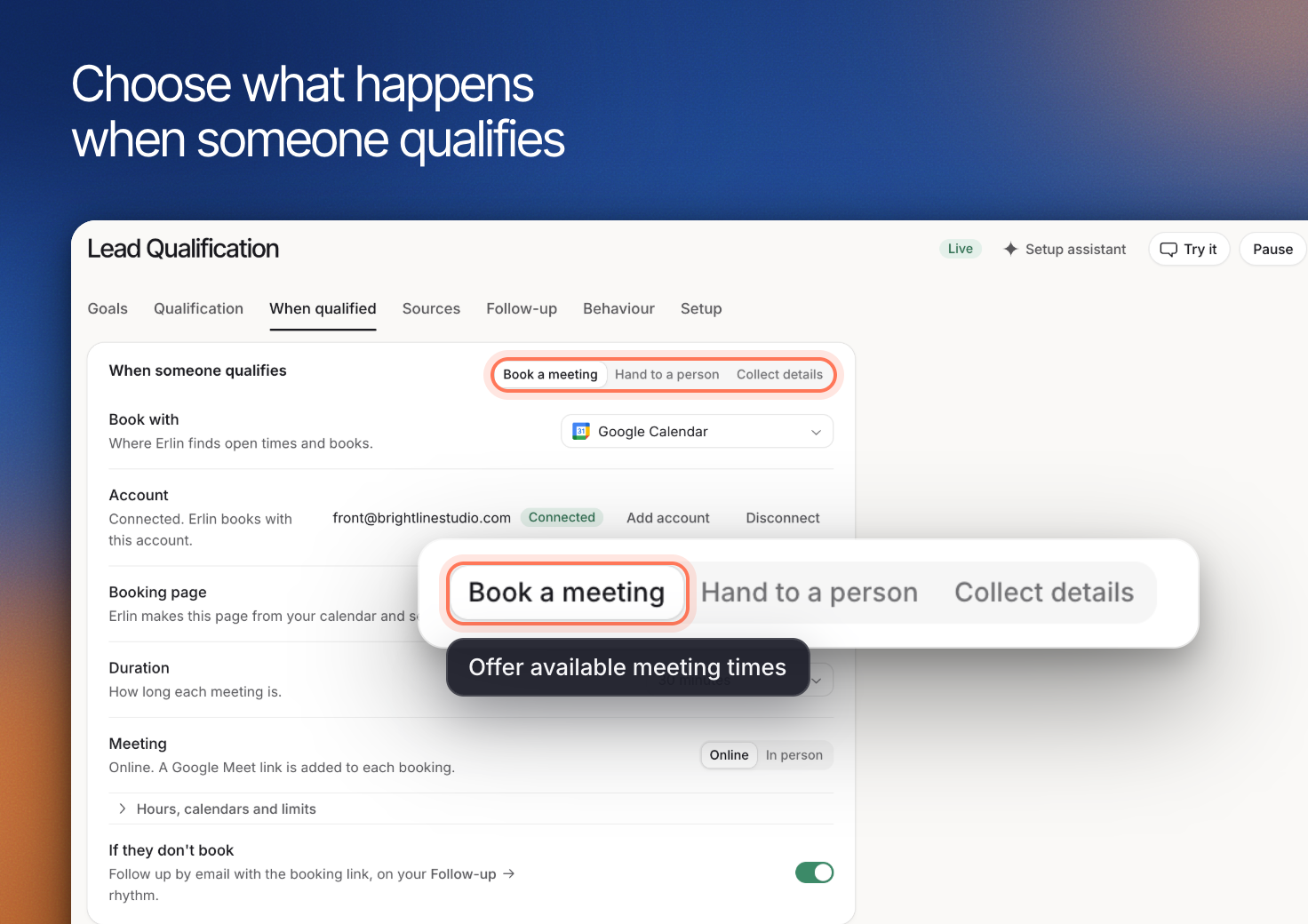 Erlin qualifies leads against your rules, then offers a booking link to the ones who pass. You choose what happens when a lead qualifies, and Erlin offers your booking link in the chat.
## 1. Choose Book a consultation
Open **Leads & Pipeline > Lead Qualification** and the **Goal & rules** tab. Under **When a lead qualifies**, the outcome is **Book a consultation**, **Collect contact details** or **Hand to the team**. For a goal that books, Erlin offers your booking link once the lead passes your rules. See [Website chat](https://www.erlin.ai/docs/leads/chat-widget) for the steps to set up the goal.
Use the qualification rules to establish whether a meeting is a useful next step. Focus on information your team needs before speaking with the lead. See [Lead fit rules](https://www.erlin.ai/docs/leads/lead-fit-rules) for who counts as a good lead.
## 2. Check the booking link
For a goal that books, the **Booking link** row on the **Goal & rules** tab shows the link Erlin offers, by its name or provider. Lead Qualification has no setting to add or change a booking link. To add one or change it, email help@erlin.ai.
In the chat, Erlin offers the link to leads who qualify. In the CRM, **Book consultation** in a lead's header opens the lead's booking link, when there is one. It does not book anything by itself.
## 3. How a booking closes the goal
A visitor clicking the booking link shows intent but does not close the goal. Erlin needs proof of the booking: a booking confirmation email in your connected mailbox, a Cal.com booking, or you marking the goal achieved. To count bookings automatically, set up **Signals that close a goal** on the **Install** tab. See [Forms and install](https://www.erlin.ai/docs/leads/forms-and-install).
Scheduled email follow-up stops when the lead replies or books. See [Email follow-up](https://www.erlin.ai/docs/leads/email-follow-up).
## 4. Test before you turn it on
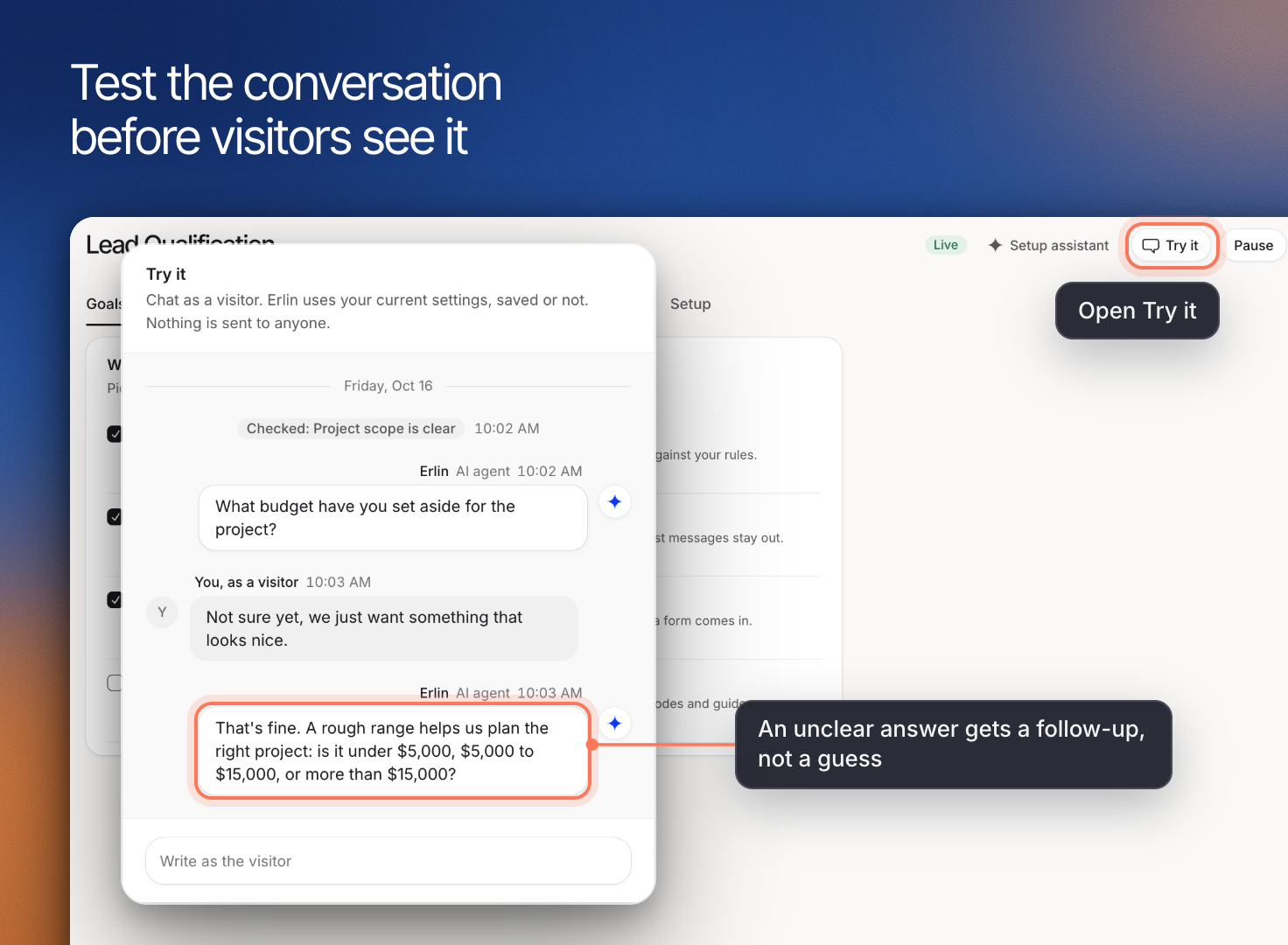
Click **Test the agent** at the top of Lead Qualification and chat as a visitor. Nothing is saved and no lead is created, and the test uses your saved settings, so save first. Try a person whose needs match your services, one who has not given enough information and one asking for a service you do not offer. Check that Erlin offers the booking link only after the lead passes your rules.
Erlin qualifies leads against your rules, then offers a booking link to the ones who pass. You choose what happens when a lead qualifies, and Erlin offers your booking link in the chat.
## 1. Choose Book a consultation
Open **Leads & Pipeline > Lead Qualification** and the **Goal & rules** tab. Under **When a lead qualifies**, the outcome is **Book a consultation**, **Collect contact details** or **Hand to the team**. For a goal that books, Erlin offers your booking link once the lead passes your rules. See [Website chat](https://www.erlin.ai/docs/leads/chat-widget) for the steps to set up the goal.
Use the qualification rules to establish whether a meeting is a useful next step. Focus on information your team needs before speaking with the lead. See [Lead fit rules](https://www.erlin.ai/docs/leads/lead-fit-rules) for who counts as a good lead.
## 2. Check the booking link
For a goal that books, the **Booking link** row on the **Goal & rules** tab shows the link Erlin offers, by its name or provider. Lead Qualification has no setting to add or change a booking link. To add one or change it, email help@erlin.ai.
In the chat, Erlin offers the link to leads who qualify. In the CRM, **Book consultation** in a lead's header opens the lead's booking link, when there is one. It does not book anything by itself.
## 3. How a booking closes the goal
A visitor clicking the booking link shows intent but does not close the goal. Erlin needs proof of the booking: a booking confirmation email in your connected mailbox, a Cal.com booking, or you marking the goal achieved. To count bookings automatically, set up **Signals that close a goal** on the **Install** tab. See [Forms and install](https://www.erlin.ai/docs/leads/forms-and-install).
Scheduled email follow-up stops when the lead replies or books. See [Email follow-up](https://www.erlin.ai/docs/leads/email-follow-up).
## 4. Test before you turn it on
Click **Test the agent** at the top of Lead Qualification and chat as a visitor. Nothing is saved and no lead is created, and the test uses your saved settings, so save first. Try a person whose needs match your services, one who has not given enough information and one asking for a service you do not offer. Check that Erlin offers the booking link only after the lead passes your rules.
 Review early conversations in the [CRM](https://www.erlin.ai/docs/leads/crm) and update your rules as you learn which information helps your team.