# Connect WordPress and send articles
> Connect WordPress with the Erlin plugin or an application password so Erlin can send articles to your site.
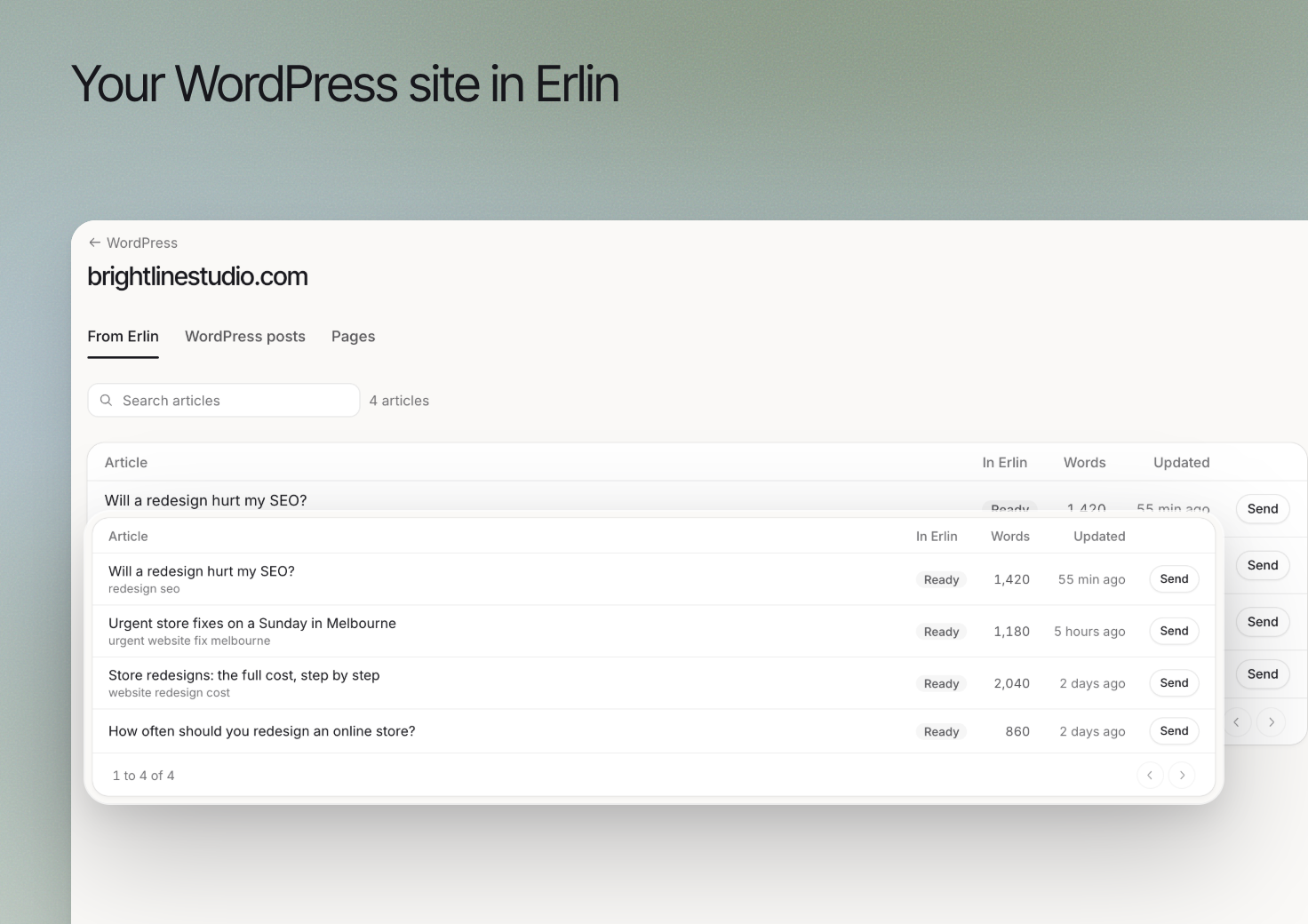 Connect WordPress to send reviewed Erlin articles to the intended website. The Erlin plugin also provides a way to read the site's posts and pages.
Check the website and brand before connecting or replacing an existing connection.
## 1. Choose the connection method
Open **Integrations > WordPress**. Under **Install the Erlin plugin**, use **Download the plugin**, then install and activate it in WordPress. In WordPress, open **Erlin AI** in the menu and press **Connect to Erlin**, then select the brand the site belongs to. A WordPress site connects to one brand, and if that brand already has a site connected, Erlin asks you to confirm replacing it.
If you use **Use an application password instead**, enter the requested site details and application password, then choose **Connect site**. Erlin checks the details and shows the reason if they fail. This method sends articles with categories and tags but does not read your posts and pages. Use the credentials intended for this integration rather than sharing a personal sign-in password.
## 2. Review the article before sending
Finish the piece in the [editor](https://www.erlin.ai/docs/content/editor-and-publishing). Check facts, sources, headings and links. A connected site does not make an unfinished draft ready to publish.
With the plugin, use **Open articles and pages** and review **From Erlin** for articles to send.
## 3. Choose the publishing state
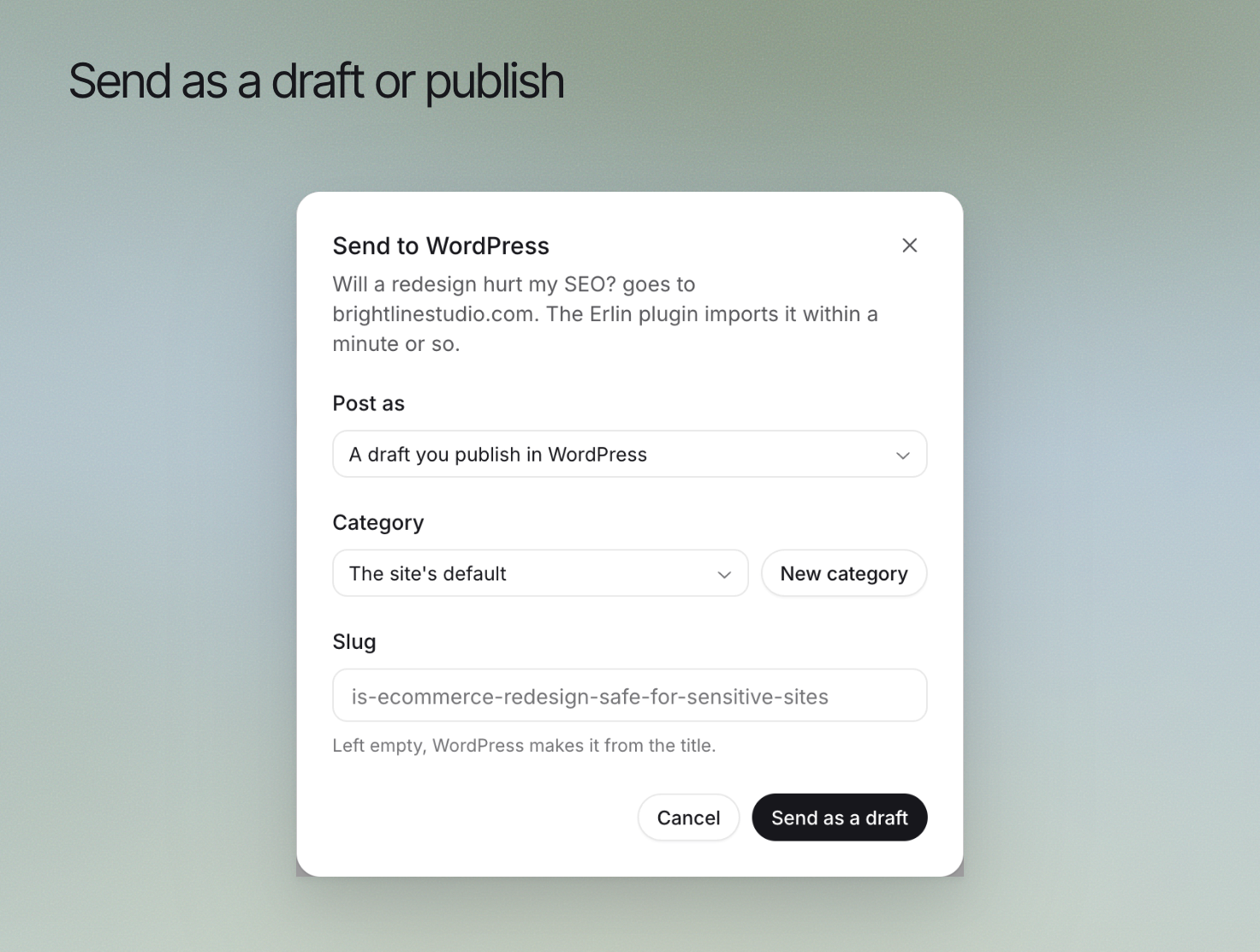
Select **Send** to open **Send to WordPress**. Review **Post as** (a draft you publish in WordPress, or Published straight away), **Category** (or New category) and **Slug**. Choose the draft option when the team needs to inspect the result in WordPress before publication. The plugin imports the post within a minute or so.
Connect WordPress to send reviewed Erlin articles to the intended website. The Erlin plugin also provides a way to read the site's posts and pages.
Check the website and brand before connecting or replacing an existing connection.
## 1. Choose the connection method
Open **Integrations > WordPress**. Under **Install the Erlin plugin**, use **Download the plugin**, then install and activate it in WordPress. In WordPress, open **Erlin AI** in the menu and press **Connect to Erlin**, then select the brand the site belongs to. A WordPress site connects to one brand, and if that brand already has a site connected, Erlin asks you to confirm replacing it.
If you use **Use an application password instead**, enter the requested site details and application password, then choose **Connect site**. Erlin checks the details and shows the reason if they fail. This method sends articles with categories and tags but does not read your posts and pages. Use the credentials intended for this integration rather than sharing a personal sign-in password.
## 2. Review the article before sending
Finish the piece in the [editor](https://www.erlin.ai/docs/content/editor-and-publishing). Check facts, sources, headings and links. A connected site does not make an unfinished draft ready to publish.
With the plugin, use **Open articles and pages** and review **From Erlin** for articles to send.
## 3. Choose the publishing state
Select **Send** to open **Send to WordPress**. Review **Post as** (a draft you publish in WordPress, or Published straight away), **Category** (or New category) and **Slug**. Choose the draft option when the team needs to inspect the result in WordPress before publication. The plugin imports the post within a minute or so.
 ## 4. Verify the destination
Open the result in WordPress and check formatting, links and images. If the article is live, inspect the public page too.
Use **WordPress posts** (select **Read posts again** to fetch them) and **Pages** to review the content read from the connected site. If the connection needs attention, restore it before sending again. Check the destination first to avoid creating an unnecessary duplicate after an uncertain response.
See [Content optimization](https://www.erlin.ai/docs/content/content-optimization) for improving an existing article.
## 4. Verify the destination
Open the result in WordPress and check formatting, links and images. If the article is live, inspect the public page too.
Use **WordPress posts** (select **Read posts again** to fetch them) and **Pages** to review the content read from the connected site. If the connection needs attention, restore it before sending again. Check the destination first to avoid creating an unnecessary duplicate after an uncertain response.
See [Content optimization](https://www.erlin.ai/docs/content/content-optimization) for improving an existing article.