# Connect Webflow and send CMS drafts
> Connect Webflow to send Erlin articles to a CMS collection on your site and let Erlin read your collections.
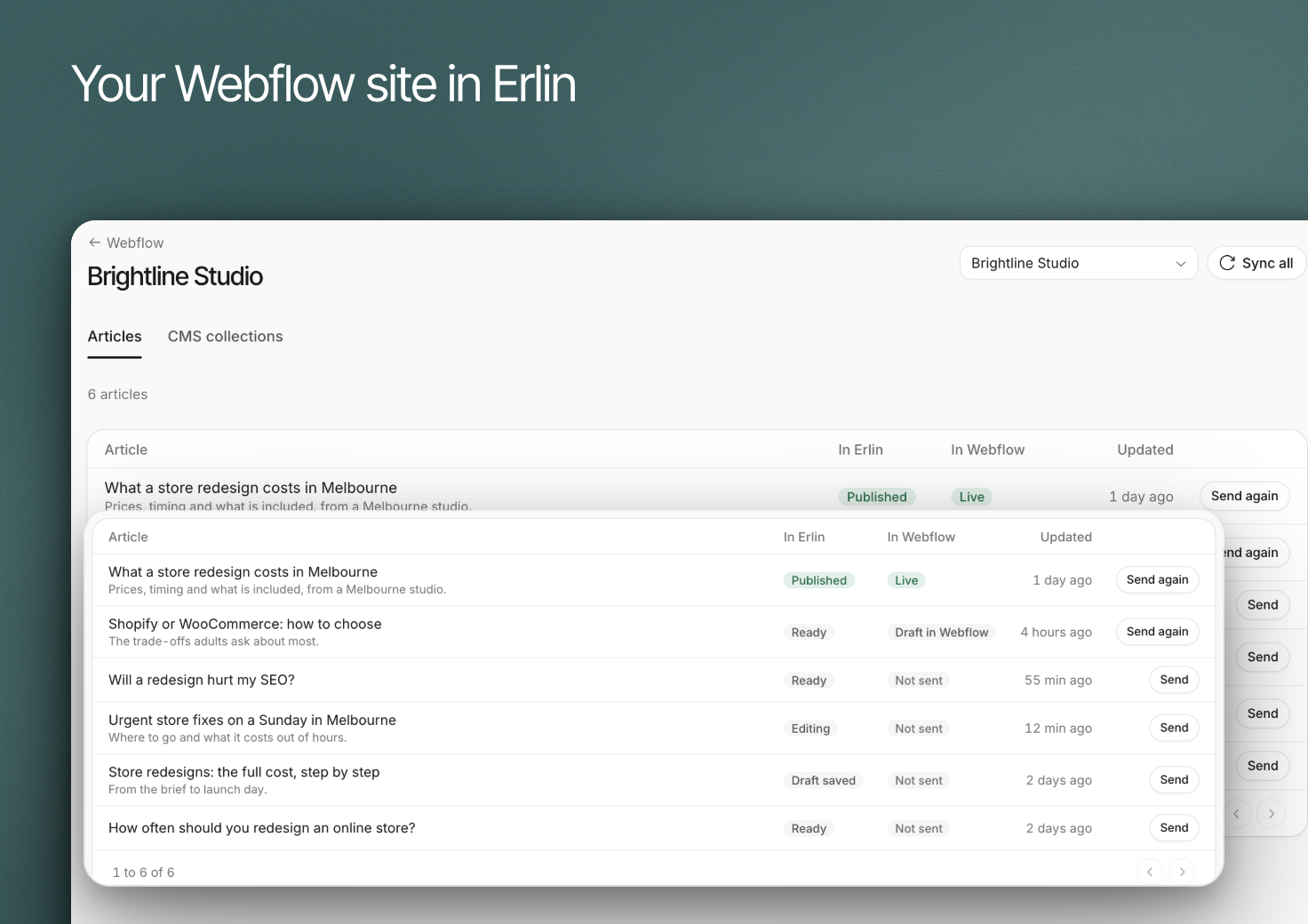 Connect Webflow to send Erlin articles to a CMS collection as drafts. Review and publish those drafts in Webflow when they are ready.
This integration also provides access to connected CMS collections. It is separate from connecting [Webflow forms for qualification](https://www.erlin.ai/docs/leads/forms-and-install).
## 1. Connect the site
Open **Integrations > Webflow** and complete the connection. Erlin asks to read your sites, read and write CMS content, upload assets and read ecommerce data. Review these permissions before approving access.
Confirm the intended website is listed under **Sites**, and select **Open** next to it. Use **Add a site** when you need another destination.
## 2. Choose the article and collection
Open the site and find the piece under **Articles**, which shows each article's state in Erlin and in Webflow (Not sent, Draft in Webflow or Live). Choose **Send** to open **Send to Webflow**, then select **Collection**.
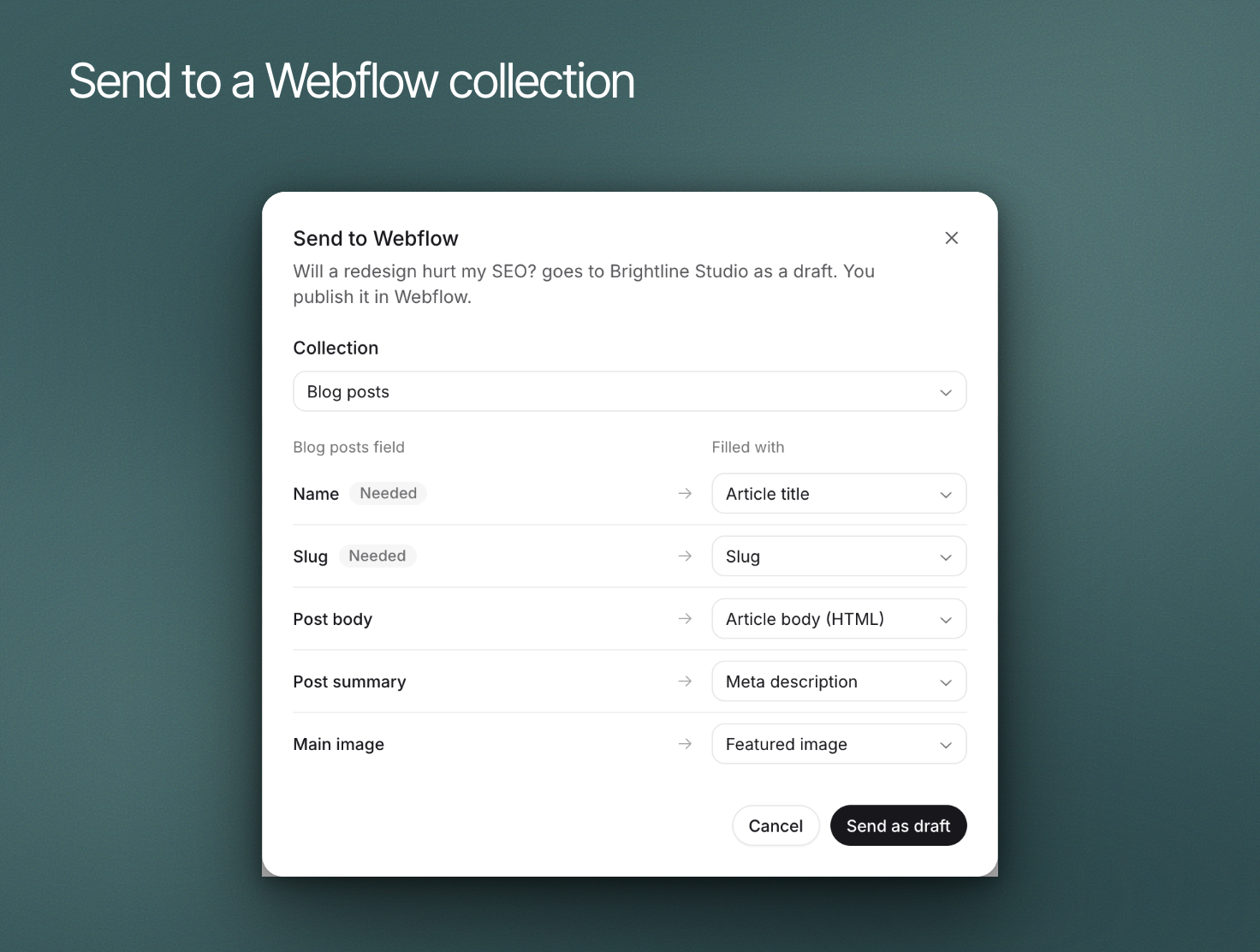
Review **Field mapping**. Check how the article title, body, slug, meta description and featured image map to the collection's fields. Name and Slug must be filled before it sends. Change any field, or choose **Leave empty**.
## 3. Send a draft and review it
Choose **Send as draft**. Open the item in Webflow and check its content, formatting and mapped fields before publishing there. If the featured image does not attach, add it in Webflow. Erlin does not publish to Webflow, and it remembers the collection you used last for each site.
Connect Webflow to send Erlin articles to a CMS collection as drafts. Review and publish those drafts in Webflow when they are ready.
This integration also provides access to connected CMS collections. It is separate from connecting [Webflow forms for qualification](https://www.erlin.ai/docs/leads/forms-and-install).
## 1. Connect the site
Open **Integrations > Webflow** and complete the connection. Erlin asks to read your sites, read and write CMS content, upload assets and read ecommerce data. Review these permissions before approving access.
Confirm the intended website is listed under **Sites**, and select **Open** next to it. Use **Add a site** when you need another destination.
## 2. Choose the article and collection
Open the site and find the piece under **Articles**, which shows each article's state in Erlin and in Webflow (Not sent, Draft in Webflow or Live). Choose **Send** to open **Send to Webflow**, then select **Collection**.
Review **Field mapping**. Check how the article title, body, slug, meta description and featured image map to the collection's fields. Name and Slug must be filled before it sends. Change any field, or choose **Leave empty**.
## 3. Send a draft and review it
Choose **Send as draft**. Open the item in Webflow and check its content, formatting and mapped fields before publishing there. If the featured image does not attach, add it in Webflow. Erlin does not publish to Webflow, and it remembers the collection you used last for each site.
 For an article already sent, review the existing destination before using **Send again**. A retry should not be a substitute for checking whether the earlier transfer succeeded.
## 4. Review connected CMS content
Use **CMS collections** to inspect what Erlin has read. **Sync all** requests an updated read; **Import blog posts** brings the site's posts into Erlin as articles.
If the connection needs attention, reconnect the site before relying on a new transfer. Use the disconnect control only after reviewing its confirmation.
Continue with [Editor and publishing](https://www.erlin.ai/docs/content/editor-and-publishing) or [Content library](https://www.erlin.ai/docs/content/library).
For an article already sent, review the existing destination before using **Send again**. A retry should not be a substitute for checking whether the earlier transfer succeeded.
## 4. Review connected CMS content
Use **CMS collections** to inspect what Erlin has read. **Sync all** requests an updated read; **Import blog posts** brings the site's posts into Erlin as articles.
If the connection needs attention, reconnect the site before relying on a new transfer. Use the disconnect control only after reviewing its confirmation.
Continue with [Editor and publishing](https://www.erlin.ai/docs/content/editor-and-publishing) or [Content library](https://www.erlin.ai/docs/content/library).