# Connect Telegram for alerts and Hey Erlin
> Link your Telegram account to chat with Hey Erlin about your brand and get your Erlin alerts in Telegram.
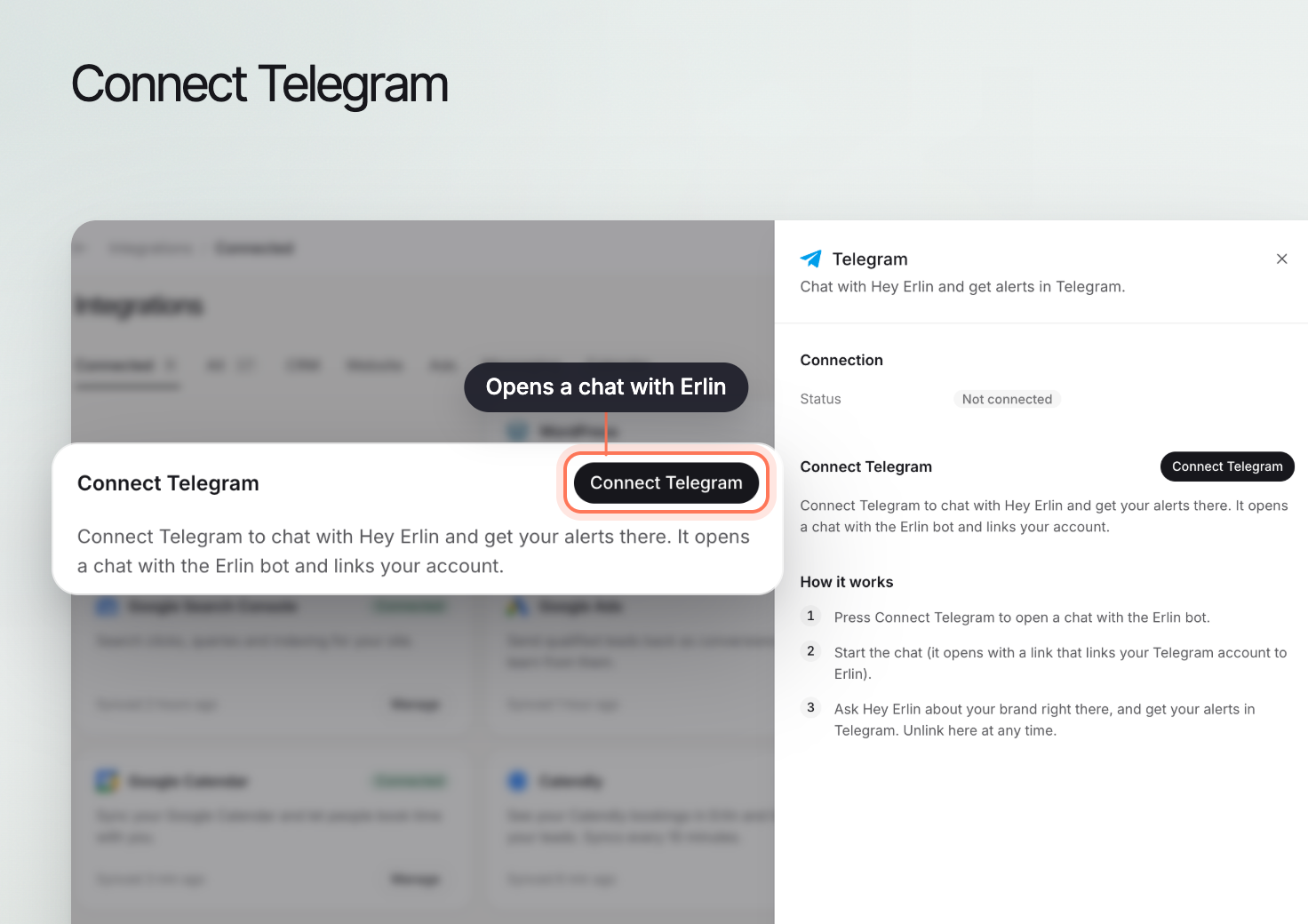 Telegram is in beta. Linking Telegram lets you ask Hey Erlin about your brand in a Telegram chat and get your alerts there. It links your own Telegram account to your Erlin account, so each person who wants it links their own.
Open **Integrations** and click the **Telegram** card in the Messaging group. Each answer from Hey Erlin costs 2 credits, or none if you use your own OpenRouter key. See [Hey Erlin](https://www.erlin.ai/docs/get-started/hey-erlin).
## 1. Connect your account
In the Telegram sheet, click **Connect Telegram**. Erlin opens a chat with the Erlin bot. If it does not open, click **Open Telegram** under the button.
In Telegram, press **Start**. The chat opens with a link that links your Telegram account to Erlin.
Erlin waits up to 2 minutes for you to press Start. When it sees the link, the sheet shows "Telegram account linked".
If the 2 minutes pass first, the sheet says "Still waiting. Press Start in Telegram, then reopen this panel to finish connecting." Press **Start** in Telegram, then reopen the sheet.
## 2. Pick the brand it answers about
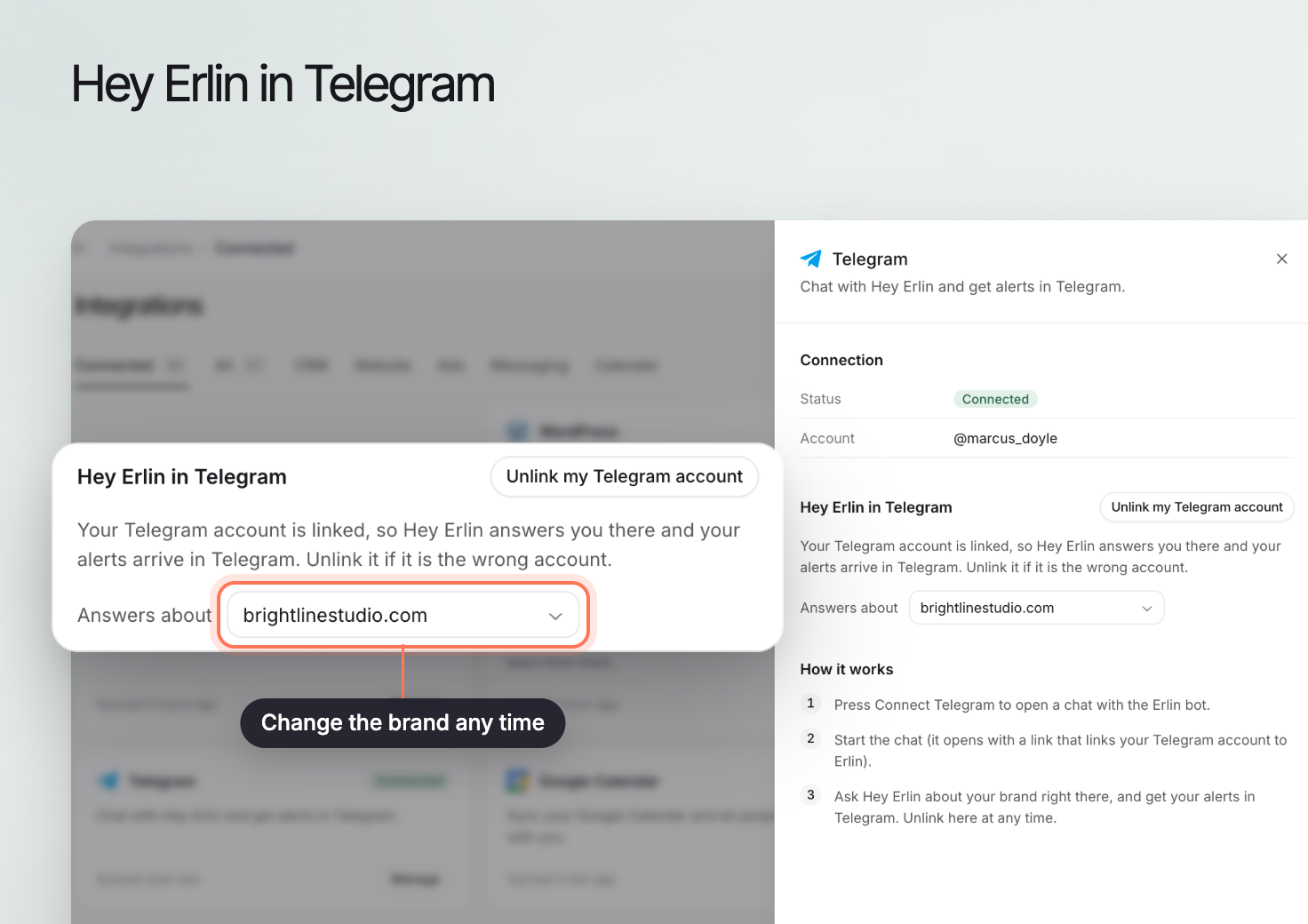 Once linked, the sheet shows **Hey Erlin in Telegram**. Use **Answers about** to choose which of your brands Hey Erlin answers about. Erlin confirms with "Hey Erlin now answers about" and the brand's domain. Change it any time.
## 3. Get alerts in Telegram
Your alerts arrive in the same Telegram chat. In **Settings > Notifications**, the **Telegram** switch sends the same alerts to your Telegram chat. It stays off and reads "Connect Telegram in Integrations first." until you link. See [Notifications](https://www.erlin.ai/docs/settings/notifications).
## 4. Approve runs from Telegram
When Hey Erlin proposes running your prompts, it sends an approve link. The link opens Erlin, where you approve or reject the run. See [Approve a prompt run](https://www.erlin.ai/docs/get-started/hey-erlin).
## 5. Unlink
Click **Unlink my Telegram account** in the sheet. Hey Erlin stops answering you in Telegram and your alerts stop arriving there. Erlin confirms with "Telegram account unlinked". Unlink it if it is the wrong account.
## If Connect is blocked
If you are viewing another account, such as a customer account, Erlin refuses to connect with "Switch back to your own account to connect Telegram". Switch back to your own account, then connect.