# Connect Slack for team notifications
> Connect Slack so Erlin posts alerts and reports in the channel you pick.
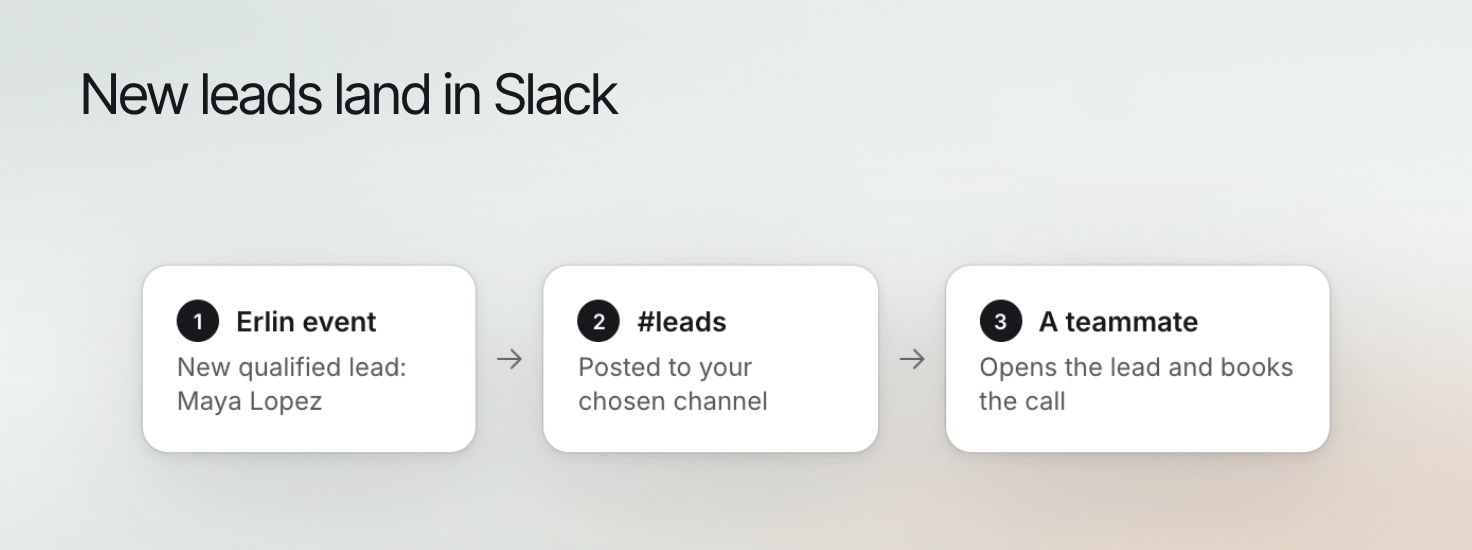
 Connecting Slack lets Erlin post alerts and reports in a Slack channel your team already reads. Choose the workspace and channel deliberately so the right people receive the information. Slack posts are separate from email follow-up sent to leads.
## What Erlin posts
Erlin posts these to your channel:
- **Visibility reports:** after a visibility run, a message with your Visibility Score, the platform breakdown and the prompts analyzed. A scheduled report adds your Mention Rate, Citation Rate, Share of Voice, top competitors and a View Visibility button.
- **Citation changes:** the sources you gained and lost.
- **New opportunities:** how many Erlin found, with the prompts it analyzed.
- **Site audit finished:** the audit score, pages crawled and issue counts.
- **Failed scheduled runs:** an Auto-Execution Failed message with the error.
Whether Slack gets a given alert also depends on your notification channel settings. See [Notifications](https://www.erlin.ai/docs/settings/notifications).
## 1. Connect the workspace
Click Integrations under Workspace in the sidebar.
The card is in the Messaging group. Erlin opens Slack's sign-in.
Choose the workspace and approve. Erlin asks to read channels, post messages, read mentions and direct messages sent to it, and read user names.
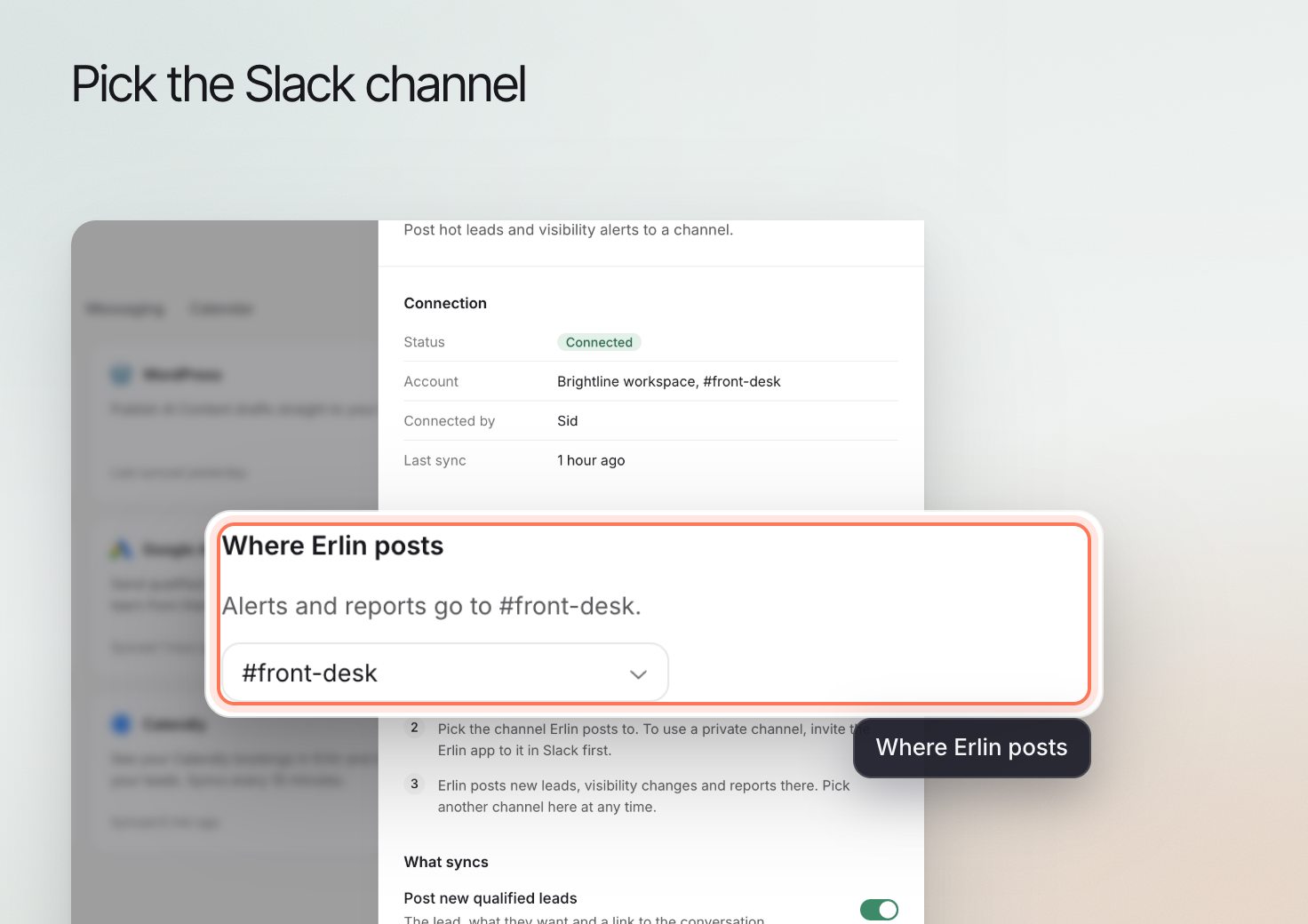
Erlin opens the Slack sheet with the channel picker ready. Choose a channel from the Slack channel dropdown. It saves as soon as you pick.
## 2. Choose or change the channel
Private channels show a lock in the dropdown. To use one, invite the Erlin app to it in Slack first. If the dropdown says there are no channels, add the Erlin app to a channel in Slack, then come back. To change the channel later, click the Slack card and choose another one. Erlin posts to the new channel from then on.
Connecting Slack lets Erlin post alerts and reports in a Slack channel your team already reads. Choose the workspace and channel deliberately so the right people receive the information. Slack posts are separate from email follow-up sent to leads.
## What Erlin posts
Erlin posts these to your channel:
- **Visibility reports:** after a visibility run, a message with your Visibility Score, the platform breakdown and the prompts analyzed. A scheduled report adds your Mention Rate, Citation Rate, Share of Voice, top competitors and a View Visibility button.
- **Citation changes:** the sources you gained and lost.
- **New opportunities:** how many Erlin found, with the prompts it analyzed.
- **Site audit finished:** the audit score, pages crawled and issue counts.
- **Failed scheduled runs:** an Auto-Execution Failed message with the error.
Whether Slack gets a given alert also depends on your notification channel settings. See [Notifications](https://www.erlin.ai/docs/settings/notifications).
## 1. Connect the workspace
Click Integrations under Workspace in the sidebar.
The card is in the Messaging group. Erlin opens Slack's sign-in.
Choose the workspace and approve. Erlin asks to read channels, post messages, read mentions and direct messages sent to it, and read user names.
Erlin opens the Slack sheet with the channel picker ready. Choose a channel from the Slack channel dropdown. It saves as soon as you pick.
## 2. Choose or change the channel
Private channels show a lock in the dropdown. To use one, invite the Erlin app to it in Slack first. If the dropdown says there are no channels, add the Erlin app to a channel in Slack, then come back. To change the channel later, click the Slack card and choose another one. Erlin posts to the new channel from then on.
 ## 3. Disconnect
Click the Slack card, then Disconnect, and confirm. Erlin stops posting to Slack and you can connect it again at any time. Messages already in Slack stay. Only the account owner can disconnect. If Erlin shows "Only the account owner can do this", ask the owner of your Erlin account. For help, use [Support](https://www.erlin.ai/docs/settings/support).
## 3. Disconnect
Click the Slack card, then Disconnect, and confirm. Erlin stops posting to Slack and you can connect it again at any time. Messages already in Slack stay. Only the account owner can disconnect. If Erlin shows "Only the account owner can do this", ask the owner of your Erlin account. For help, use [Support](https://www.erlin.ai/docs/settings/support).