# Connect Gmail or Outlook for email
> Connect the Gmail or Outlook account Erlin reads leads from and sends follow-up through, and check the connection before you rely on it.
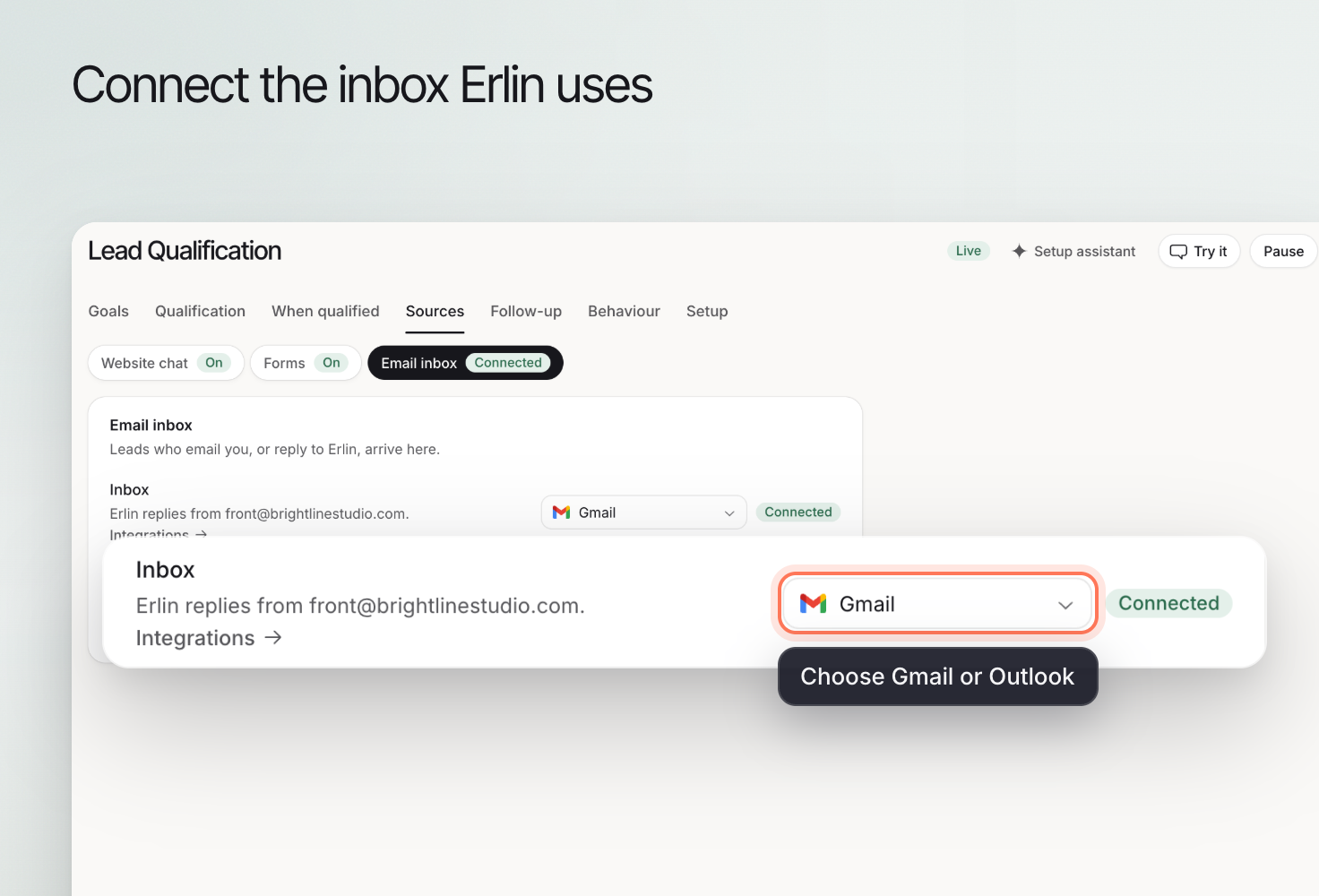 Connecting Email lets you read and answer your Gmail or Outlook mail in Erlin, and gives Erlin a mailbox to send lead follow-up from. The inbox is at Workspace, Email in the sidebar. Emails to and from leads also show on the lead's record.
Use this guide to connect the intended mailbox and check it before enabling email follow-up.
## 1. Choose the account your team will use
Choose a mailbox that your team can monitor and is authorized to use for lead conversations. Confirm the address before connecting it, especially if you are signed in to several Google or Microsoft accounts. Decide who will handle replies, so the next message reaches someone who can help.
## 2. Connect the mailbox
Click Integrations under Workspace in the sidebar, then the Email card in the Messaging group. You can also click Connect Gmail or Connect Outlook on the Email page when no mailbox is connected.
Gmail is for Google Workspace or a Gmail address. Outlook is for Microsoft 365 or an Outlook address.
Review the permissions on the provider's screen and approve them.
| Provider | Erlin asks to |
| --- | --- |
| Gmail | Read your email, send email on your behalf, and see your email address and profile. |
| Outlook | Sign in and stay signed in, read your profile, read your mail, send mail and read and write your mail. |
Erlin does not ask for permission to create drafts.
## 3. Confirm the connection
Open the Email card in Integrations to see each mailbox as a row with a status tag.
| Tag | Meaning | What to do |
| --- | --- | --- |
| Live sync on | New mail reaches Erlin as it arrives. | Nothing. |
| Connected | The mailbox is connected without live sync. | Click Live sync to turn it on. |
| Needs reconnect | The sign-in expired and new mail stops arriving. | Click Reconnect and sign in again. |
Each row also has Open (that mailbox's inbox) and Remove. Removing a mailbox stops Erlin reading it, and you can connect it again at any time. Confirm you are reconnecting the correct Google or Microsoft account.
## 4. Use it for lead follow-up
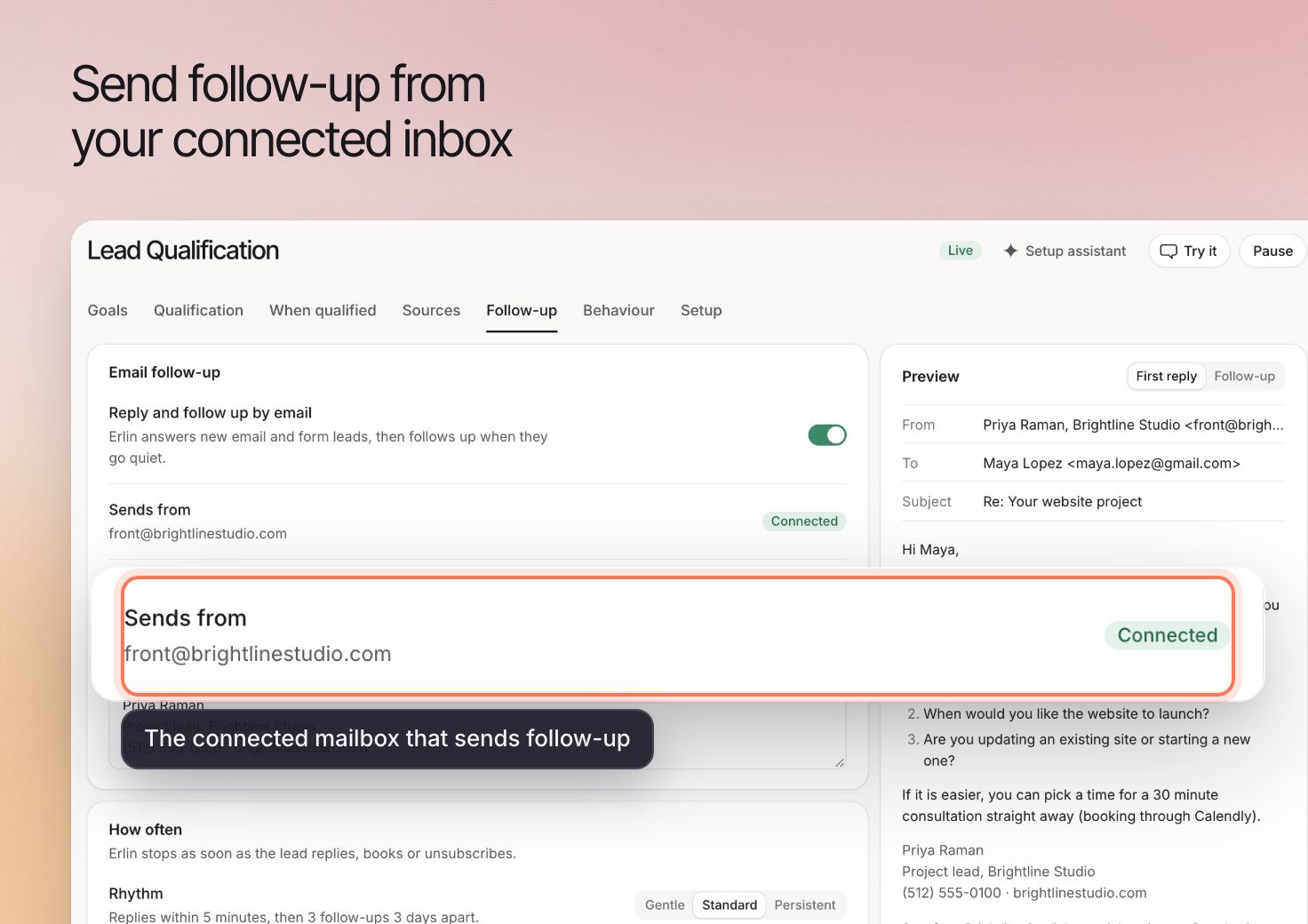
Open **Leads & Pipeline > Lead Qualification** and the **Email follow-up** tab. Turn on **Follow up by email** and pick the **Sending mailbox**. Its status should read **Connected**. Then set **Send as** and **Signature**. See [Email follow-up](https://www.erlin.ai/docs/leads/email-follow-up) for the full setup.
Lead email threads show in the Emails tab of a lead's record. See [CRM](https://www.erlin.ai/docs/leads/crm).
Connecting Email lets you read and answer your Gmail or Outlook mail in Erlin, and gives Erlin a mailbox to send lead follow-up from. The inbox is at Workspace, Email in the sidebar. Emails to and from leads also show on the lead's record.
Use this guide to connect the intended mailbox and check it before enabling email follow-up.
## 1. Choose the account your team will use
Choose a mailbox that your team can monitor and is authorized to use for lead conversations. Confirm the address before connecting it, especially if you are signed in to several Google or Microsoft accounts. Decide who will handle replies, so the next message reaches someone who can help.
## 2. Connect the mailbox
Click Integrations under Workspace in the sidebar, then the Email card in the Messaging group. You can also click Connect Gmail or Connect Outlook on the Email page when no mailbox is connected.
Gmail is for Google Workspace or a Gmail address. Outlook is for Microsoft 365 or an Outlook address.
Review the permissions on the provider's screen and approve them.
| Provider | Erlin asks to |
| --- | --- |
| Gmail | Read your email, send email on your behalf, and see your email address and profile. |
| Outlook | Sign in and stay signed in, read your profile, read your mail, send mail and read and write your mail. |
Erlin does not ask for permission to create drafts.
## 3. Confirm the connection
Open the Email card in Integrations to see each mailbox as a row with a status tag.
| Tag | Meaning | What to do |
| --- | --- | --- |
| Live sync on | New mail reaches Erlin as it arrives. | Nothing. |
| Connected | The mailbox is connected without live sync. | Click Live sync to turn it on. |
| Needs reconnect | The sign-in expired and new mail stops arriving. | Click Reconnect and sign in again. |
Each row also has Open (that mailbox's inbox) and Remove. Removing a mailbox stops Erlin reading it, and you can connect it again at any time. Confirm you are reconnecting the correct Google or Microsoft account.
## 4. Use it for lead follow-up
Open **Leads & Pipeline > Lead Qualification** and the **Email follow-up** tab. Turn on **Follow up by email** and pick the **Sending mailbox**. Its status should read **Connected**. Then set **Send as** and **Signature**. See [Email follow-up](https://www.erlin.ai/docs/leads/email-follow-up) for the full setup.
Lead email threads show in the Emails tab of a lead's record. See [CRM](https://www.erlin.ai/docs/leads/crm).
 ## 5. Check a controlled example
Use a test account you control to check the sender name, reply destination and message content before contacting leads through a new setup. Erlin stops follow-up when the lead replies, books or unsubscribes. After reconnecting a mailbox, review the lead's latest activity before restarting any follow-up, because a reply or booking may explain why a sequence has stopped.
## Use the inbox
The Email page shows your threads on the left and the open thread on the right. Click a thread to read it. The Reply to button sends from your connected mailbox in the same thread. New email takes To, optional Cc, Subject and Email, with up to 50 addresses. New mail arrives on its own, and Sync now pulls the latest straight away. A Mailbox dropdown switches between mailboxes.
## 5. Check a controlled example
Use a test account you control to check the sender name, reply destination and message content before contacting leads through a new setup. Erlin stops follow-up when the lead replies, books or unsubscribes. After reconnecting a mailbox, review the lead's latest activity before restarting any follow-up, because a reply or booking may explain why a sequence has stopped.
## Use the inbox
The Email page shows your threads on the left and the open thread on the right. Click a thread to read it. The Reply to button sends from your connected mailbox in the same thread. New email takes To, optional Cc, Subject and Email, with up to 50 addresses. New mail arrives on its own, and Sync now pulls the latest straight away. A Mailbox dropdown switches between mailboxes.