# Connect a calendar and take bookings
> Connect Google or Outlook, set your hours, create booking pages, connect Calendly or Cal.com and see how a booking closes a lead's goal.
 Calendar lets Erlin read your availability, add bookings to your calendar and give leads a booking page. Connect Google Calendar or Outlook Calendar, and when a lead qualifies, the chat offers a link to your booking page, where the lead picks an open time. Connect Calendly or Cal.com and Erlin shows their bookings and links them to your leads.
Calendar is not in the sidebar. Open **Integrations** and the Calendar group, then click a calendar card to go to the **Calendars** tab. The page's top bar reads Integrations / Calendar.
## 1. Connect Google or Outlook
On the **Calendars** tab, click **Connect Google Calendar** or **Connect Outlook Calendar**.
Sign in to the account you want Erlin to use and approve access. Erlin reads your availability and can add bookings to the calendar.
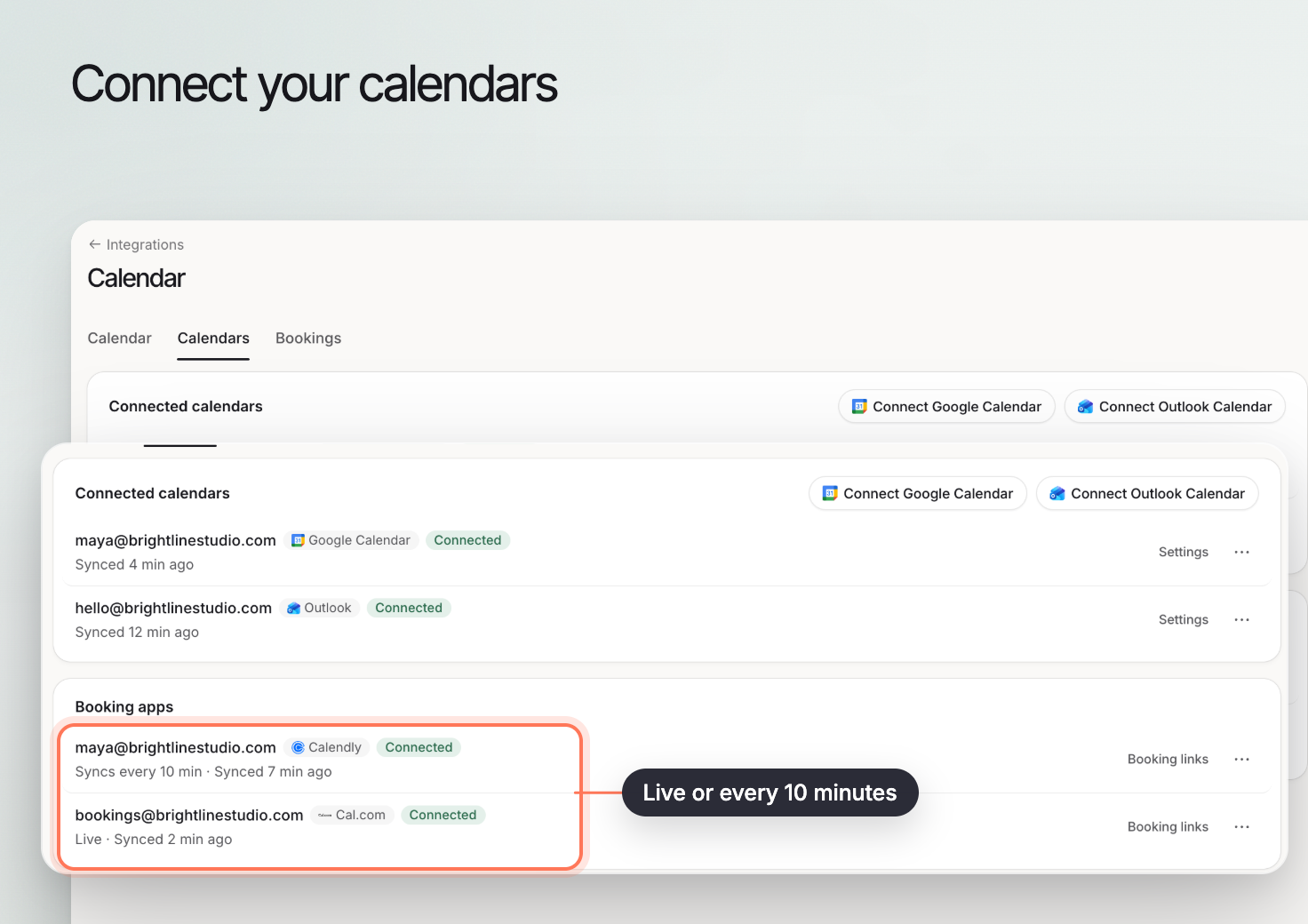
Each connected calendar shows its status, such as **Synced 3 min ago**. A calendar that has not synced recently syncs when you open the page. From a row, **Settings** opens that calendar's settings, and the menu lets you sync it or disconnect it.
To disconnect, click **Disconnect** and confirm **Disconnect this calendar?** Erlin stops reading its availability and can no longer add bookings to it. A booking page that sends bookings to it stops taking bookings until you connect another calendar.
## 2. Fix a calendar that needs reconnecting
If Erlin loses access, the calendar shows **Needs reconnecting**: "Erlin lost access to this calendar. Reconnect it to take bookings again." Click **Reconnect** and sign in again. The same tag shows on the calendar's card in Integrations, and on Calendly and Cal.com accounts.
## 3. Set your availability
In a calendar's **Settings**, open **Availability**. **Weekly hours** lists each day with its hours or **Unavailable**. Each day has one start and end time; turn a day off to mark it **Unavailable**. Set the **Timezone** and click **Save availability**. Breaks within a day can't be set here.
These are the hours leads can book. The same hours show, read only, in Lead Qualification under **When qualified**, and a chat set to office hours copies them. See [Booking](https://www.erlin.ai/docs/leads/booking) and [Website chat](https://www.erlin.ai/docs/leads/chat-widget).
If a day already has more than one time window, the day is tagged **Split hours** and saving is turned off, because saving here would remove the extra windows.
## 4. Create booking pages
In a calendar's **Settings**, open **Booking pages** and click **New booking page**. Set:
- **Title**, such as "Intro call".
- **Duration (minutes)**.
- **Add bookings to**: the calendar new bookings go on, which also sends the invite.
- **Meeting link**: **Default (a calendar that adds meeting links)**, **My own meeting link** (paste a link such as a Zoom address) or **No meeting link**.
Click **Save changes**. On each page, **Copy link** copies its booking link, and **Deactivate** turns the page off. Click **Activate** to turn it back on. A deactivated page takes no bookings, and Lead Qualification shows the chat no booking button while its page is off.
If bookings go to a calendar that cannot add a meeting link, the page warns that bookings get no join link. Edit the page to add one.
Pages marked **Chat link** are the ones Erlin offers in the website chat. Pick where Erlin books in [Booking](https://www.erlin.ai/docs/leads/booking).
## 5. What a visitor sees
A lead who opens your booking link needs no Erlin account. They pick a day and a time, enter **Your name** and **Email address**, add optional **Additional notes** and click **Schedule event**. They then see a confirmation. If a link is wrong or the person is not taking bookings, the page says "This booking link does not exist".
## 6. See and change bookings
Calendar lets Erlin read your availability, add bookings to your calendar and give leads a booking page. Connect Google Calendar or Outlook Calendar, and when a lead qualifies, the chat offers a link to your booking page, where the lead picks an open time. Connect Calendly or Cal.com and Erlin shows their bookings and links them to your leads.
Calendar is not in the sidebar. Open **Integrations** and the Calendar group, then click a calendar card to go to the **Calendars** tab. The page's top bar reads Integrations / Calendar.
## 1. Connect Google or Outlook
On the **Calendars** tab, click **Connect Google Calendar** or **Connect Outlook Calendar**.
Sign in to the account you want Erlin to use and approve access. Erlin reads your availability and can add bookings to the calendar.
Each connected calendar shows its status, such as **Synced 3 min ago**. A calendar that has not synced recently syncs when you open the page. From a row, **Settings** opens that calendar's settings, and the menu lets you sync it or disconnect it.
To disconnect, click **Disconnect** and confirm **Disconnect this calendar?** Erlin stops reading its availability and can no longer add bookings to it. A booking page that sends bookings to it stops taking bookings until you connect another calendar.
## 2. Fix a calendar that needs reconnecting
If Erlin loses access, the calendar shows **Needs reconnecting**: "Erlin lost access to this calendar. Reconnect it to take bookings again." Click **Reconnect** and sign in again. The same tag shows on the calendar's card in Integrations, and on Calendly and Cal.com accounts.
## 3. Set your availability
In a calendar's **Settings**, open **Availability**. **Weekly hours** lists each day with its hours or **Unavailable**. Each day has one start and end time; turn a day off to mark it **Unavailable**. Set the **Timezone** and click **Save availability**. Breaks within a day can't be set here.
These are the hours leads can book. The same hours show, read only, in Lead Qualification under **When qualified**, and a chat set to office hours copies them. See [Booking](https://www.erlin.ai/docs/leads/booking) and [Website chat](https://www.erlin.ai/docs/leads/chat-widget).
If a day already has more than one time window, the day is tagged **Split hours** and saving is turned off, because saving here would remove the extra windows.
## 4. Create booking pages
In a calendar's **Settings**, open **Booking pages** and click **New booking page**. Set:
- **Title**, such as "Intro call".
- **Duration (minutes)**.
- **Add bookings to**: the calendar new bookings go on, which also sends the invite.
- **Meeting link**: **Default (a calendar that adds meeting links)**, **My own meeting link** (paste a link such as a Zoom address) or **No meeting link**.
Click **Save changes**. On each page, **Copy link** copies its booking link, and **Deactivate** turns the page off. Click **Activate** to turn it back on. A deactivated page takes no bookings, and Lead Qualification shows the chat no booking button while its page is off.
If bookings go to a calendar that cannot add a meeting link, the page warns that bookings get no join link. Edit the page to add one.
Pages marked **Chat link** are the ones Erlin offers in the website chat. Pick where Erlin books in [Booking](https://www.erlin.ai/docs/leads/booking).
## 5. What a visitor sees
A lead who opens your booking link needs no Erlin account. They pick a day and a time, enter **Your name** and **Email address**, add optional **Additional notes** and click **Schedule event**. They then see a confirmation. If a link is wrong or the person is not taking bookings, the page says "This booking link does not exist".
## 6. See and change bookings
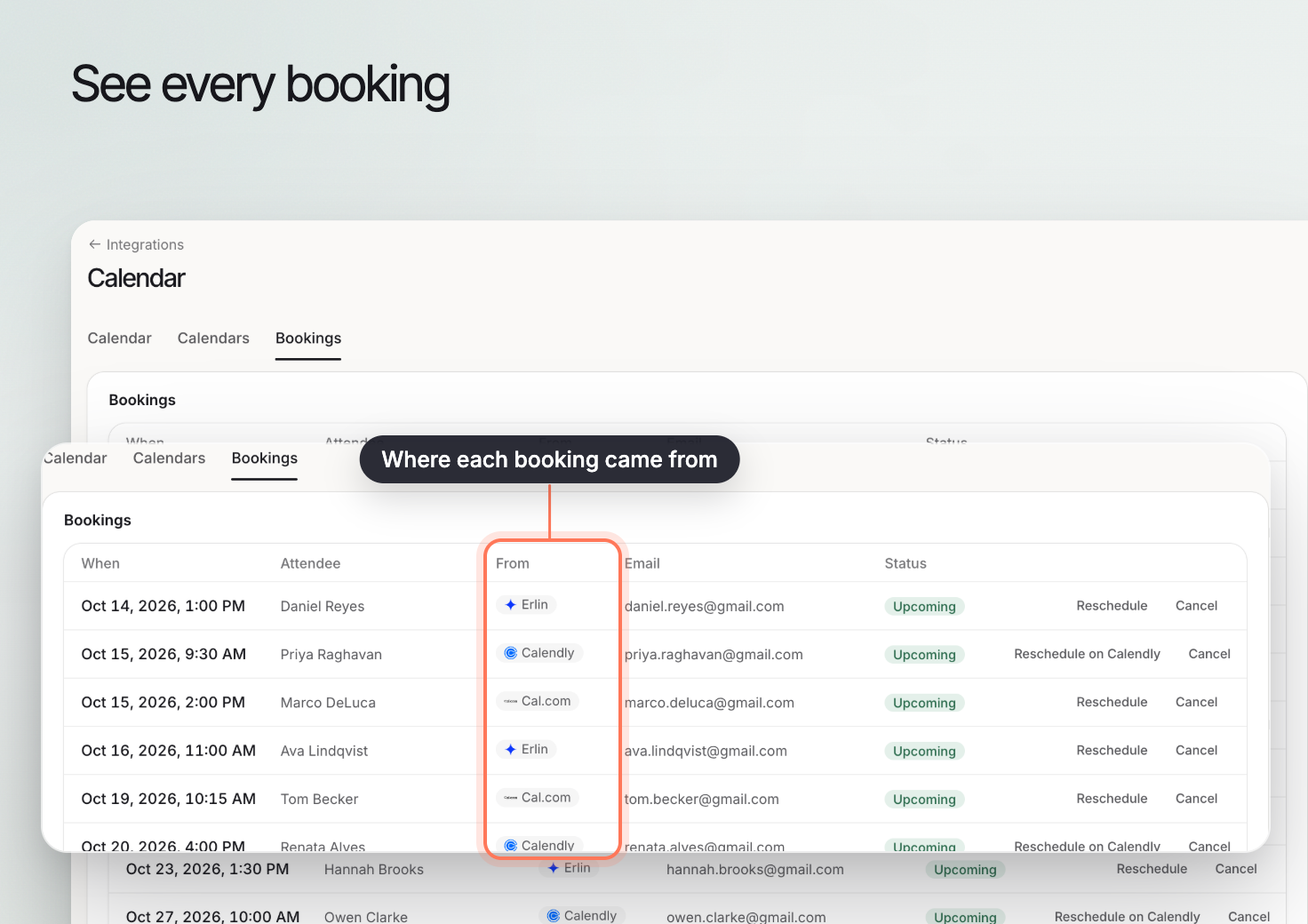 The **Bookings** tab lists bookings under **Upcoming** and **Completed**, with a **Cancelled** tag on any that were cancelled. When someone books a time with you, it shows here.
- **Cancel booking** asks "Cancel this booking?" The attendee gets a cancellation from your calendar and the time slot is freed.
- **Reschedule** lets you pick a new free time, and the attendee gets the updated invite. For a Calendly booking the button reads **Reschedule on Calendly**, and Cal.com sends the attendee the new time.
The **Calendar** tab shows your events in a **Month** or **Agenda** view.
## 7. Connect Calendly or Cal.com
Under **Booking apps** on the **Calendars** tab, click **Connect Calendly** or **Connect Cal.com** and sign in. A button shows only for an app you can connect and have not yet connected. Erlin shows their bookings on the **Bookings** tab and links each one to the matching lead in the [CRM](https://www.erlin.ai/docs/leads/crm).
Each account shows **Live** when bookings arrive as they happen, or **Syncs every 10 min** for accounts Erlin checks on a timer, such as a free Calendly plan, then when it last synced or "First sync in a few minutes". Open **Booking links** on an account to manage its links: turn **Bookable** on or off, change the **Length (minutes)**, **Location** (**In person**, **Phone call** or **My own meeting link**) and **Link ending**, and copy the link. Changing a link ending breaks links you already shared. On a free Calendly plan only one link can be bookable, so turning one on turns the other off. In the menu, **Sync now** pulls the latest, and **Disconnect** stops Erlin getting bookings (Erlin asks you to confirm). A connected account that lost access shows **Needs reconnecting** with **Reconnect**.
## 8. How a booking closes a lead's goal
When a lead books on your Erlin booking page, or through a connected Calendly or Cal.com account, Erlin links the booking to the lead by their email address and closes the lead's goal as achieved. In the CRM the lead shows the meeting, with its time and **Join meeting**. If the lead cancels the meeting that closed the goal, the goal reopens. See [Lead Qualification](https://www.erlin.ai/docs/leads/lead-qualification).
## Related
Offer your booking link when a lead qualifies.
See each lead's meeting.
The **Bookings** tab lists bookings under **Upcoming** and **Completed**, with a **Cancelled** tag on any that were cancelled. When someone books a time with you, it shows here.
- **Cancel booking** asks "Cancel this booking?" The attendee gets a cancellation from your calendar and the time slot is freed.
- **Reschedule** lets you pick a new free time, and the attendee gets the updated invite. For a Calendly booking the button reads **Reschedule on Calendly**, and Cal.com sends the attendee the new time.
The **Calendar** tab shows your events in a **Month** or **Agenda** view.
## 7. Connect Calendly or Cal.com
Under **Booking apps** on the **Calendars** tab, click **Connect Calendly** or **Connect Cal.com** and sign in. A button shows only for an app you can connect and have not yet connected. Erlin shows their bookings on the **Bookings** tab and links each one to the matching lead in the [CRM](https://www.erlin.ai/docs/leads/crm).
Each account shows **Live** when bookings arrive as they happen, or **Syncs every 10 min** for accounts Erlin checks on a timer, such as a free Calendly plan, then when it last synced or "First sync in a few minutes". Open **Booking links** on an account to manage its links: turn **Bookable** on or off, change the **Length (minutes)**, **Location** (**In person**, **Phone call** or **My own meeting link**) and **Link ending**, and copy the link. Changing a link ending breaks links you already shared. On a free Calendly plan only one link can be bookable, so turning one on turns the other off. In the menu, **Sync now** pulls the latest, and **Disconnect** stops Erlin getting bookings (Erlin asks you to confirm). A connected account that lost access shows **Needs reconnecting** with **Reconnect**.
## 8. How a booking closes a lead's goal
When a lead books on your Erlin booking page, or through a connected Calendly or Cal.com account, Erlin links the booking to the lead by their email address and closes the lead's goal as achieved. In the CRM the lead shows the meeting, with its time and **Join meeting**. If the lead cancels the meeting that closed the goal, the goal reopens. See [Lead Qualification](https://www.erlin.ai/docs/leads/lead-qualification).
## Related
Offer your booking link when a lead qualifies.
See each lead's meeting.