# Run your first prompts
> Add the questions your buyers ask AI, run the first checks and move from a first answer to a recommendation worth acting on.
 Your first prompt run shows how the selected AI platforms answer questions relevant to your business. Erlin records the answers. Recommendations need more history: see step 6.
Start with a small set of questions you are ready to investigate. The aim is to understand a useful buying decision and choose a next action.
## Before you start
[Set up your brand](https://www.erlin.ai/docs/get-started/set-up-your-brand) and check the business information Erlin will use. Confirm the business name, website and services before reviewing suggestions.
## 1. Choose a customer decision
Pick a product or service and a decision a customer needs to make.
For a website design business, that might be choosing an agency to redesign an online store. Relevant questions could concern experience, project requirements or providers in the customer's market.
Write questions naturally. Avoid putting your brand into every question unless you specifically want to investigate answers about your brand.
## 2. Add your questions or review suggestions
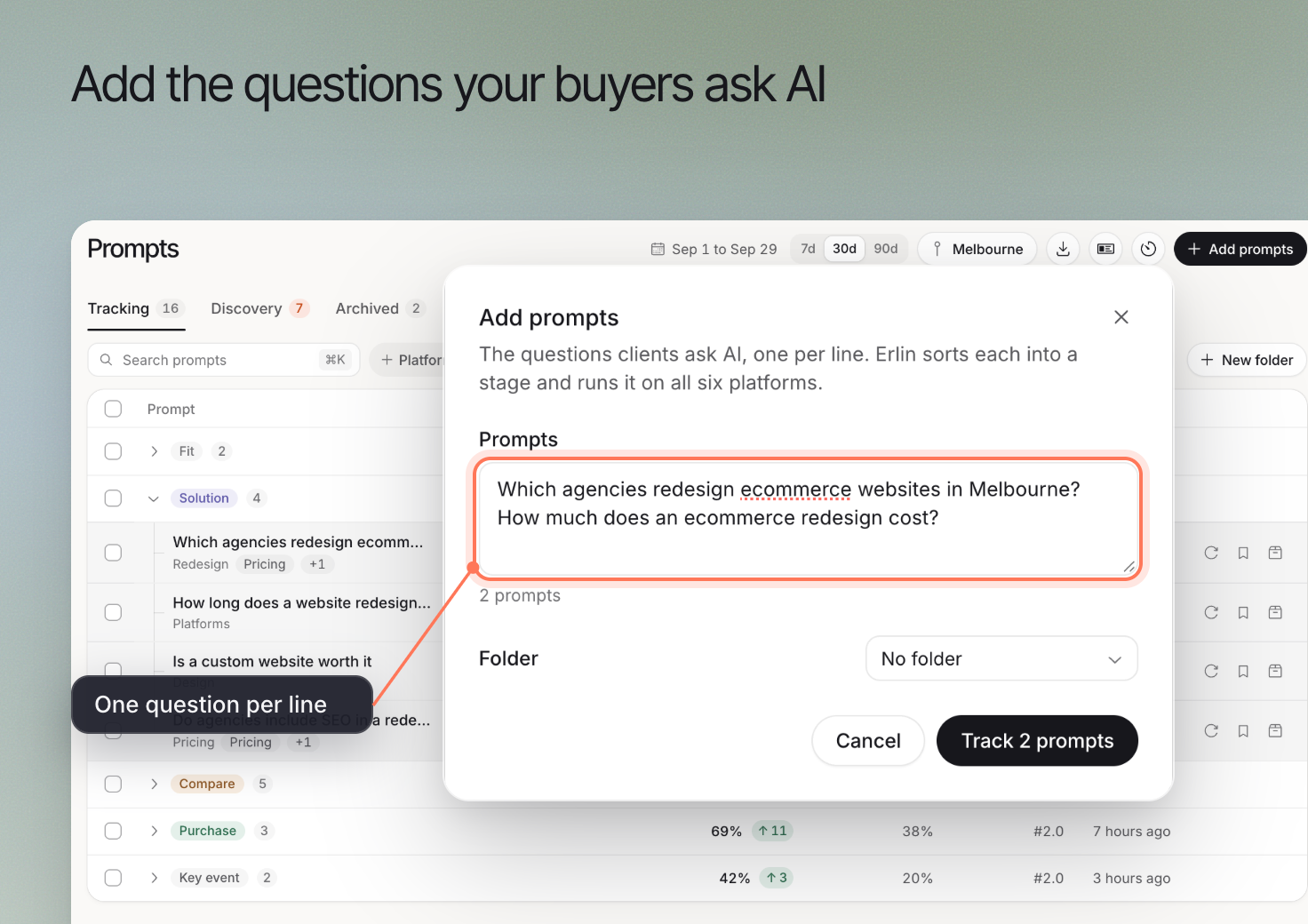
Open **AI Visibility > Prompts** and choose **Add prompts** to enter your own questions.
Alternatively, open **Discovery** and review the suggestions for your business. Read the question and its reason before selecting **Track**.
Prompt Discovery uses partner data and Erlin's algorithm to recommend prompts and estimate demand. The estimate helps you choose what to track; the run collects the actual answers.
## 3. Review the run settings
Open the platforms button in the Prompts header (it reads, for example, **2 platforms**) to see **Run prompts on**. Tick the platforms you want and click **Save**. At least one must stay on. Platforms your plan does not include are locked.
| Plan | AI platforms |
| --- | --- |
| Free | ChatGPT, Gemini |
| Starter | ChatGPT, Perplexity |
| Standard | ChatGPT, Perplexity, Gemini |
| Pro | ChatGPT, Perplexity, Gemini, Claude, Google AI Overview, Google AI Mode |
| Enterprise | ChatGPT, Perplexity, Gemini, Claude, Google AI Overview, Google AI Mode |
Checks run from your brand's office locations. With two or more locations, **Run prompts from** lets you choose which ones.
Each run costs 2 credits per prompt per platform that answered. For example, 5 prompts on 2 platforms cost 5 x 2 x 2 = 20 credits. If you do not have enough credits for the whole run, Erlin does not start it. See [Credits](https://www.erlin.ai/docs/settings/credits).
When you track your first prompts, Erlin turns on a **Monthly** schedule. To change it, click the **Schedule** button in the Prompts header, set **Run** to **Weekly**, **Every 2 weeks**, **Monthly** or **Off**, choose a **Time** and click **Save schedule**. Scheduled runs cost credits like manual ones.
See [Run and organize tracked prompts](https://www.erlin.ai/docs/ai-visibility/prompts/tracking) for the detailed workflow.
## 4. Run the checks
Your prompts run as soon as you track them. To run again, click **Re-run now** on one prompt's row, select several prompts and click **Re-run**, or click **Run scan** on Home to run every tracked prompt (Erlin asks you to confirm, because it uses credits). Open completed results as they become available.
A pending or failed check is not evidence that your brand was absent from an answer. If something does not complete, check the displayed status before trying again.
Your first prompt run shows how the selected AI platforms answer questions relevant to your business. Erlin records the answers. Recommendations need more history: see step 6.
Start with a small set of questions you are ready to investigate. The aim is to understand a useful buying decision and choose a next action.
## Before you start
[Set up your brand](https://www.erlin.ai/docs/get-started/set-up-your-brand) and check the business information Erlin will use. Confirm the business name, website and services before reviewing suggestions.
## 1. Choose a customer decision
Pick a product or service and a decision a customer needs to make.
For a website design business, that might be choosing an agency to redesign an online store. Relevant questions could concern experience, project requirements or providers in the customer's market.
Write questions naturally. Avoid putting your brand into every question unless you specifically want to investigate answers about your brand.
## 2. Add your questions or review suggestions
Open **AI Visibility > Prompts** and choose **Add prompts** to enter your own questions.
Alternatively, open **Discovery** and review the suggestions for your business. Read the question and its reason before selecting **Track**.
Prompt Discovery uses partner data and Erlin's algorithm to recommend prompts and estimate demand. The estimate helps you choose what to track; the run collects the actual answers.
## 3. Review the run settings
Open the platforms button in the Prompts header (it reads, for example, **2 platforms**) to see **Run prompts on**. Tick the platforms you want and click **Save**. At least one must stay on. Platforms your plan does not include are locked.
| Plan | AI platforms |
| --- | --- |
| Free | ChatGPT, Gemini |
| Starter | ChatGPT, Perplexity |
| Standard | ChatGPT, Perplexity, Gemini |
| Pro | ChatGPT, Perplexity, Gemini, Claude, Google AI Overview, Google AI Mode |
| Enterprise | ChatGPT, Perplexity, Gemini, Claude, Google AI Overview, Google AI Mode |
Checks run from your brand's office locations. With two or more locations, **Run prompts from** lets you choose which ones.
Each run costs 2 credits per prompt per platform that answered. For example, 5 prompts on 2 platforms cost 5 x 2 x 2 = 20 credits. If you do not have enough credits for the whole run, Erlin does not start it. See [Credits](https://www.erlin.ai/docs/settings/credits).
When you track your first prompts, Erlin turns on a **Monthly** schedule. To change it, click the **Schedule** button in the Prompts header, set **Run** to **Weekly**, **Every 2 weeks**, **Monthly** or **Off**, choose a **Time** and click **Save schedule**. Scheduled runs cost credits like manual ones.
See [Run and organize tracked prompts](https://www.erlin.ai/docs/ai-visibility/prompts/tracking) for the detailed workflow.
## 4. Run the checks
Your prompts run as soon as you track them. To run again, click **Re-run now** on one prompt's row, select several prompts and click **Re-run**, or click **Run scan** on Home to run every tracked prompt (Erlin asks you to confirm, because it uses credits). Open completed results as they become available.
A pending or failed check is not evidence that your brand was absent from an answer. If something does not complete, check the displayed status before trying again.
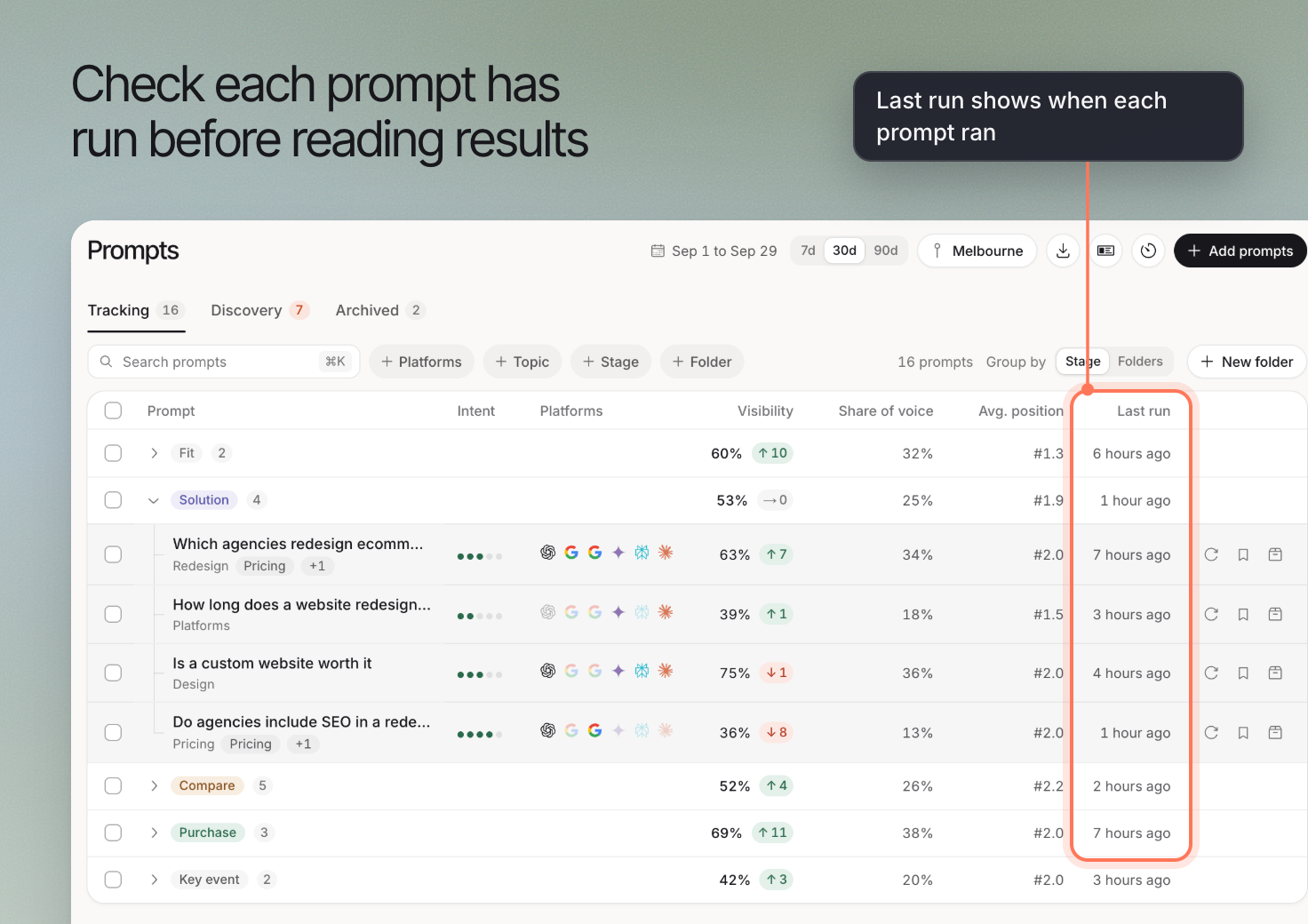 ## 5. Read an answer before judging the summary
Open one prompt and read the answer from a selected platform. Check whether it names your business, which other businesses it mentions and which sources it cites.
A summary helps you find questions worth investigating. The answer explains what happened in that particular check.
Use [Read a prompt's answers and results](https://www.erlin.ai/docs/ai-visibility/prompts/prompt-details) for the next step.
## 6. Choose a recommendation to investigate
Erlin suggests tasks once each prompt has run at least 4 times on different days in the last 90 days and you have picked competitors. Until then, **Find new tasks** is off and says, for example, "Run your prompts at least 4 times first (3 of 12 ready)." After that, tasks also appear automatically after a scheduled run or a single-prompt run. Finding tasks costs no credits.
Open a recommendation that matters to the service or product you chose. Read the supporting evidence, check the relevant pages and decide whether the proposed action is useful.
## 5. Read an answer before judging the summary
Open one prompt and read the answer from a selected platform. Check whether it names your business, which other businesses it mentions and which sources it cites.
A summary helps you find questions worth investigating. The answer explains what happened in that particular check.
Use [Read a prompt's answers and results](https://www.erlin.ai/docs/ai-visibility/prompts/prompt-details) for the next step.
## 6. Choose a recommendation to investigate
Erlin suggests tasks once each prompt has run at least 4 times on different days in the last 90 days and you have picked competitors. Until then, **Find new tasks** is off and says, for example, "Run your prompts at least 4 times first (3 of 12 ready)." After that, tasks also appear automatically after a scheduled run or a single-prompt run. Finding tasks costs no credits.
Open a recommendation that matters to the service or product you chose. Read the supporting evidence, check the relevant pages and decide whether the proposed action is useful.
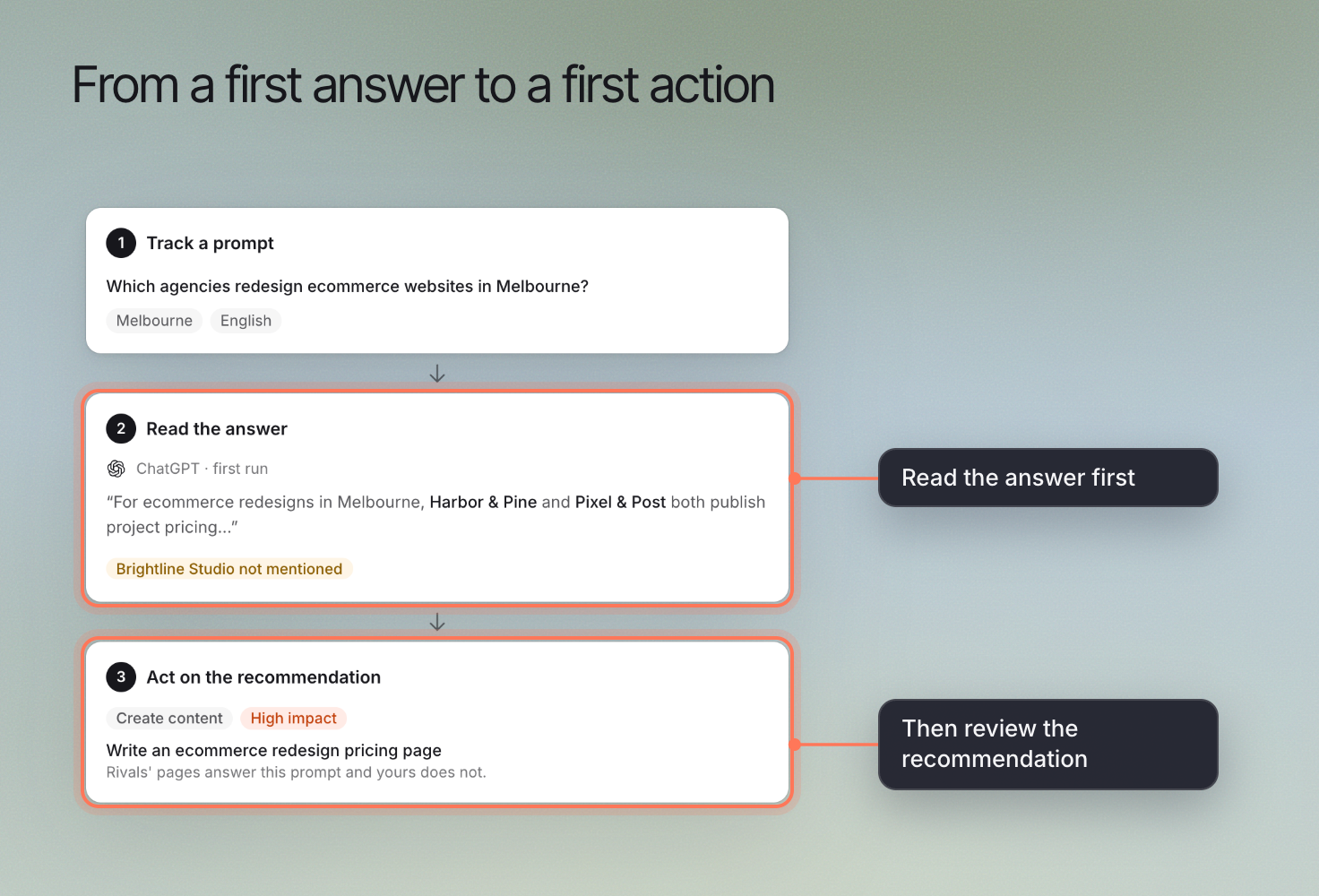 Continue with [Turn recommendations into actions](https://www.erlin.ai/docs/opportunities/opportunity-and-action). Use later runs to reassess the same questions and understand whether the answers change.