# Get help with Hey Erlin
> Hey Erlin is the assistant in Erlin's top bar: chat with Erlin about your brand's own data, send feedback to the Erlin team, and follow up on what you sent.
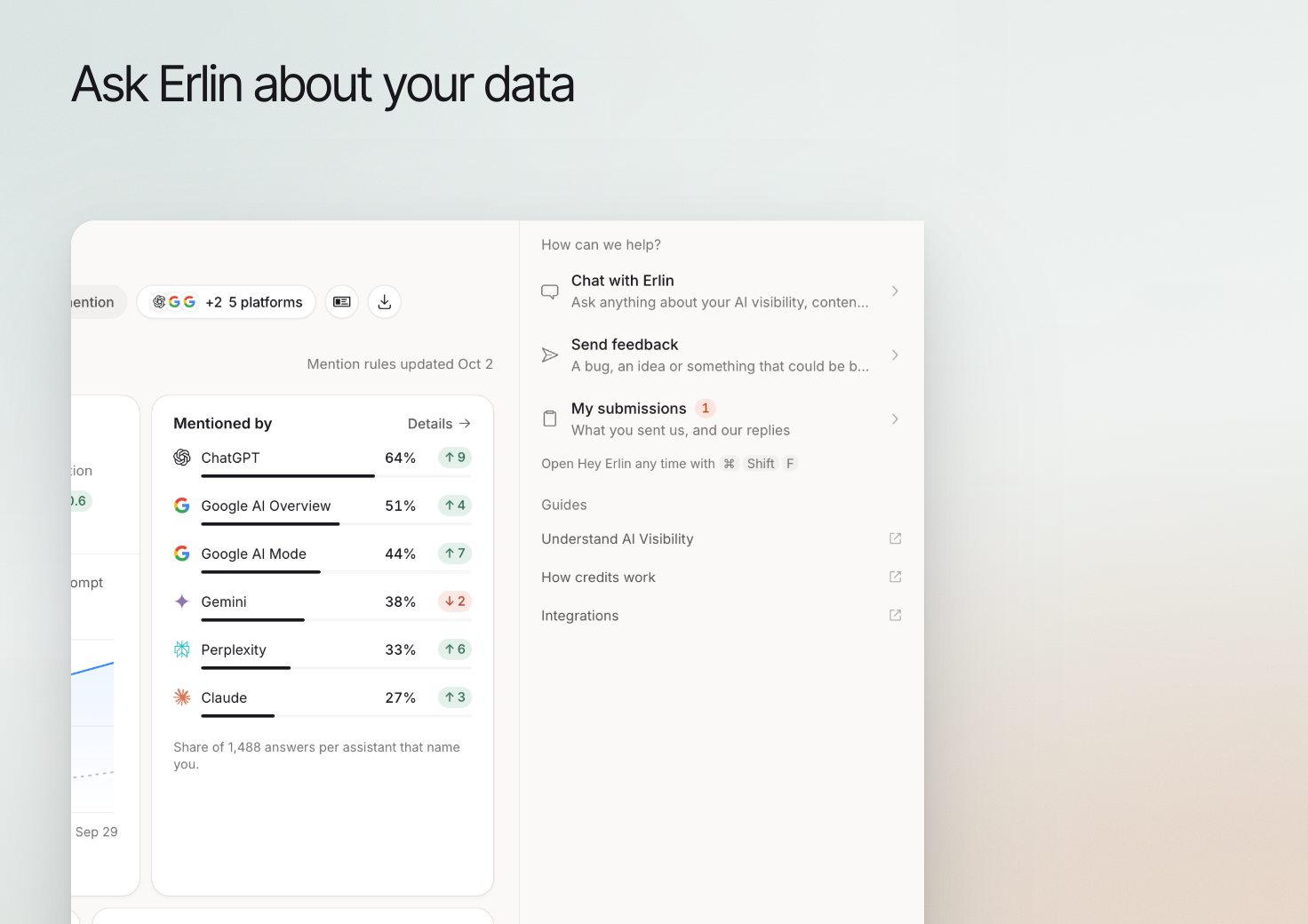 Use **Hey Erlin** to ask questions about your brand's data and work in Erlin. A useful question names the business task and the evidence you want to understand.
Check the active brand before asking about a result or planning a change.
## Ask a specific question
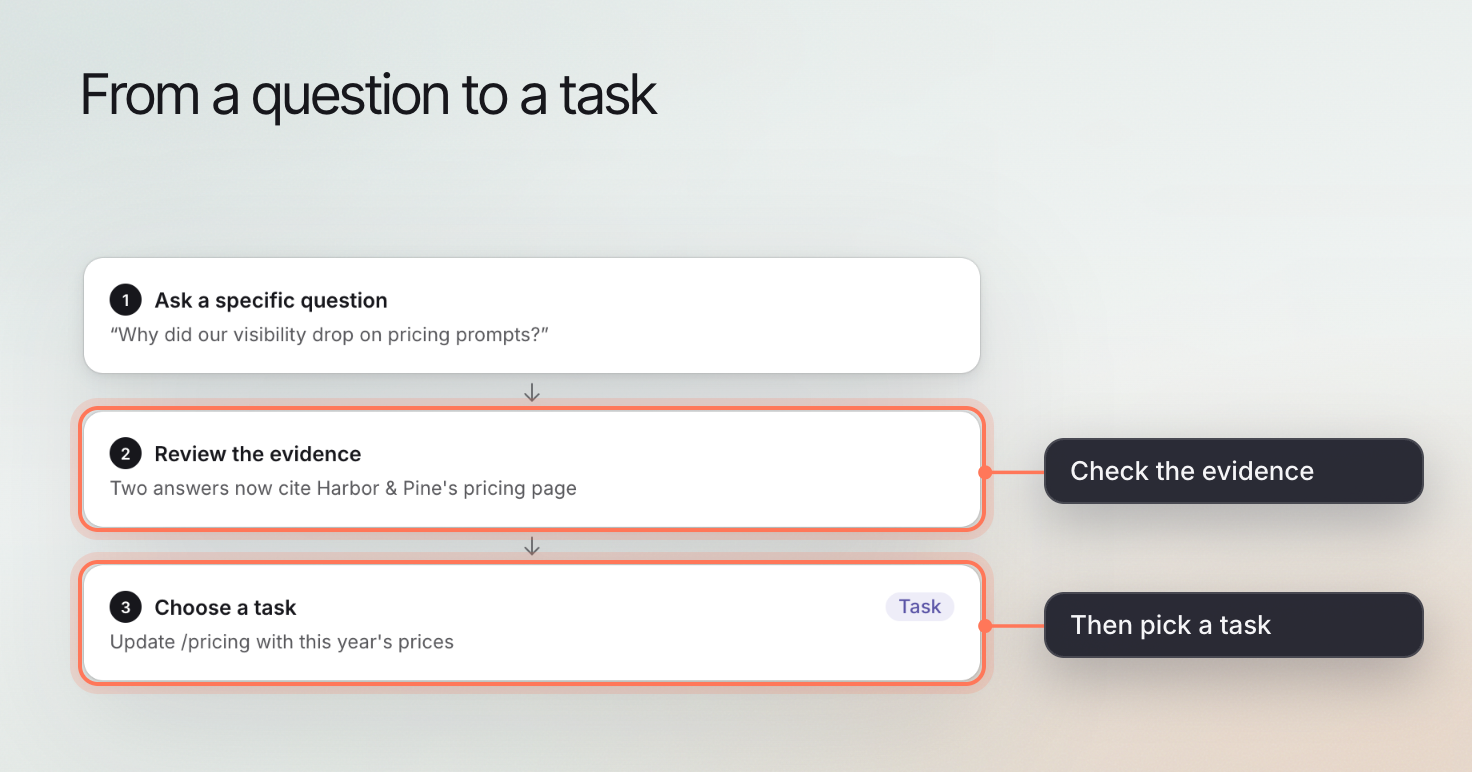
Click the **Hey Erlin** button at the right of the top bar, or press Cmd + Shift + F on a Mac (Ctrl + Shift + F on Windows), and choose **Chat with Erlin**. Describe the task in plain language. Include the period or topic when it matters.
For example:
- Which tracked questions should I investigate for this service?
- What information is missing from our business description?
- Help me review the questions we ask before booking a consultation.
These are example requests, not fixed commands or promises that every dataset is connected. Chatting uses no credits. Hey Erlin is read-only: it cannot change settings, run or re-run prompts, edit content or complete tasks, and it only sees the brand you have open.
## Review the answer against its evidence
Read the returned explanation and open the relevant record when available. Check the brand, reporting period and source before relying on a number.
If a connection or result is missing, complete that setup or narrow the question. Do not treat a fluent answer as proof that unavailable data was measured.
## Turn the answer into the next step
Use the response to identify the relevant guide or product area. For visibility, review [Prompt details](https://www.erlin.ai/docs/ai-visibility/prompts/prompt-details). For inquiries, review [qualification setup](https://www.erlin.ai/docs/leads/lead-qualification). For writing, check [brand knowledge](https://www.erlin.ai/docs/brand/knowledge) before drafting.
Use **Hey Erlin** to ask questions about your brand's data and work in Erlin. A useful question names the business task and the evidence you want to understand.
Check the active brand before asking about a result or planning a change.
## Ask a specific question
Click the **Hey Erlin** button at the right of the top bar, or press Cmd + Shift + F on a Mac (Ctrl + Shift + F on Windows), and choose **Chat with Erlin**. Describe the task in plain language. Include the period or topic when it matters.
For example:
- Which tracked questions should I investigate for this service?
- What information is missing from our business description?
- Help me review the questions we ask before booking a consultation.
These are example requests, not fixed commands or promises that every dataset is connected. Chatting uses no credits. Hey Erlin is read-only: it cannot change settings, run or re-run prompts, edit content or complete tasks, and it only sees the brand you have open.
## Review the answer against its evidence
Read the returned explanation and open the relevant record when available. Check the brand, reporting period and source before relying on a number.
If a connection or result is missing, complete that setup or narrow the question. Do not treat a fluent answer as proof that unavailable data was measured.
## Turn the answer into the next step
Use the response to identify the relevant guide or product area. For visibility, review [Prompt details](https://www.erlin.ai/docs/ai-visibility/prompts/prompt-details). For inquiries, review [qualification setup](https://www.erlin.ai/docs/leads/lead-qualification). For writing, check [brand knowledge](https://www.erlin.ai/docs/brand/knowledge) before drafting.
 ## Contact the team about a problem
Click **Send feedback** in the Hey Erlin panel when something is broken or confusing. Pick a **Type** (**Bug**, **Idea**, **Hard to use**, **Feedback** or **Other**), add a **Title** and **Details**, and describe what you expected and what happened. You can attach up to 10 screenshots (PNG, JPEG or WebP, up to 5 MB each).
The team replies under **My submissions**, where each request shows its status: **Open**, **Seen**, **In progress**, **Resolved** or **Closed**. You can also see them in [Support](https://www.erlin.ai/docs/settings/support), or email help@erlin.ai.
Keep private credentials out of chat and support attachments.
## Contact the team about a problem
Click **Send feedback** in the Hey Erlin panel when something is broken or confusing. Pick a **Type** (**Bug**, **Idea**, **Hard to use**, **Feedback** or **Other**), add a **Title** and **Details**, and describe what you expected and what happened. You can attach up to 10 screenshots (PNG, JPEG or WebP, up to 5 MB each).
The team replies under **My submissions**, where each request shows its status: **Open**, **Seen**, **In progress**, **Resolved** or **Closed**. You can also see them in [Support](https://www.erlin.ai/docs/settings/support), or email help@erlin.ai.
Keep private credentials out of chat and support attachments.